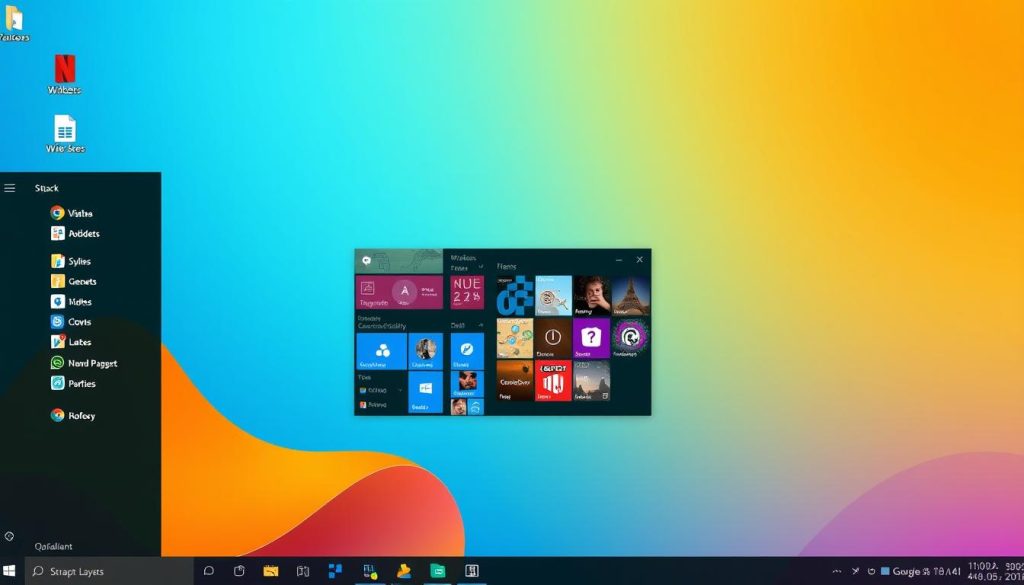
Windows 11 represents Microsoft’s most significant OS update in years, bringing a refreshed interface and powerful new features. Whether you’ve recently upgraded or have been using it for a while, mastering these Windows 11 tips can dramatically improve your workflow and help you customize the experience to your preferences. This guide covers everything from essential productivity hacks to hidden features that even tech-savvy users might have missed.
Table of Contents:
Essential Productivity Hacks for Windows 11
These productivity-focused Windows 11 tips will help you work more efficiently and get more done in less time.
1. Master Snap Layouts for Window Management
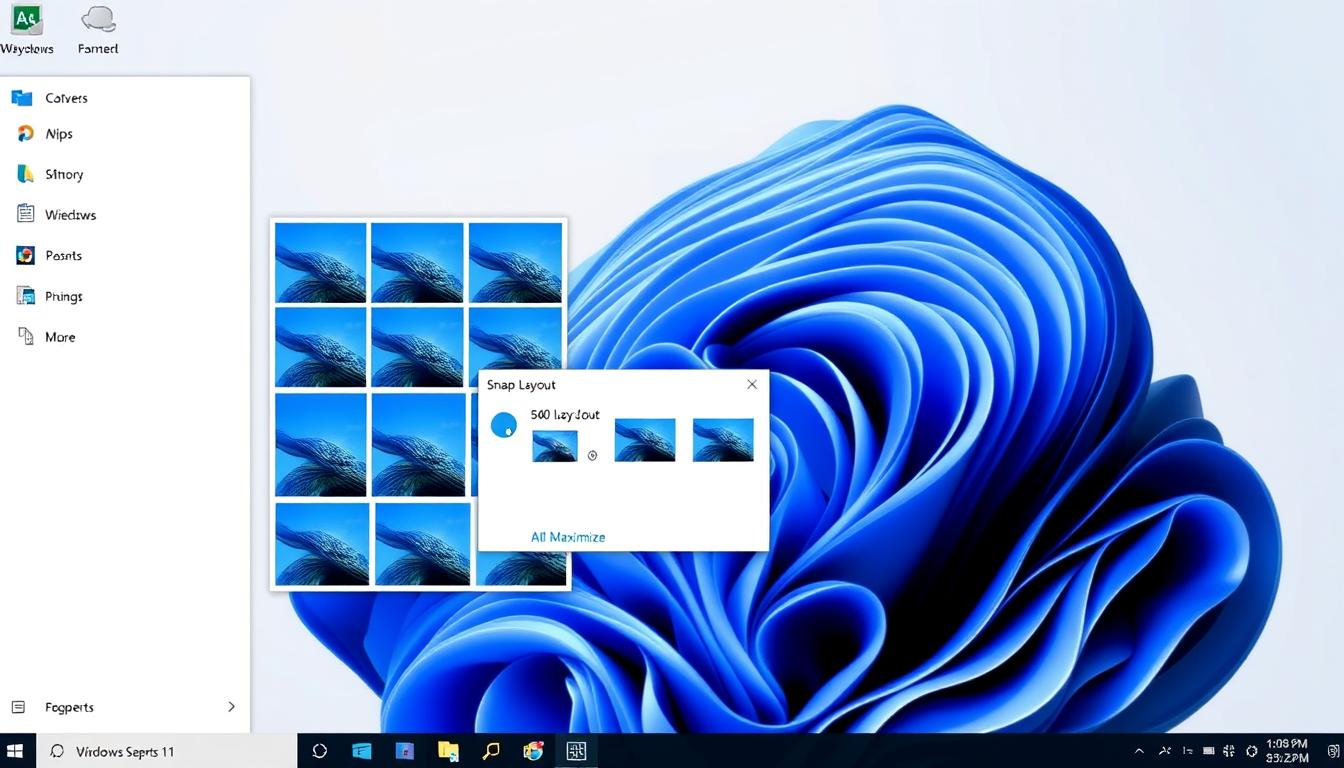
Windows 11 enhances the window snapping feature with customizable layouts that boost multitasking efficiency. To use Snap Layouts:
- Hover over a window’s maximize button to see layout options
- Drag a window to the top of the screen to view layout choices
- Use Windows key + Z to open the Snap Layouts menu
- Try Windows key + arrow keys for quick window positioning
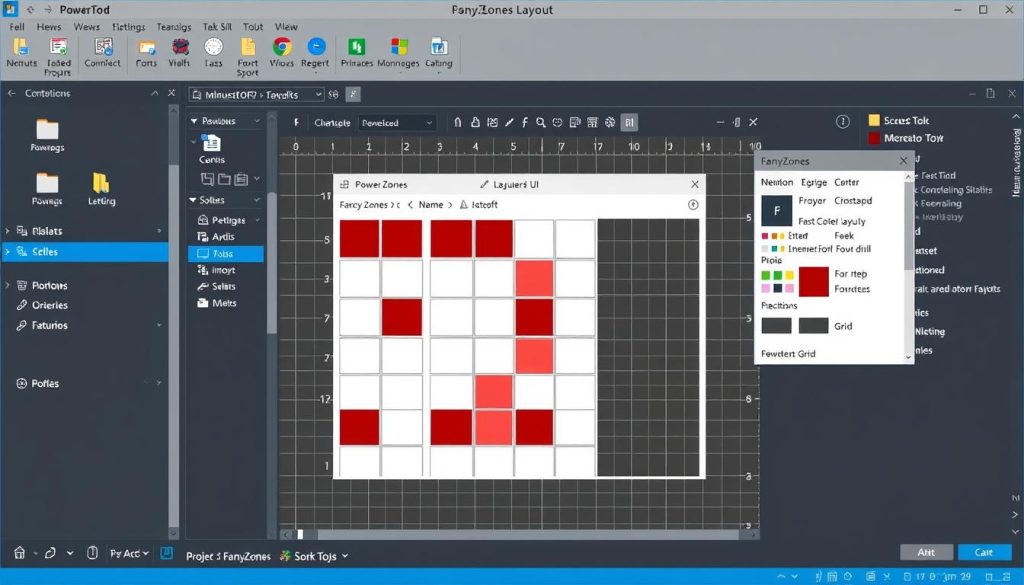
For power users, you can create custom layouts using PowerToys FancyZones for even more flexibility with your window arrangements.
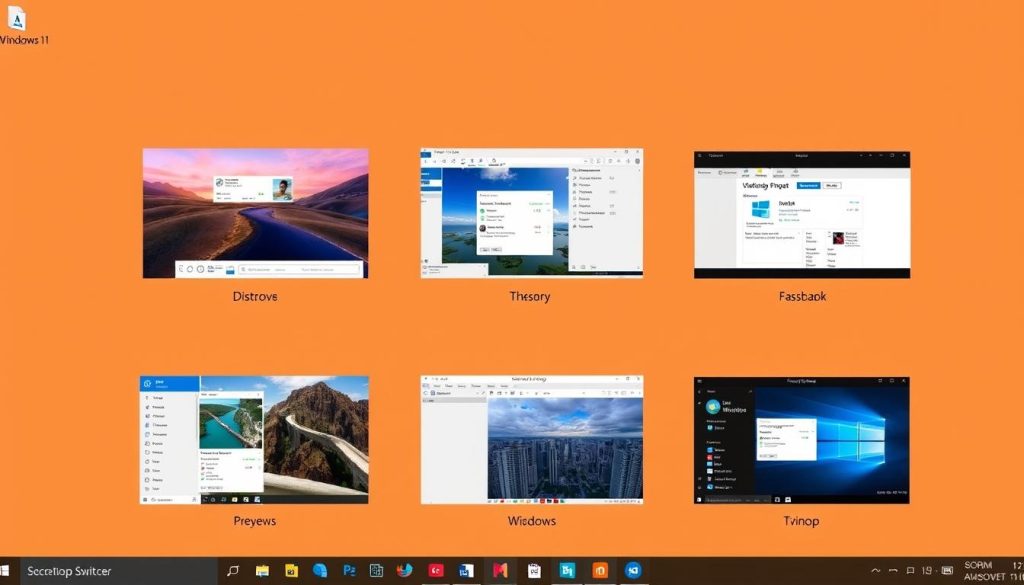
2. Utilize Virtual Desktops Effectively
Virtual desktops help separate your work and personal activities for better focus:
- Press Windows key + Tab to open Task View
- Click the + button to add a new desktop
- Press Windows key + Ctrl + Left/Right arrows to switch between desktops
- Right-click a desktop in Task View to rename it or change its background
3. Use Focus Sessions to Minimize Distractions
Windows 11’s Focus Sessions feature helps you stay on task:
- Open the Clock app and select Focus sessions
- Set a timer for your work session (25-50 minutes recommended)
- Enable Do Not Disturb mode to block notifications
- Connect your Spotify account to play focus music (optional)
- Track your daily focus goals and streaks
Boost Your Productivity Further
Want to take your Windows 11 productivity to the next level? Download our free Windows 11 Productivity Checklist with all these tips and more in a printable format.
Customization Tricks to Make Windows 11 Your Own
Personalize your Windows 11 experience with these customization tips that help you create a more comfortable and efficient workspace.

4. Customize the Start Menu
Make the Start menu work better for your workflow:
- Right-click on apps to pin or unpin them from the Start menu
- Drag app icons to rearrange them or create folders
- Go to Settings > Personalization > Start to adjust what appears
- Move the Start button back to the left: Settings > Personalization > Taskbar > Taskbar behaviors
5. Enable Dark Mode for Reduced Eye Strain
Dark mode can make long computer sessions more comfortable:
- Go to Settings > Personalization > Colors
- Under “Choose your mode,” select Dark
- For more flexibility, choose Custom to have dark mode for Windows but light mode for apps (or vice versa)
- Schedule dark mode to activate automatically at sunset using the Night light feature
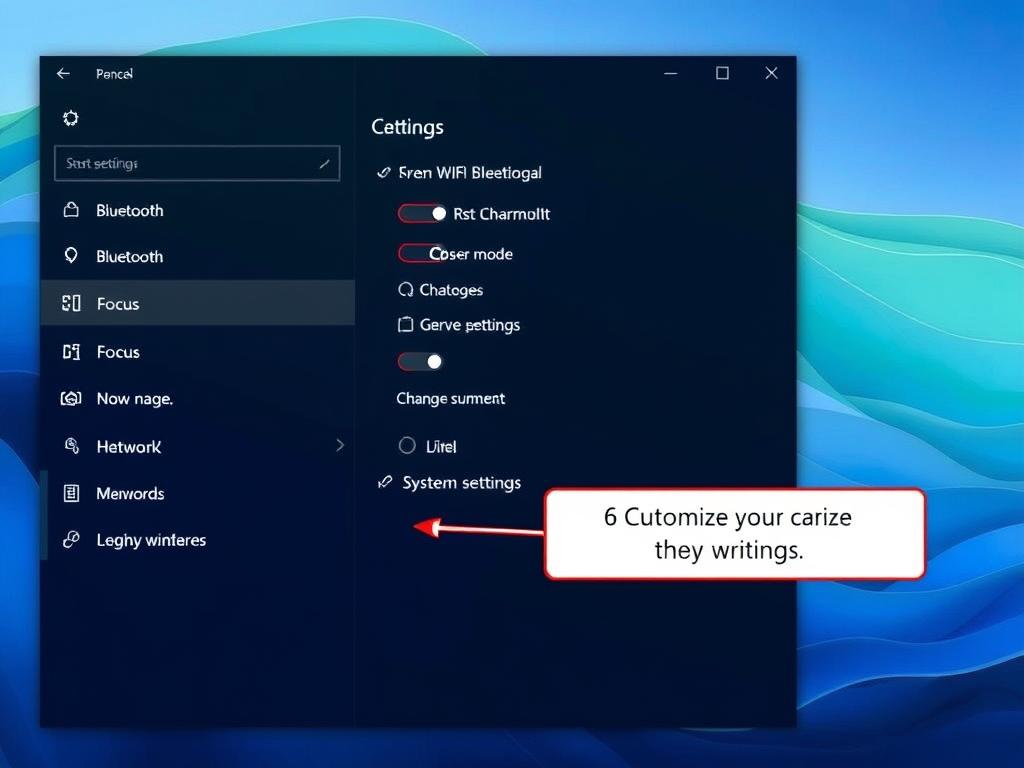
6. Customize Quick Settings
Tailor the Quick Settings panel to include the controls you use most:
- Click the Wi-Fi, volume, or battery icons in the taskbar to open Quick Settings
- Click the pencil icon to edit
- Add or remove settings like Bluetooth, Airplane mode, or Focus assist
- Rearrange items by dragging them to your preferred position
10 Essential Keyboard Shortcuts for Windows 11
Master these keyboard shortcuts to navigate Windows 11 faster and boost your productivity.
| Shortcut | Action |
| Windows + Z | Open Snap Layouts menu |
| Windows + W | Open Widgets panel |
| Windows + A | Open Quick Settings |
| Windows + N | Open notification center |
| Windows + Ctrl + C | Turn on color filters (for accessibility) |
| Windows + Shift + S | Take a screenshot with Snipping Tool |
| Windows + V | Open clipboard history |
| Windows + Period (.) | Open emoji and symbols panel |
| Windows + Ctrl + D | Create new virtual desktop |
| Alt + Tab | Switch between open applications |

Performance Optimization Tips for Windows 11
Make your Windows 11 experience faster and more responsive with these optimization tips.
11. Adjust Power Settings for Better Performance
Optimize your power settings for performance or battery life:
- Search for “power plan” in the Start menu
- Select “Choose a power plan” from the results
- Choose “High performance” for maximum speed (desktop PCs)
- Select “Balanced” for a good mix of performance and efficiency
- Click “Change plan settings” > “Change advanced power settings” for more options

12. Manage Startup Programs
Control which applications launch at startup to improve boot times:
- Press Ctrl + Shift + Esc to open Task Manager
- Click the “Startup” tab
- Disable unnecessary applications by right-clicking and selecting “Disable”
- Check the “Startup impact” column to identify resource-heavy programs
13. Enable Storage Sense for Automatic Cleanup
Keep your drive clean automatically with Storage Sense:
- Go to Settings > System > Storage
- Toggle on Storage Sense
- Click “Storage Sense” to configure when and what to clean up
- Set it to run during low disk space or on a schedule
Keep Your PC Running Smoothly
Want to maintain peak performance? Download our Windows 11 Optimization Guide with step-by-step instructions for keeping your system fast and responsive.
Security and Privacy Enhancements
Protect your data and privacy with these important Windows 11 security tips.
14. Review Your Privacy Settings
Take control of what data Windows collects:
- Go to Settings > Privacy & Security
- Review each category (Location, Camera, Microphone, etc.)
- Under General, disable advertising ID and tracking
- In Diagnostics & feedback, limit data collection to “Required”

15. Set Up Windows Hello for Secure Sign-in
Use biometric authentication for better security:
- Go to Settings > Accounts > Sign-in options
- Set up Windows Hello Face, Fingerprint, or PIN
- Enable dynamic lock to automatically lock your PC when you walk away (if paired with a phone)
- Consider requiring additional authentication for sensitive actions
Widgets and Integration Features
Make the most of Windows 11’s connectivity and information features.
16. Customize Your Widgets Panel
The Widgets panel provides quick access to information:
- Press Windows key + W to open the Widgets panel
- Click your profile picture to sign in for personalized content
- Click the “Add widgets” button to customize your panel
- Rearrange widgets by dragging them to your preferred position
- Click the three dots on any widget to resize or remove it

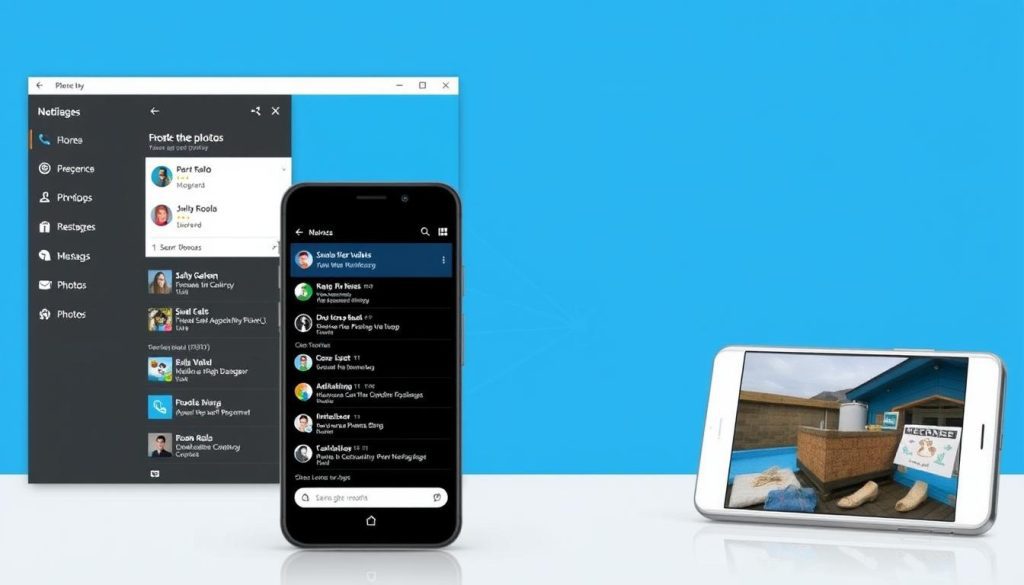
17. Connect Your Phone to Windows
Link your smartphone with Windows 11 for seamless integration:
- Open the Phone Link app (previously called Your Phone)
- Sign in with your Microsoft account
- Follow the instructions to pair your Android or iPhone
- View notifications, photos, and messages from your phone on your PC
- Make and receive calls directly from your computer (Android only)
Frequently Asked Questions About Windows 11
Is Windows 11 free to download?
Windows 11 is free for eligible Windows 10 users. Your PC must meet the minimum system requirements, including TPM 2.0 and a compatible processor. You can check eligibility using the PC Health Check app from Microsoft.
How do I revert to Windows 10 if I don’t like Windows 11?
You can roll back to Windows 10 within 10 days of upgrading by going to Settings > System > Recovery and selecting “Go back.” After 10 days, you’ll need to perform a clean installation of Windows 10.
What are the minimum system requirements for Windows 11?
Windows 11 requires a compatible 64-bit processor (1 GHz or faster with 2+ cores), 4GB RAM, 64GB storage, UEFI secure boot, TPM version 2.0, and a DirectX 12 compatible graphics card with a WDDM 2.0 driver.
Can I customize the taskbar in Windows 11?
Yes, you can customize the taskbar by right-clicking on it and selecting Taskbar settings. You can change its position (center or left-aligned), show or hide certain icons, and adjust other behaviors. However, Windows 11 offers fewer taskbar customization options than Windows 10.
Mastering Windows 11: Next Steps
Windows 11 offers a wealth of features that can significantly improve your productivity and computing experience. By implementing these Windows 11 tips and tricks, you’ll be able to navigate the new interface more efficiently, customize your workspace to your preferences, and take advantage of powerful new capabilities.
Remember that mastering a new operating system takes time. Start with the tips that address your most immediate needs, then gradually explore more advanced features as you become comfortable with the basics.
Stay Updated with Windows 11 Tips
Microsoft regularly updates Windows 11 with new features and improvements. Subscribe to our newsletter to receive the latest Windows 11 tips, tricks, and update information directly in your inbox.