

Your site could be losing visitors every second it takes to load. Studies show that a one-second delay in page load time can reduce conversions by seven percent. When users click on your site and wait more than three seconds, over half of them leave before seeing your content.
Speed is not just about user satisfaction anymore. Google officially considers page speed a ranking factor in search results. If your pages load slowly, you are fighting an uphill battle against competitors who have optimized their site performance.
This guide shows you exactly why website speed SEO matters for your search rankings. You will learn how Google measures site performance and discover practical solutions to fix speed issues fast. Every tip here is actionable and designed to help you improve both user experience and search visibility.
Table of Contents:
Why Website Speed Is Critical for SEO Success
Page speed directly impacts how search engines rank your site. Google announced speed as a ranking factor for desktop searches in 2010 and expanded this to mobile searches in 2018. The search engine wants to deliver the best possible experience to users, and slow sites do not meet that standard.
Fast sites get priority in search results because they satisfy user intent better. When someone searches for information, they expect immediate answers. A site that loads in under two seconds provides a better experience than one taking five seconds or more.
The Connection Between Speed and User Experience
User experience and site speed are inseparable. When pages load slowly, users grow frustrated and leave. This behavior sends negative signals to search engines about your site quality.
The impact shows up in several ways. Bounce rates increase when load times exceed three seconds. Users abandon shopping carts when checkout pages lag. Mobile users, who now represent the majority of web traffic, are especially impatient with slow loading times.
Fast Loading Sites
- Keep users engaged longer
- Generate more page views per session
- Create positive brand impressions
- Encourage return visits
- Improve conversion rates significantly
Slow Loading Sites
- Frustrate visitors immediately
- Lose potential customers to competitors
- Damage brand reputation
- Waste advertising spend on bounced traffic
- Miss revenue opportunities constantly
How Speed Affects Bounce Rate and Conversions
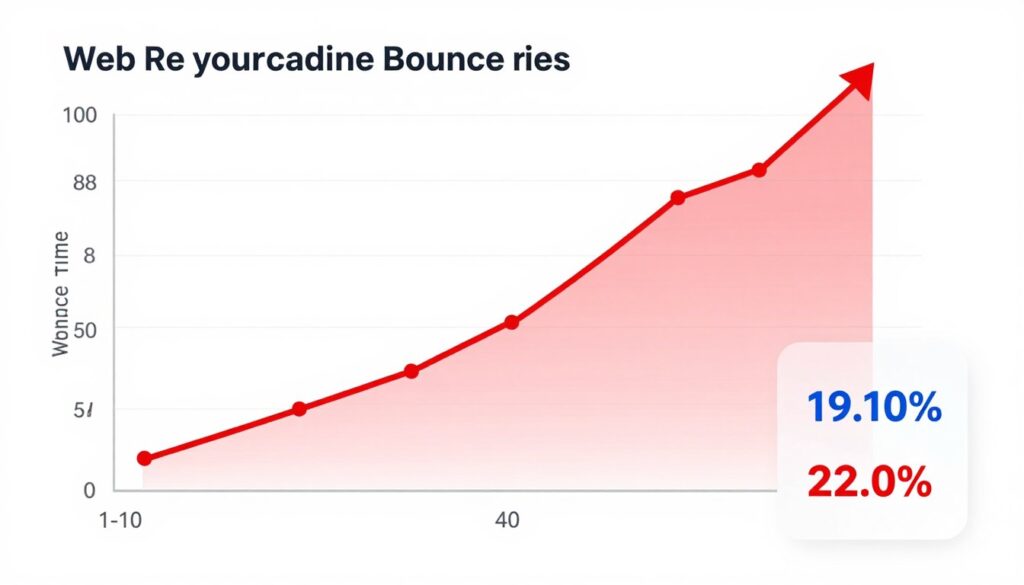
Bounce rate measures the percentage of visitors who leave your site after viewing only one page. Speed plays a massive role in this metric. Research from Google shows that as page load time increases from one to three seconds, bounce probability increases by thirty-two percent.
The numbers get worse as loading time increases. At five seconds, bounce probability rises to ninety percent. At ten seconds, you have lost one hundred and twenty-three percent more visitors compared to a one-second load time.
Conversions suffer just as badly. Amazon found that every one hundred milliseconds of latency cost them one percent in sales. For a company generating billions in revenue, that delay translates to significant lost income.
Mobile Speed and Search Rankings
Mobile performance has become even more critical since Google switched to mobile-first indexing. The search engine now primarily uses the mobile version of your site for ranking and indexing. If your mobile pages load slowly, your entire site suffers in search results.
Mobile users face additional challenges that make speed essential. Many browse on cellular connections with limited bandwidth. They often search while on the go, expecting quick answers to immediate needs. A slow mobile site fails these users and loses search visibility as a result.
The search engine evaluates mobile speed separately from desktop performance. You need fast loading times across all devices to maintain strong rankings. A site that performs well on desktop but poorly on mobile will see declining search traffic over time.
Website Speed as a Confirmed Google Ranking Factor
Google has explicitly confirmed that site speed influences search rankings. The search engine uses speed as a ranking signal because it correlates strongly with user satisfaction. Sites that load quickly typically provide better overall experiences.
The ranking factor works differently than you might expect. Speed does not guarantee top positions, but slowness can prevent you from reaching them. Think of it as a qualifying factor rather than a determining one. You need adequate speed to compete, but speed alone will not outrank better content.
The Speed Update and Its Impact
In July 2018, Google rolled out the Speed Update for mobile searches. This update made page speed a ranking factor for mobile search results. Before this, speed primarily affected desktop rankings.
The Speed Update only targets the slowest sites. If your pages load at a reasonable pace, you likely saw no negative impact. However, extremely slow sites experienced ranking drops, especially for competitive keywords.
Google designed this update to affect user experience without overly penalizing content quality. A slower page with excellent, relevant content can still outrank a faster page with poor content. The search engine balances multiple factors when determining rankings.
Important Note: Speed is one of hundreds of ranking factors. Content quality, relevance, backlinks, and user engagement signals all play significant roles. Focus on speed as part of a comprehensive SEO strategy, not as your only optimization target.
How Much Speed Improvement Do You Need?
You do not need the absolute fastest site on the web to rank well. Google looks for reasonable performance that meets user expectations. For most sites, loading in under three seconds provides a solid foundation for good rankings.
The improvement threshold varies by industry and competition level. E-commerce sites competing for high-value keywords need excellent speed to stay competitive. Local service businesses face less pressure but still benefit from fast loading times.
Focus on improving your slowest pages first. Homepage speed matters, but internal pages where users land from search results need attention too. Every page that ranks for a keyword should load quickly to maintain its position.
Check Your Site Speed Right Now
Get an instant analysis of your website performance with our free speed testing tool. See exactly how fast your pages load and identify specific issues slowing down your site.
How Google Measures Speed: Understanding Core Web Vitals
Google measures site speed through specific metrics called Core Web Vitals. These metrics became official ranking factors in June 2021 as part of the Page Experience update. Understanding these measurements helps you focus optimization efforts on what actually matters for search rankings.
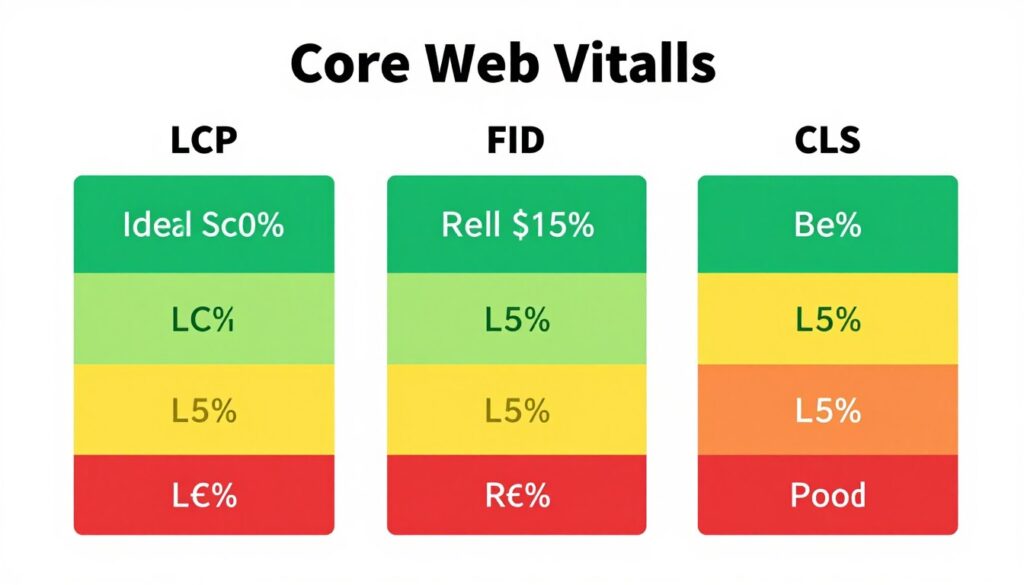
Core Web Vitals consist of three key metrics that measure different aspects of page performance and user experience. Each metric targets a specific element of how users interact with your pages. Together, they provide a comprehensive view of site speed and usability.
Largest Contentful Paint (LCP)
Largest Contentful Paint measures loading performance. It tracks how long it takes for the largest content element to appear on screen. This element is usually the main image, video, or text block that users see first.
Good LCP occurs within 2.5 seconds of when the page starts loading. Anything between 2.5 and 4.0 seconds needs improvement. Load times above 4.0 seconds are considered poor and will likely hurt your rankings.
The metric matters because it represents when users can actually see meaningful content. A page might technically start loading quickly, but if the main content takes forever to appear, users get frustrated. LCP measures the moment when your page becomes useful to visitors.
What Affects LCP
- Slow server response times
- Render-blocking CSS and JavaScript
- Large, unoptimized images
- Client-side rendering delays
- Resource load delays
How to Improve LCP
- Optimize your server response time
- Remove unnecessary third-party scripts
- Compress and optimize images properly
- Use lazy loading for below-fold content
- Implement a content delivery network
- Eliminate render-blocking resources
- Preload critical resources
First Input Delay (FID)
First Input Delay measures interactivity. It tracks the time from when a user first interacts with your page to when the browser can actually respond to that interaction. Common interactions include clicking a link, tapping a button, or using a custom control.
A good FID is less than 100 milliseconds. Delays between 100 and 300 milliseconds need improvement. Anything over 300 milliseconds provides a poor experience that can hurt rankings.
This metric captures user frustration with unresponsive pages. You have probably experienced this yourself when clicking a button and nothing happens. The page looks loaded, but it cannot respond to your input yet because the browser is still processing code.
Cumulative Layout Shift (CLS)
Cumulative Layout Shift measures visual stability. It tracks unexpected layout shifts that occur while a page loads. These shifts happen when elements suddenly move because other content loads late.
Good CLS scores stay below 0.1. Scores between 0.1 and 0.25 need improvement. Anything above 0.25 indicates poor visual stability that frustrates users.
Layout shifts create terrible user experiences. Imagine reading an article when suddenly the text jumps down because an ad loaded above it. Or clicking a button just as it shifts, causing you to click the wrong thing. These problems damage trust and increase bounce rates.
Sites with Good CLS
- Reserve space for images and ads
- Specify dimensions for all media
- Load fonts without causing text shifts
- Add dynamic content carefully
- Test thoroughly across devices
Sites with Poor CLS
- Let images load without size attributes
- Insert ads without reserved space
- Use web fonts that cause text flashing
- Dynamically inject content above existing content
- Fail to test on various screen sizes
Monitoring Your Core Web Vitals
You can monitor these metrics through several tools. Google Search Console provides Core Web Vitals reports showing which pages pass or fail. PageSpeed Insights tests individual pages and suggests specific fixes.
The metrics come from real user data when possible. Google collects this information through Chrome browser usage and displays it in the Chrome User Experience Report. This real-world data reflects actual user experiences rather than lab conditions.
Check your Core Web Vitals regularly, especially after making site changes. A design update or new plugin might inadvertently hurt performance metrics. Regular monitoring helps you catch and fix issues before they significantly impact rankings.

Essential Tools for Testing Website Speed
Accurate speed testing requires the right tools. Different tools measure different aspects of performance, and using multiple options gives you a complete picture. The insights you gain from these tools guide your optimization efforts effectively.
Most speed testing tools are free and easy to use. You simply enter your URL and wait for the analysis. The tools then provide detailed reports highlighting specific issues and suggesting improvements. Understanding what each tool measures helps you prioritize fixes.
Google PageSpeed Insights
PageSpeed Insights is Google’s official speed testing tool. It analyzes both mobile and desktop versions of your pages. The tool provides a performance score from zero to one hundred, along with specific recommendations for improvement.
The tool combines lab data with real user data when available. Lab data comes from simulated tests in controlled conditions. Field data comes from actual Chrome users who visited your page. This combination shows both technical performance and real-world experience.
PageSpeed Insights specifically highlights Core Web Vitals performance. You can see whether your page passes or fails each metric. The tool also identifies opportunities like image optimization, eliminating render-blocking resources, and reducing server response time.
Pro Tip: Test multiple pages, not just your homepage. Check your most important landing pages from search results. Each page may have different performance issues that need individual attention.
GTmetrix for Detailed Analysis
GTmetrix provides comprehensive speed testing with detailed waterfall charts. These charts show exactly how your page loads, displaying each resource request in sequence. You can see which elements slow down your site and by how much.
The tool offers several testing locations around the world. This feature helps you understand how users in different geographic regions experience your site. A site might load quickly in New York but slowly in Sydney due to server location.
GTmetrix also tracks performance history if you create a free account. You can monitor speed over time and see whether your optimization efforts are working. Historical data helps you spot performance regressions quickly.
Pingdom Website Speed Test
Pingdom focuses on simplicity while providing actionable insights. The tool grades your site performance and breaks down load time by content type. You can see how much time images, scripts, and other elements contribute to total page load.
The interface is especially user-friendly for beginners. Recommendations are straightforward and prioritized by potential impact. Pingdom also offers testing from multiple server locations to assess global performance.
One valuable feature is the page size analysis. Pingdom shows you exactly how much data your page transfers. Larger page sizes mean longer load times, especially for users on slower connections. This information helps you identify heavy elements that need optimization.
PageSpeed Insights
Best for Core Web Vitals assessment and Google-specific recommendations. Use this tool to understand how Google evaluates your site speed for ranking purposes.
- Official Google tool
- Real user data included
- Core Web Vitals focus
- Mobile and desktop analysis
GTmetrix
Best for technical deep dives and waterfall analysis. Use this tool when you need detailed information about resource loading and want to track performance over time.
- Detailed waterfall charts
- Multiple test locations
- Performance history tracking
- Video playback of page load
Pingdom
Best for quick assessments and beginner-friendly insights. Use this tool for easy-to-understand reports and straightforward optimization suggestions.
- Simple, clear interface
- Content type breakdown
- Global testing locations
- Transaction monitoring
WebPageTest for Advanced Testing
WebPageTest offers the most advanced testing capabilities. The tool lets you customize nearly every aspect of the test, including connection speed, browser type, and testing location. This flexibility helps you simulate specific user conditions.
The tool provides filmstrip views showing exactly when content appears on screen. You can see frame-by-frame progression of page rendering. This visual information helps identify when users first see meaningful content.
Advanced users appreciate WebPageTest’s ability to test on real devices and browsers. The results reflect actual user experiences more accurately than simulated tests. The tool also offers API access for automated testing and monitoring.
Chrome DevTools for Real-Time Testing
Chrome DevTools is built into the Chrome browser. Press F12 to access powerful testing capabilities without visiting external sites. The Network tab shows all resource requests, load times, and file sizes in real time.
The Lighthouse tool within DevTools performs comprehensive audits. It tests performance, accessibility, SEO, and other factors. You get detailed reports with specific suggestions, all from within your browser.
DevTools lets you throttle connection speed to simulate slower networks. This feature helps you understand how your site performs for users on 3G or 4G connections. You can also simulate different devices to test responsive performance.

Get Your Comprehensive Speed Audit
Our experts will analyze your site using all major speed testing tools. You will receive a detailed report with prioritized recommendations and an action plan to improve your page speed and search rankings.
Optimize Images for Faster Loading Times
Images typically account for the largest portion of page weight. A single unoptimized photo can slow your entire site. Properly optimized images dramatically reduce load times without sacrificing visual quality.
Image optimization involves multiple techniques working together. You need to choose the right format, compress files effectively, and deliver images at appropriate sizes. Each technique contributes to faster loading and better user experience.
Choose the Right Image Format
Different image formats serve different purposes. JPEG works well for photographs with many colors. PNG is better for images with transparency or sharp edges like logos. WebP provides superior compression for both types.
WebP is a modern format developed by Google. It typically produces files thirty percent smaller than JPEG with comparable quality. Browser support for WebP is now excellent, with over ninety-five percent of users able to view these images.
You can serve WebP images with JPEG fallbacks for older browsers. This approach gives modern browsers the speed benefits while ensuring compatibility. Most image optimization tools can automatically generate and serve the appropriate format.
| Format | Best Use Case | Transparency | Compression | Browser Support |
| JPEG | Photographs, complex images | No | Lossy, good | Universal |
| PNG | Logos, graphics, transparency needed | Yes | Lossless, larger files | Universal |
| WebP | All images on modern web | Yes | Lossy and lossless, excellent | 95%+ of users |
| SVG | Icons, simple graphics, logos | Yes | Vector, scalable | Universal |
| AVIF | Next-gen format for all images | Yes | Superior to WebP | Growing, 70%+ |
Compress Images Without Losing Quality
Image compression reduces file size by removing unnecessary data. Lossy compression removes some image information to achieve smaller files. Lossless compression reduces size without quality loss but achieves less dramatic results.
For most web images, you can use lossy compression at eighty to eighty-five percent quality. This level provides excellent visual results while significantly reducing file size. The human eye rarely notices the difference from the original.
Many tools automate image compression. TinyPNG and Squoosh offer simple online compression. WordPress plugins like Imagify and ShortPixel automatically compress images during upload. These tools save significant time while ensuring consistent optimization.

Serve Appropriately Sized Images
Never upload images larger than they will display on your site. If your content area is eight hundred pixels wide, serving a three thousand pixel image wastes bandwidth. The browser must download unnecessary data and then scale the image down.
Use responsive images that serve different sizes based on device and screen. The HTML picture element and srcset attribute let you specify multiple image versions. Browsers automatically choose the most appropriate size for each user.
This technique is especially important for mobile optimization. Mobile devices have smaller screens and often slower connections. Serving desktop-sized images to mobile users creates terrible performance. Responsive images ensure each user gets an optimized version.
Implement Lazy Loading
Lazy loading delays image loading until users scroll near them. Images below the fold do not need to load immediately. This technique speeds up initial page load significantly, especially on long pages with many images.
Modern browsers support native lazy loading through the loading attribute. Simply add loading=”lazy” to your image tags. The browser handles everything automatically without requiring JavaScript libraries.
Only apply lazy loading to below-the-fold images. Images visible when the page loads should load immediately. Lazy loading these images creates a poor experience as users wait for content they can already see on screen.
Quick Image Optimization Checklist
- Convert images to WebP format
- Compress all images to 80-85% quality
- Resize images to actual display dimensions
- Implement lazy loading for below-fold images
- Use responsive images with srcset
- Add width and height attributes to prevent layout shift
- Remove image metadata and unnecessary data
- Use image CDN for faster delivery
Common Image Mistakes to Avoid
- Uploading full-resolution camera photos
- Using PNG for photographs
- Forgetting alt text for SEO and accessibility
- Serving same image size to all devices
- Lazy loading above-the-fold images
- Ignoring image dimensions in HTML
- Using too many decorative images
- Forgetting to test image load performance
Enable Browser Caching for Repeat Visitors
Browser caching stores copies of your site files on visitors’ devices. When users return to your site, their browser loads cached files instead of downloading everything again. This dramatically speeds up subsequent page loads.
Caching particularly benefits repeat visitors and users browsing multiple pages. The first page load downloads and caches resources. Additional pages reuse cached files, loading much faster. This creates a better experience for engaged users exploring your content.
How Browser Caching Works
When someone visits your site, their browser downloads HTML, CSS, JavaScript, images, and other files. With caching enabled, the browser saves copies of these resources. The server tells the browser how long to keep each file through cache headers.
Different resources need different caching durations. Static files like logos rarely change and can cache for months. CSS and JavaScript files might update weekly. HTML pages often should not cache because content changes frequently.
Cache headers control this behavior. The Cache-Control header specifies how long browsers should store files. Setting appropriate durations balances speed benefits with content freshness. Users get fast loads while still receiving updated information.
Implement Caching on Your Server
Most servers support caching through configuration files. Apache servers use .htaccess files. Nginx servers use nginx.conf. Adding caching rules to these files enables browser caching for all visitors.
A basic caching setup specifies different durations for different file types. Images might cache for one year. CSS and JavaScript files for one month. HTML pages for one day or not at all. These durations ensure users get fresh content while benefiting from cached resources.
WordPress users can enable caching through plugins. WP Super Cache and W3 Total Cache both handle browser caching configuration automatically. These plugins create the necessary rules without requiring manual server file editing.
Technical Note: Always use versioning or cache busting for CSS and JavaScript files. When you update these files, change the filename or add a version parameter. This forces browsers to download the new version instead of using an outdated cached copy.
Set Appropriate Cache Durations
Finding the right cache duration requires balancing performance with content freshness. Files that never change should have long cache times. Files that update regularly need shorter durations.
Static assets like logos, fonts, and certain images can safely cache for one year. Your main stylesheet and scripts might cache for one month if you update them occasionally. Blog post HTML should not cache long because you publish new content regularly.
Consider your update frequency when setting durations. A news site that publishes hourly needs different settings than a business site that updates monthly. Match cache times to your actual update patterns.
- Logo images and branding
- Web fonts
- Icons and favicons
- Images unlikely to change
- Third-party libraries with version numbers
Long Cache Duration (1 Year)
- Main stylesheet with versioning
- JavaScript files with versioning
- Product images
- Blog post images
- General site graphics
Medium Cache Duration (1 Month)
- HTML pages
- Dynamic content
- Shopping cart pages
- User account pages
- Time-sensitive information
Short Cache Duration (1 Day or None)
Leverage CDN Caching
Content Delivery Networks take caching further by storing your files on servers worldwide. CDNs cache content at edge locations close to users. This reduces the distance data travels and speeds up delivery significantly.
A CDN serves files from the nearest server to each user. Someone in Tokyo gets files from a Japanese server. Someone in London gets the same files from a European server. This geographic distribution dramatically reduces latency.
Major CDN providers include Cloudflare, Amazon CloudFront, and StackPath. Many offer free tiers suitable for small to medium sites. Implementation typically involves changing your DNS settings and configuring caching rules.

Minimize CSS, JavaScript, and HTML
Code minification removes unnecessary characters from your files without changing functionality. Spaces, line breaks, comments, and long variable names make code readable for humans but add unnecessary bulk. Minified code loads faster while working exactly the same.
The performance gains from minification compound across all your code files. A site might have dozens of CSS and JavaScript files. Minifying all of them can reduce total page size by twenty to forty percent. This translates directly to faster load times.
Minify CSS Files
CSS files often contain formatting that makes them easy to edit but increases file size. Indentation, spaces, and comments help developers but waste bandwidth. Minification removes these elements, creating smaller files that load faster.
A typical CSS file might shrink by thirty to fifty percent through minification. Multiple separate CSS files should also be combined when possible. Fewer file requests mean faster loading, especially on HTTP/1.1 connections.
Online tools like CSS Minifier handle this process instantly. Build tools like Webpack and Gulp automate minification during development. WordPress plugins such as Autoptimize minify CSS automatically without requiring technical knowledge.
Optimize JavaScript Files
JavaScript files benefit even more from minification due to longer variable names and extensive comments. Complex scripts might reduce in size by sixty percent or more. This optimization is especially important because JavaScript blocks page rendering.
Beyond minification, consider deferring or async loading JavaScript. Defer delays script execution until after page content loads. Async loads scripts parallel to page parsing. Both techniques prevent JavaScript from blocking initial page rendering.
Remove unused JavaScript whenever possible. Many sites load entire libraries when they only use small portions. Tree shaking removes unused code from JavaScript bundles. Webpack and other build tools perform this optimization automatically.
Before Minification
The unminified code includes readable formatting, comments, and full variable names. This example shows approximately 450 bytes of formatted CSS code.
 /* Navigation Styles */
 .main-navigation { background-color: #333333; padding: 20px; display: flex;
 } .main-navigation a { color: #ffffff; text-decoration: none; margin-right: 15px;
 }
After Minification
The minified version removes all unnecessary characters. The same CSS functionality now uses only 140 bytes, a sixty-nine percent reduction in file size.
.main-navigation{background-color:#333;padding:20px;display:flex}.main-navigation a{color:#fff;text-decoration:none;margin-right:15px} Compress HTML Output
HTML minification removes whitespace, comments, and optional tags from your page code. While HTML compression provides smaller gains than CSS or JavaScript minification, it still contributes to overall speed improvement.
Most content management systems generate HTML with extra spacing and formatting. Server-side compression can minify this output automatically. Gzip compression further reduces file size during transmission from server to browser.
Enable Gzip compression on your server for maximum benefit. This compression can reduce HTML, CSS, and JavaScript file sizes by seventy to ninety percent during transfer. Nearly all modern browsers support Gzip decompression automatically.
Eliminate Render-Blocking Resources
Render-blocking resources prevent pages from displaying until they finish loading. CSS files in the page head block rendering because browsers need style information before displaying content. JavaScript files can also block if not loaded properly.
Critical CSS should be inlined directly in the HTML head. This gives browsers the essential styling immediately without waiting for external file downloads. Non-critical CSS can load asynchronously after initial page render.
JavaScript should load with defer or async attributes whenever possible. These attributes prevent scripts from blocking page rendering. Only small, critical scripts should load synchronously in the page head.
Important: Always test your site after implementing code minification. Occasionally, aggressive minification can break functionality. Start with standard minification settings and only increase compression if everything works correctly.
Reduce Number of Requests
Each file request adds overhead. Multiple small CSS files create more requests than one combined file. While HTTP/2 handles multiple requests better than HTTP/1.1, reducing total requests still improves performance.
Combine CSS files when practical. Merge similar JavaScript files. Use CSS sprites to combine multiple small images into single files. Each eliminated request speeds up total page load time.
However, do not combine everything indiscriminately. Separate files for different page types make sense. A blog post does not need homepage-specific CSS. Balance file combination with practical code organization.

Use a Content Delivery Network for Global Speed
A Content Delivery Network distributes your site files across multiple servers worldwide. Users download content from the server nearest to their location. This geographic distribution dramatically reduces latency and improves loading speed for global audiences.
The speed improvement from a CDN is most noticeable for international visitors. Without a CDN, someone in Australia accessing a US-hosted site faces significant delay. A CDN serves that user from an Australian server, cutting load time dramatically.
How CDNs Improve Performance
CDNs work by caching your content on edge servers in various locations. When someone requests your site, the CDN routes the request to the closest available server. This reduces the physical distance data must travel.
The benefits extend beyond geography. CDNs also reduce load on your origin server. Instead of your server handling every request from every user worldwide, the CDN serves most traffic. This leaves your origin server free to handle dynamic content and database queries.
CDNs provide additional security benefits too. Many include DDoS protection and Web Application Firewall capabilities. These features protect your site while simultaneously improving performance.
Choose the Right CDN Provider
Several excellent CDN providers serve different needs and budgets. Cloudflare offers a generous free tier suitable for most small to medium sites. Their global network includes over two hundred locations worldwide.
Amazon CloudFront integrates seamlessly with other AWS services. It provides excellent performance with pay-as-you-go pricing. StackPath offers specialized features for WordPress sites and e-commerce platforms.
Consider your specific needs when choosing a provider. International audiences benefit most from CDNs with extensive global coverage. Sites with heavy media content need providers with good video delivery capabilities. E-commerce sites should prioritize CDNs with strong security features.
Cloudflare
- Free tier available
- 200+ global locations
- Built-in security
- Easy DNS setup
Amazon CloudFront
- Pay-as-you-go pricing
- AWS ecosystem integration
- Advanced customization
- Enterprise reliability
StackPath
- WordPress optimized
- E-commerce features
- Competitive pricing
- Good support
Set Up Your CDN
CDN setup typically involves changing your DNS settings to point to the CDN provider. The process varies by provider but generally takes less than thirty minutes. Most providers offer detailed setup guides for popular platforms like WordPress.
After initial setup, configure caching rules for different content types. Static files like images should cache longer than dynamic content. Test your site thoroughly to ensure all resources load correctly through the CDN.
Monitor your CDN analytics to verify performance improvements. Most providers offer dashboards showing bandwidth savings, cache hit rates, and geographic traffic distribution. These metrics help you optimize CDN configuration over time.

Optimize CDN Configuration
Fine-tuning CDN settings maximizes performance gains. Set appropriate cache durations for different content types. Enable automatic image optimization if your CDN provider offers this feature. Configure HTTP/2 or HTTP/3 support for faster resource loading.
Use the CDN’s purge function carefully. Purging clears cached content when you update your site. Purge specific files rather than the entire cache to maintain performance for unchanged content. Some CDNs offer automatic cache invalidation when you update content.
Consider enabling CDN features like Brotli compression and early hints. These advanced features can further improve performance. However, test each feature individually to ensure compatibility with your site.
Reduce Server Response Time
Server response time measures how long your server takes to begin sending data after receiving a request. This time is often called Time to First Byte. Slow server response delays everything else and significantly impacts overall page speed.
Multiple factors affect server response time. Server hardware quality matters. The number of concurrent users impacts performance. Your site’s code efficiency plays a role. Database query optimization influences response speed. Addressing these factors systematically improves server performance.
Choose Quality Hosting
Your hosting provider dramatically impacts site speed. Cheap shared hosting often means sharing server resources with hundreds of other sites. When other sites on your server experience traffic spikes, your site slows down.
Upgrading to better hosting is often the single most effective speed improvement. VPS hosting provides dedicated resources without shared hosting limitations. Cloud hosting offers excellent scalability for growing sites. Managed WordPress hosting includes specific optimizations for WordPress performance.
Server location also matters for non-CDN traffic. Choose hosting with servers near your primary audience. A US-based audience benefits from US servers. European visitors load faster from European hosting. Geographic proximity reduces latency.
- Lowest cost option
- Limited resources
- Variable performance
- Affected by other sites
- Best for: Small sites with minimal traffic
Shared Hosting
- Moderate cost
- Dedicated resources
- Consistent performance
- More control over configuration
- Best for: Growing sites with steady traffic
VPS Hosting
- Scalable pricing
- Unlimited scalability
- Excellent performance
- High availability
- Best for: Large sites with variable traffic
Cloud Hosting
Optimize Database Queries
Database queries often create the biggest performance bottlenecks. Every time someone loads a page, your site queries the database for content. Inefficient queries slow response times significantly.
WordPress sites particularly benefit from database optimization. Remove post revisions, spam comments, and transient options that accumulate over time. Plugins like WP-Optimize clean your database automatically.
Enable database caching to reduce query frequency. Object caching stores database query results in memory. Subsequent identical queries use cached results instead of querying the database again. This dramatically reduces database load and improves response time.
Implement Server-Side Caching
Server-side caching generates static HTML versions of your dynamic pages. When users request pages, the server serves cached HTML instead of processing PHP and database queries. This reduces server load and response time dramatically.
Page caching is especially effective for content that does not change frequently. Blog posts, product pages, and static content benefit most. User-specific content like shopping carts requires more sophisticated caching strategies.
Many caching solutions exist for different platforms. WordPress users can implement caching through plugins like WP Rocket or LiteSpeed Cache. Custom sites might use Varnish or Redis for caching. Each solution offers different features and benefits.
Performance Tip: Combine multiple caching layers for maximum benefit. Use page caching for full HTML pages, object caching for database queries, and browser caching for static resources. Each layer contributes to overall speed improvement.
Enable Compression
Server compression reduces file sizes before sending them to browsers. Gzip and Brotli compression can reduce HTML, CSS, and JavaScript sizes by seventy to ninety percent. Browsers automatically decompress files, so users see no difference except faster loading.
Most modern servers support compression configuration. Apache servers use mod_deflate or mod_gzip modules. Nginx servers have built-in Gzip support. Enabling compression usually requires adding a few lines to your server configuration file.
Brotli compression provides better results than Gzip but requires newer server software. If your server supports it, enable Brotli with Gzip as fallback. This ensures maximum compression for modern browsers while maintaining compatibility with older ones.
Upgrade PHP Version
Running the latest PHP version significantly improves server performance. PHP 8.0 and newer versions execute code much faster than PHP 7.4 and earlier. WordPress sites can see thirty to fifty percent speed improvements from PHP upgrades alone.
Check your current PHP version in your hosting control panel. If you are running PHP 7.4 or earlier, upgrading should be a priority. Test your site on a staging environment first to ensure plugin and theme compatibility.
The performance gains from PHP upgrades compound with other optimizations. Faster PHP execution means faster database queries, quicker page generation, and better overall server response time. This single change often provides dramatic speed improvements.

Remove Unnecessary Plugins and Scripts
Every plugin and third-party script adds weight to your pages. Each additional resource means more files to download, more code to process, and slower loading times. Removing unnecessary elements is one of the quickest ways to improve speed.
Many sites accumulate plugins over time without regular review. You might have installed something months ago for a specific purpose and forgotten about it. These unused plugins still load on every page, wasting resources and slowing your site.
Audit Your Current Plugins
Review every plugin on your site and ask whether you still need it. Deactivate plugins you are not actively using. Delete plugins you will never use again rather than just deactivating them.
Some plugins have lighter alternatives that provide similar functionality. A heavyweight page builder might be replaceable with a lighter solution. A complex form plugin might be overkill when you only need simple contact forms.
Consider how each plugin impacts performance. Use the Query Monitor plugin to see which plugins create the most database queries. Check which plugins load scripts on every page versus only where needed. Prioritize keeping plugins that are efficient and truly necessary.
Plugins Often Worth Keeping
- Security plugins for site protection
- Caching plugins for performance
- SEO plugins for optimization
- Backup plugins for data safety
- Image optimization plugins
- Contact form plugins you actively use
Plugins Often Worth Removing
- Multiple similar plugins with overlapping functions
- Plugins used once for specific tasks
- Heavy social sharing plugins (use lightweight alternatives)
- Unused page builders
- Plugins replaced by theme features
- Outdated plugins no longer maintained
Reduce Third-Party Scripts
Third-party scripts from external services often slow sites significantly. Analytics tools, advertising networks, chat widgets, and social media integrations all add external requests. Each request increases page load time.
Evaluate whether you need every third-party service. Do you really review all those analytics platforms? Could you reduce the number of social media widgets? Each removed script improves performance.
For necessary third-party scripts, load them asynchronously when possible. This prevents them from blocking page rendering. Defer non-critical scripts so they load after important content appears.
Lazy Load Scripts
Some scripts only need to load when users interact with specific features. Chat widgets do not need to load immediately if most visitors never use them. Social media embeds can wait until users scroll near them.
Implement lazy loading for these optional scripts. Load them on user interaction or when they become visible in the viewport. This keeps initial page loads fast while maintaining full functionality.
Several plugins and tools help lazy load scripts automatically. Flying Scripts for WordPress delays JavaScript execution. Lazy Load by WP Rocket handles scripts and media. These tools require no coding knowledge to implement.
Testing Warning: Always test your site thoroughly after removing plugins or scripts. Some plugins interact with others in unexpected ways. Verify that all critical functionality still works before considering the cleanup complete.
Consolidate Functionality
Look for opportunities to consolidate multiple plugins into single solutions. One comprehensive SEO plugin often works better than three separate plugins handling different aspects. A quality theme might include functionality that replaces several plugins.
All-in-one performance plugins can replace multiple optimization plugins. Instead of separate plugins for caching, minification, and lazy loading, one comprehensive solution handles everything. This reduces total plugin count and potential conflicts.
However, avoid bloated all-in-one plugins that include features you do not need. A massive multi-purpose plugin loading unused features wastes resources. Choose consolidated solutions that match your actual requirements.
Download Our Speed Optimization Checklist
Get our comprehensive checklist covering all aspects of website speed optimization. This downloadable PDF guide helps you systematically improve your site performance step by step.
Optimize for Mobile Performance
Mobile optimization deserves special attention because mobile users now represent the majority of web traffic. Mobile devices face unique challenges including slower connections, less processing power, and smaller screens. Your site must perform well under these constraints.
Google uses mobile-first indexing, meaning it primarily evaluates your mobile site for rankings. Poor mobile performance directly hurts search visibility. A site that loads quickly on desktop but slowly on mobile will lose rankings and traffic.
Implement Responsive Design Properly
Responsive design adapts your site layout to different screen sizes. However, responsive does not automatically mean fast. Many responsive sites load desktop-sized resources on mobile devices, wasting bandwidth and time.
Use CSS media queries to load different resources for different devices. Serve smaller images to mobile users. Hide unnecessary elements on mobile rather than just making them invisible with CSS. Every byte saved improves mobile performance.
Test your mobile site on real devices, not just browser simulators. Real-world mobile performance often differs from desktop testing. Throttle your connection to simulate 3G speeds and see how your site performs under realistic conditions.
Reduce Mobile-Specific Barriers
Mobile users face specific challenges that desktop users do not. Pop-ups are more intrusive on small screens. Large tap targets matter more with touch interfaces. Excessive scrolling frustrates mobile users more than desktop visitors.
Minimize interstitials and pop-ups on mobile devices. Google may penalize sites with intrusive mobile interstitials. If you must use pop-ups, make them easy to dismiss and do not show them immediately on page load.
Ensure buttons and links have adequate tap target sizes. Small tap targets cause user frustration and accidental clicks. Google recommends tap targets of at least forty-eight pixels square with adequate spacing between elements.

Optimize Mobile Images
Images consume the most bandwidth on mobile connections. Serving desktop-sized images to mobile devices wastes data and time. Implement responsive images that serve appropriately sized versions to each device.
Use the srcset attribute to specify different image sizes for different screen widths. Modern browsers automatically choose the most appropriate version. This ensures mobile users get optimized images without manual device detection.
Consider using lower quality images for mobile if bandwidth is severely limited. The difference is less noticeable on small screens. A slightly lower quality image that loads quickly provides better experience than a perfect image that takes forever.
Minimize Mobile-Specific Scripts
Some scripts only make sense on desktop. Large animations might look great on big screens but slow mobile devices unnecessarily. Complex interactive features might not work well on touch interfaces.
Use conditional loading to serve different scripts to mobile and desktop users. Mobile users get streamlined functionality that loads and runs quickly. Desktop users can have enhanced features that take advantage of more powerful hardware.
Test your site with mobile-specific tools. Google’s Mobile-Friendly Test checks mobile usability. Chrome DevTools’ device emulation mode simulates various mobile devices. Lighthouse mobile audits identify mobile-specific performance issues.
- Serve appropriately sized images
- Minimize JavaScript execution
- Reduce render-blocking resources
- Implement responsive design correctly
- Use mobile-friendly navigation
- Test on real devices and connections
- Optimize touch targets and interfaces
- Minimize intrusive interstitials
Mobile Optimization Priorities
- Test on actual mobile devices
- Simulate slow 3G connections
- Check tap target sizes
- Verify image sizes and quality
- Test form functionality
- Check navigation usability
- Verify readable font sizes
- Test landscape and portrait modes
Mobile Testing Checklist
Technical SEO Elements Affected by Speed
Website speed impacts several technical SEO factors beyond direct ranking signals. Slow sites face crawling issues, indexing delays, and budget constraints that indirectly hurt search visibility. Understanding these connections helps you prioritize speed optimization as part of comprehensive technical SEO.
Search engines allocate limited resources to crawling each site. Slow pages consume more of this budget, resulting in fewer pages crawled and indexed. This particularly affects large sites where comprehensive indexing is critical for search visibility.
Crawl Budget and Site Speed
Crawl budget refers to the number of pages search engines will crawl on your site within a given timeframe. Slow server response times reduce crawl efficiency. If each page takes longer to load, fewer total pages get crawled.
Large e-commerce sites and news sites particularly need to optimize for crawl budget. These sites publish new content frequently and have thousands of pages. Fast server response times ensure search engines can discover and index new content quickly.
Improve crawl budget efficiency by fixing slow pages, reducing server response time, and minimizing redirect chains. Monitor your crawl stats in Google Search Console to see how Googlebot interacts with your site. Sudden increases in crawl time often indicate performance problems.
Site Structure and Performance
Your site architecture affects both navigation speed and search engine crawling. Deep page hierarchies require multiple clicks to reach content. Each click adds load time, and users often abandon before reaching destination pages.
Flatten your site structure when possible. Important pages should be reachable in three clicks or fewer from the homepage. This improves user experience and helps search engines discover content more efficiently.
Use proper internal linking to help users and search engines navigate quickly. Links to related content keep users engaged while distributing page authority throughout your site. Fast-loading pages with good internal linking improve both user experience and SEO.
Speed Impact on User Signals
Google considers user behavior signals when ranking pages. Speed directly influences these metrics in measurable ways.
- Faster pages reduce bounce rates significantly
- Quick loading increases time on site
- Speed improves pages per session metrics
- Fast sites generate more return visitors
- Performance affects conversion rates directly
Speed Impact on Crawling
Search engine crawling efficiency depends heavily on site performance and server response quality.
- Slow responses reduce crawl rate
- Fast sites get crawled more frequently
- Server errors waste crawl budget
- Quick response times enable deeper crawling
- Performance affects indexing speed
XML Sitemap Optimization
XML sitemaps help search engines discover your content efficiently. Include only important, high-quality pages in your sitemap. Exclude thin content, duplicate pages, and pages blocked by robots.txt.
Prioritize fast-loading pages in your sitemap. While priority tags have limited impact, ensuring your most important pages load quickly maximizes their crawling and ranking potential. Update your sitemap whenever you add new important content.
Monitor sitemap coverage in Google Search Console. Check for errors, excluded pages, and crawling issues. Address any problems promptly to ensure search engines can access and index your content effectively.
Structured Data and Performance
Structured data helps search engines understand your content better. However, excessive or poorly implemented structured data can slow page rendering. Use structured data strategically for important content types.
Implement JSON-LD format for structured data rather than inline microdata. JSON-LD loads more efficiently and keeps your HTML cleaner. Validate your structured data using Google’s Rich Results Test to ensure proper implementation.
Focus structured data on pages where rich results provide value. Product pages, articles, recipes, and events benefit most from structured data. Avoid adding unnecessary structured data just because you can.

Monitor and Maintain Speed Over Time
Speed optimization is not a one-time task. Your site changes over time as you add content, install plugins, and update features. Regular monitoring catches performance regressions before they significantly impact user experience and rankings.
Establish a monitoring routine that fits your workflow. Monthly speed audits work well for most sites. High-traffic sites might benefit from weekly monitoring. Set up automated alerts for significant performance changes.
Set Up Performance Monitoring
Use synthetic monitoring tools to track speed consistently over time. Services like Pingdom and UptimeRobot check your site regularly and alert you to slowdowns. This proactive monitoring catches problems before users complain.
Real User Monitoring provides insights into actual user experiences. Tools like Google Analytics track real-world page load times across different devices, connections, and geographic locations. This data reveals how your site performs under real conditions.
Set performance budgets for key metrics. Decide maximum acceptable values for LCP, FID, and CLS. Alert when pages exceed these thresholds. Performance budgets help you maintain standards as your site evolves.
| Monitoring Tool | Type | Best For | Frequency | Cost |
| Google PageSpeed Insights | Manual testing | Core Web Vitals assessment | Weekly or after changes | Free |
| Google Search Console | Real user data | Actual user experience tracking | Continuous | Free |
| GTmetrix Monitoring | Synthetic monitoring | Performance history tracking | Hourly to daily | Free and paid tiers |
| Pingdom Monitoring | Synthetic monitoring | Uptime and performance alerts | Every 1-5 minutes | Paid service |
| Chrome DevTools | Manual testing | Detailed debugging | As needed | Free |
Regular Maintenance Tasks
Schedule regular maintenance to keep your site performing well. Update plugins and themes promptly as developers often improve performance with updates. Remove old, unused plugins that accumulated over time.
Clean your database regularly to remove accumulated clutter. Delete spam comments, old post revisions, and expired transients. These elements waste database space and slow queries over time.
Review and optimize new content before publishing. Compress images, check file sizes, and test page speed. Building good habits prevents performance problems rather than fixing them later.
Respond to Performance Changes
Investigate when monitoring alerts indicate slowdowns. Recent changes often cause performance regressions. Review recently installed plugins, theme updates, and new content. Identify what changed and test reverting if necessary.
Sometimes external factors cause slowdowns. Increased traffic can overwhelm servers. DDoS attacks affect performance. Hosting provider issues might be responsible. Understanding the cause helps you respond appropriately.
Document your optimizations and their impact. Track what changes improved performance and by how much. This information guides future optimization efforts and helps you prioritize effectively.
Monthly Maintenance Checklist: Test site speed with multiple tools, review Core Web Vitals in Search Console, clean database of spam and revisions, update plugins and themes, check for broken links, optimize new images, review and remove unused plugins, test on mobile devices, check server resource usage, verify backup functionality.
Plan for Growth
Consider future performance as your site grows. Will your current hosting handle increased traffic? Can your optimization strategy scale with more content? Planning ahead prevents emergencies when traffic suddenly increases.
Build scalability into your infrastructure. Use CDNs to handle traffic spikes. Implement caching that scales automatically. Choose hosting that allows easy upgrades when needed.
Test your site under load to identify breaking points. Tools like Load Impact simulate multiple concurrent users. Understanding your site’s capacity helps you plan upgrades before problems occur.

When to Consider Professional Speed Optimization
Many speed improvements are straightforward to implement yourself. However, some sites face complex performance challenges requiring expert knowledge. Knowing when to seek professional help saves time and prevents costly mistakes.
Professional optimization services provide expertise and experience you might lack. They identify issues you might miss, implement advanced solutions, and avoid common pitfalls. The investment often pays for itself through improved conversions and reduced server costs.
Signs You Need Professional Help
Consider professional assistance if you have implemented basic optimizations without seeing significant improvements. When you have tried image optimization, caching, and code minification but still face speed issues, deeper problems exist that require expert diagnosis.
Complex sites with custom functionality often benefit from professional optimization. If your site uses custom themes, proprietary plugins, or unique features, generic optimization advice might not apply. Professionals can analyze your specific situation and provide tailored solutions.
High-traffic sites particularly benefit from professional optimization. When your site serves thousands of daily visitors, small performance improvements translate to significant business impact. Professional optimization ensures you maximize revenue potential.
What Professional Services Provide
- Comprehensive performance audits identifying all issues
- Custom optimization strategies for your specific site
- Advanced server configuration and tuning
- Database optimization and query refinement
- Custom code optimization and refactoring
- CDN setup and configuration
- Ongoing monitoring and maintenance
- Emergency performance troubleshooting
- Scalability planning for growth
- Training for your team
ROI of Professional Optimization
Professional speed optimization typically delivers measurable return on investment through multiple channels.
- Increased conversion rates
- Improved search rankings
- Reduced server costs
- Better user retention
- Enhanced brand perception
- Time savings for your team
Choosing the Right Service Provider
Evaluate potential optimization services carefully. Ask for case studies showing measurable improvements. Request references from similar sites in your industry. Verify they understand your platform and technologies.
Good providers conduct thorough audits before proposing solutions. They should explain problems clearly and provide detailed optimization plans. Beware of services promising unrealistic results or using only automated tools.
Consider both one-time optimization and ongoing maintenance services. Some situations need comprehensive initial optimization followed by periodic check-ins. High-traffic sites might benefit from continuous monitoring and optimization.
Professional Speed Optimization Services
Our team of performance experts will analyze your site, implement comprehensive optimizations, and provide ongoing support. We guarantee measurable speed improvements and better search rankings.
Start Improving Your Website Speed Today
You now understand why website speed matters for SEO and how to improve it. The information in this guide provides a complete roadmap from basic optimizations to advanced techniques. The key is taking action systematically rather than trying everything at once.
Begin with high-impact, easy-to-implement changes. Optimize your images, enable caching, and choose quality hosting. These foundational improvements provide immediate benefits without requiring extensive technical knowledge.
Your Speed Optimization Action Plan
Follow this prioritized approach to systematically improve your site speed. Each step builds on previous improvements, creating compounding performance gains over time.
Measure Your Success
Track specific metrics to evaluate optimization effectiveness. Focus on Core Web Vitals as primary indicators of Google-measured performance. Monitor page load time, time to interactive, and total page size as supporting metrics.
Watch business metrics alongside technical measurements. Speed improvements should translate to better bounce rates, longer session durations, and higher conversion rates. If technical metrics improve but business metrics do not, investigate user experience issues beyond raw speed.
Document your progress with before-and-after comparisons. Screenshots of speed test results provide clear visual evidence of improvements. Share these wins with stakeholders to demonstrate the value of ongoing optimization efforts.
Quick Wins for Immediate Impact
- Compress and optimize all images today
- Enable browser and page caching immediately
- Remove obviously unused plugins now
- Upgrade to latest PHP version this week
- Enable Gzip compression today
- Implement lazy loading for images
- Test and fix slowest pages first
Avoid These Common Mistakes
- Implementing everything at once without testing
- Optimizing only homepage and ignoring other pages
- Focusing solely on desktop performance
- Neglecting regular monitoring and maintenance
- Using aggressive optimization that breaks functionality
- Ignoring mobile-specific optimization needs
- Assuming one-time optimization is sufficient
Commit to Ongoing Optimization
Speed optimization never truly ends. Technology evolves, standards change, and your site grows over time. Commit to treating performance as an ongoing priority rather than a completed project.
Build performance consciousness into your workflow. Check speed when adding new features. Test mobile performance for new designs. Make optimization a standard part of your development process rather than an afterthought.
Stay informed about performance best practices. Follow industry leaders, read case studies, and test new optimization techniques. The web performance landscape changes constantly, and keeping current ensures you maintain competitive speed.
Take Action on Website Speed SEO Now
Website speed directly impacts your search rankings, user experience, and bottom line. Every second of delay costs you visitors, conversions, and revenue. The good news is that speed optimization is achievable with the right approach and tools.
You have learned why speed matters, how Google measures it through Core Web Vitals, and specific techniques to improve performance. From image optimization and caching to CDNs and server improvements, you now have a complete toolkit for speed optimization.
The most important step is starting today. Even small improvements compound over time to create significantly better performance. Begin with quick wins like image compression and caching, then progressively tackle more advanced optimizations.
Get Your Free Comprehensive Website Speed Audit
Our experts will analyze your site using advanced tools and provide a detailed report with prioritized recommendations. You will receive specific action items tailored to your site, estimated impact for each improvement, and a clear roadmap to better performance.
Remember that website speed optimization is an investment in your online success. Faster sites rank better, convert more visitors, and provide superior user experiences. The time and effort you invest in speed improvements pays dividends through increased traffic, better engagement, and higher revenue.
Start your optimization journey today. Test your current speed, implement quick wins, and progressively tackle more advanced improvements. Your future self will thank you when you see improved rankings, happier users, and better business results.