Is your laptop too hot to handle? Overheating is one of the most common issues laptop users face, potentially causing performance drops, system crashes, and even permanent hardware damage. The good news is that most overheating problems can be resolved with the right approach. This guide explores why laptops overheat and provides ten practical solutions to cool down your device and prevent future temperature spikes.
Table of Contents:
Why Do Laptops Overheat?
Before diving into solutions, it’s important to understand why laptops overheat in the first place. Modern laptops pack powerful components into increasingly slim designs, creating significant cooling challenges.
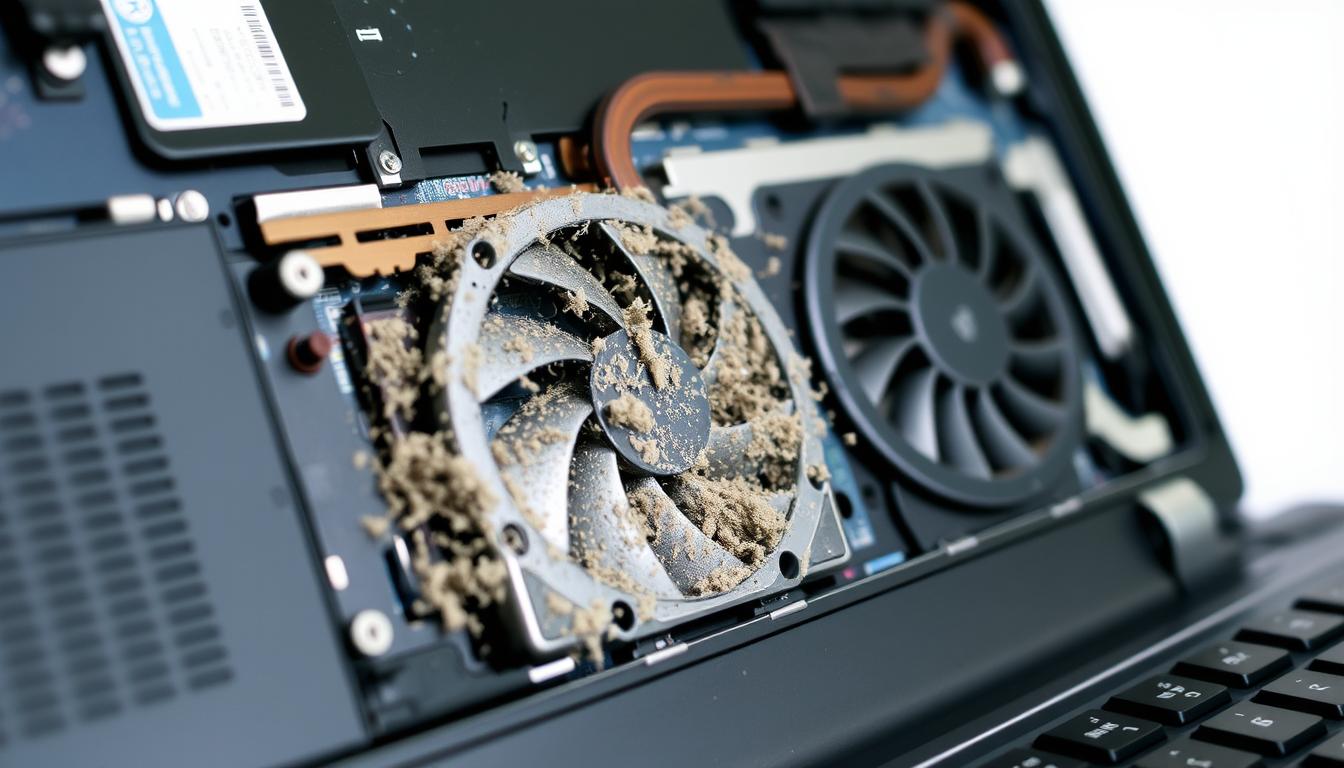
Dust accumulation on internal components is a primary cause of laptop overheating
The three main causes of laptop overheating include:
- Dust accumulation: Over time, dust and debris collect on fans, vents, and internal components, restricting airflow and reducing cooling efficiency.
- Heavy workloads: Resource-intensive tasks like gaming, video editing, or running multiple applications simultaneously push your CPU and GPU to their limits, generating excess heat.
- Poor ventilation: Using your laptop on soft surfaces like beds or couches can block air vents, preventing proper heat dissipation.
Additional factors include aging thermal paste, malfunctioning cooling fans, high ambient temperatures, and outdated software causing unnecessary system strain.
Immediate Solutions for an Overheating Laptop
When your laptop is running hot, these quick fixes can provide immediate relief:
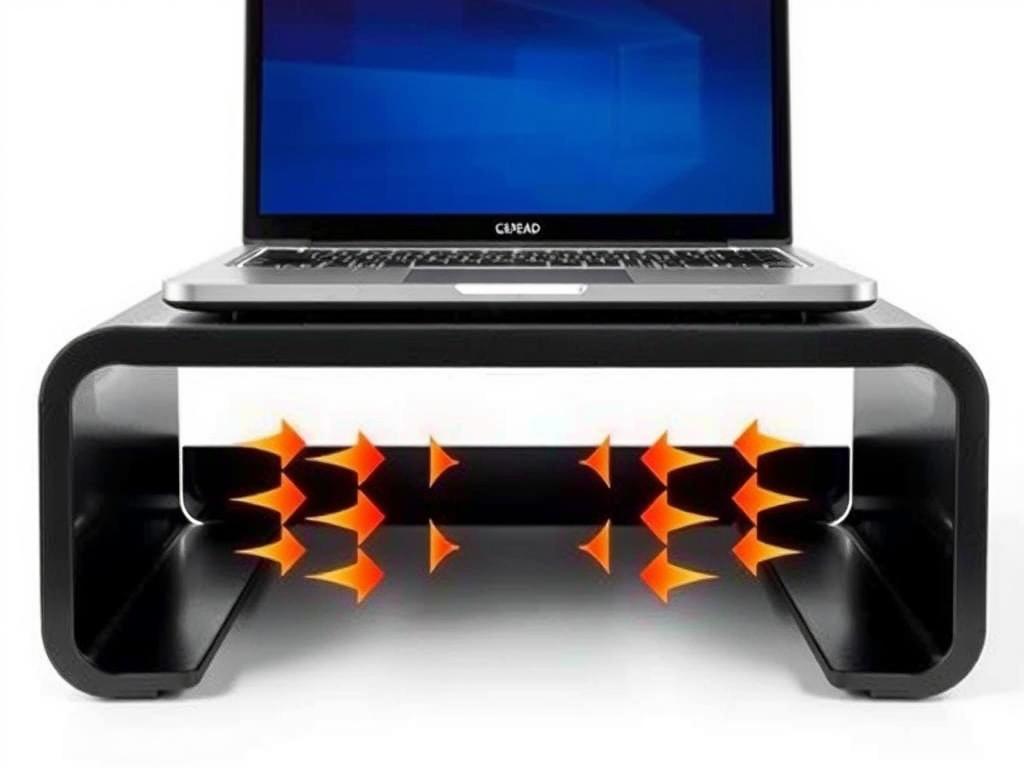
Elevating your laptop improves airflow and helps cool down internal components
- Shut down your laptop: If your laptop is extremely hot, power it off immediately and let it cool down for 15-30 minutes.
- Elevate your laptop: Raise your laptop by placing it on a stand or even a stack of books to improve airflow underneath.
- Use on hard surfaces: Always place your laptop on hard, flat surfaces rather than soft materials like blankets or pillows that block ventilation.
- Close background applications: Use Task Manager (Ctrl+Shift+Esc) to identify and close resource-intensive programs running in the background.
- Move away from heat sources: Keep your laptop away from direct sunlight and other heat sources that can raise ambient temperature.
Warning: If your laptop shuts down due to overheating, wait at least 30 minutes before restarting to prevent potential damage to internal components.
External Cooling Solutions
External cooling accessories can significantly improve your laptop’s temperature management:
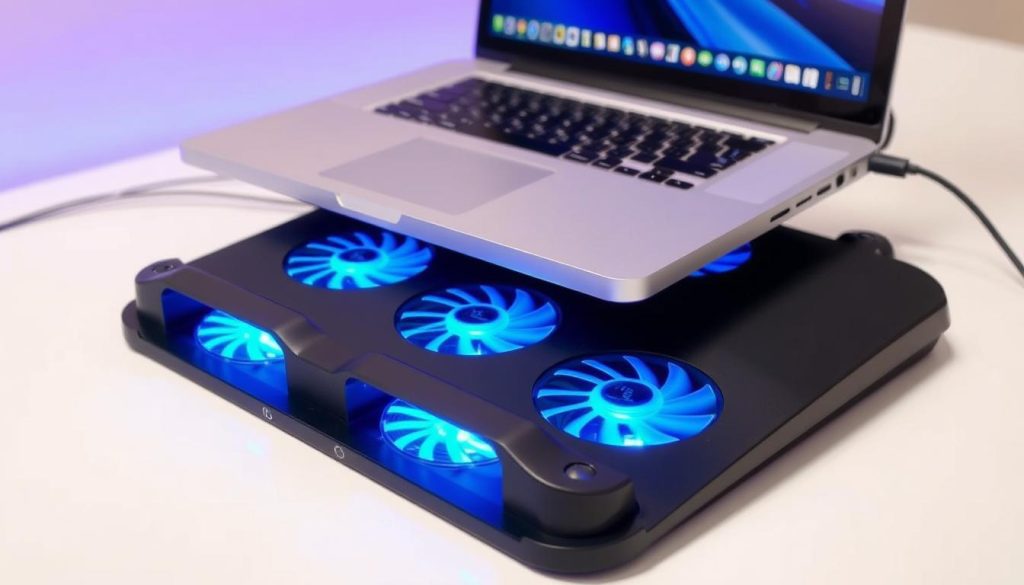
Cooling pads with multiple fans provide additional airflow to hot laptops
Laptop Cooling Pads
Cooling pads are platforms with built-in fans that direct cool air toward your laptop’s underside. They’re one of the most effective external solutions for laptop overheating problems.
| Cooling Pad Type | Fan Count | Best For | Average Temperature Reduction |
| Basic Single Fan | 1 | Light usage, budget option | 5-8°C |
| Multi-Fan Standard | 2-4 | General use, office work | 8-12°C |
| Gaming/Performance | 4-6 | Gaming, video editing | 10-15°C |
Need immediate cooling relief?
A quality cooling pad can reduce your laptop’s temperature by up to 15°C, preventing performance throttling and extending component life.
Laptop Stands and Risers
If you prefer a more minimal solution, laptop stands and risers elevate your device to improve natural airflow without additional fans.

Laptop stands improve both airflow and ergonomics
External USB Fans
Small, portable USB fans can be positioned to blow air directly at your laptop’s hottest areas or intake vents. While less effective than dedicated cooling pads, they’re an affordable and versatile option.
Cleaning Your Laptop to Improve Cooling
Regular cleaning is essential for maintaining proper airflow and cooling efficiency. Dust buildup is one of the leading causes of laptop overheating.
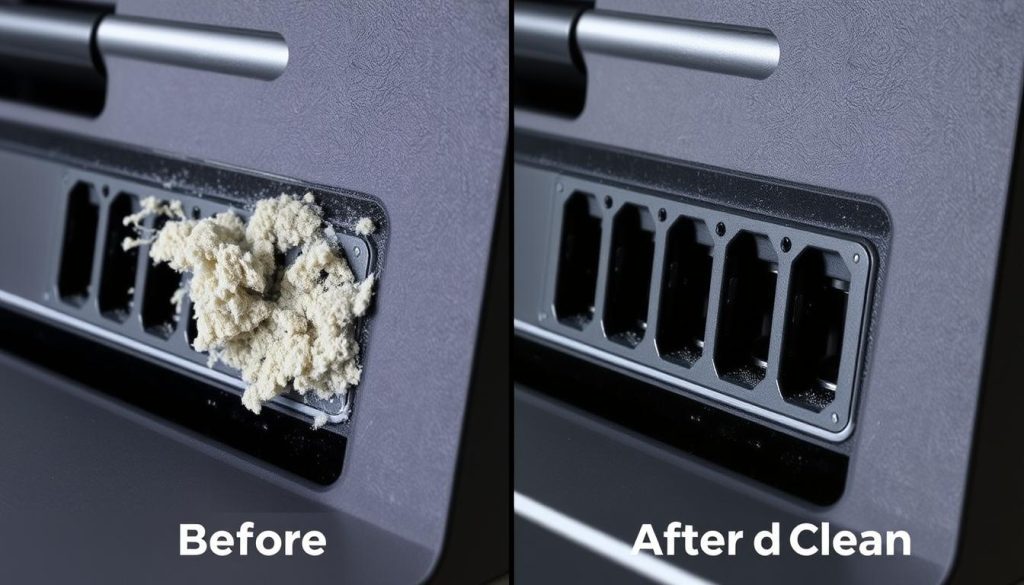
Before and after cleaning laptop cooling vents – proper maintenance can dramatically improve airflow
Tools Required for Cleaning
| Tool | Purpose | Required For |
| Compressed Air Can | Blow out dust without contact | External vents, keyboard |
| Microfiber Cloth | Wipe surfaces without scratching | External cleaning |
| Isopropyl Alcohol (90%+) | Clean without leaving residue | Fan blades, heat sinks |
| Precision Screwdriver Set | Open laptop case safely | Internal cleaning |
| Anti-Static Brush | Safely remove dust from components | Internal components |
| Thermal Paste | Replace old thermal compound | CPU/GPU maintenance |
Professional Laptop Cleaning Kit
Get all the tools you need to safely clean your laptop’s cooling system and prevent overheating issues.
External Cleaning Steps
Start with these non-invasive cleaning steps:
- Shut down your laptop and disconnect all cables including the power adapter.
- Hold the compressed air can upright and use short bursts to blow dust from all vents.
- Clean the laptop’s exterior with a slightly damp microfiber cloth.
- Pay special attention to the intake and exhaust vents where dust accumulates.

Use compressed air in short bursts to clean vents without damaging internal components
Internal Cleaning (Advanced)
Warning: Opening your laptop may void the warranty. Only attempt internal cleaning if you’re comfortable with disassembly and your warranty has expired.
For thorough cleaning, you may need to access the internal components:
- Research your specific laptop model for disassembly instructions or videos.
- Remove the bottom panel using appropriate screwdrivers.
- Use compressed air to carefully clean dust from fans, heat sinks, and vents.
- For stubborn dust, gently use an anti-static brush.
- Reassemble carefully, ensuring all screws are properly tightened.
Replacing Thermal Paste
Thermal paste is a heat-conductive compound that sits between your CPU/GPU and the cooling system. Over time, it can dry out and lose effectiveness, leading to overheating.

Apply a pea-sized amount of thermal paste to the center of the CPU
Warning: Replacing thermal paste requires disassembling your laptop to access the CPU and GPU. This is an advanced procedure that should only be attempted if you’re comfortable with laptop disassembly.
When to Replace Thermal Paste
Consider replacing your laptop’s thermal paste if:
- Your laptop is more than 2-3 years old
- You’ve noticed a gradual increase in operating temperatures
- The laptop overheats even after thorough cleaning
- You experience thermal throttling during normal tasks
Temperature Improvement After Thermal Paste Replacement
| Laptop Age | Before Replacement | After Replacement | Temperature Reduction |
| 1-2 years | 85-90°C | 70-75°C | 10-15°C |
| 3-4 years | 90-95°C | 70-80°C | 15-20°C |
| 5+ years | 95-100°C | 75-85°C | 15-25°C |
Quality Thermal Paste Makes a Difference
High-quality thermal paste can reduce CPU temperatures by up to 25°C compared to old, dried-out paste.
Software Solutions for Laptop Overheating
Software adjustments can significantly reduce heat generation by optimizing how your laptop uses its resources.
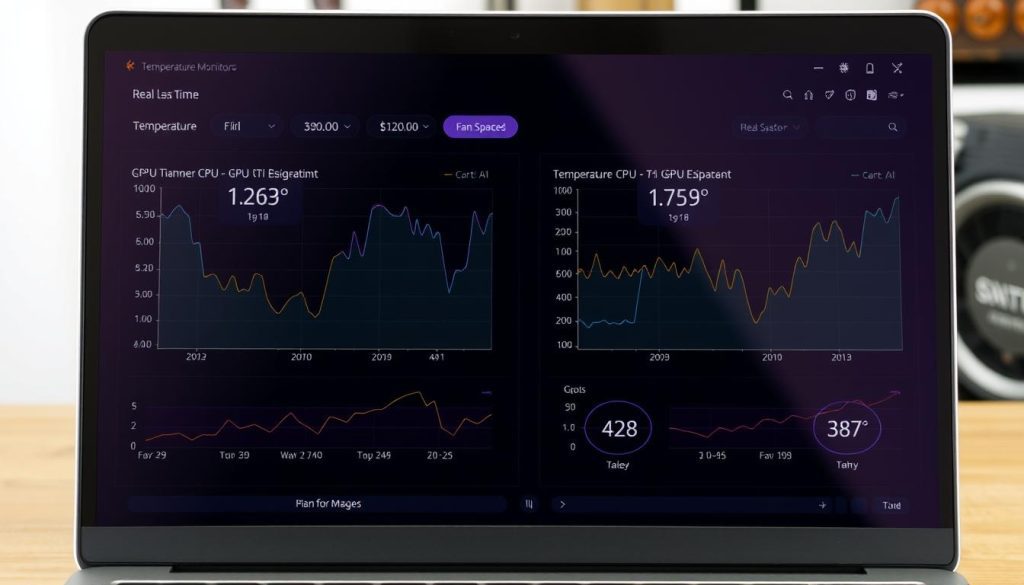
Temperature monitoring software helps identify overheating components
Adjust Power Settings
Windows power plans control how much power your laptop uses, directly affecting heat generation:
- Open Control Panel > Power Options
- Select “Balanced” or “Power saver” instead of “High performance”
- Click “Change plan settings” > “Change advanced power settings”
- Under “Processor power management,” reduce the “Maximum processor state” to 80-90%
- Reduce screen brightness to lower power consumption
Monitor and Control Temperatures
Temperature monitoring software helps you identify overheating components and track cooling improvements:
- HWMonitor: Displays real-time temperature readings for CPU, GPU, and other components
- Core Temp: Focuses on CPU temperature with a simple interface
- MSI Afterburner: Monitors GPU temperature and allows fan speed control
- ThrottleStop: Advanced tool for undervolting and controlling CPU performance
Monitor Your Laptop’s Temperature
Download free temperature monitoring software to identify overheating components and track the effectiveness of your cooling solutions.
Undervolting Your CPU
Undervolting reduces the voltage supplied to your CPU, decreasing heat output without significantly affecting performance.
Warning: Undervolting requires careful testing to ensure system stability. Start with small adjustments and test thoroughly before making larger changes.
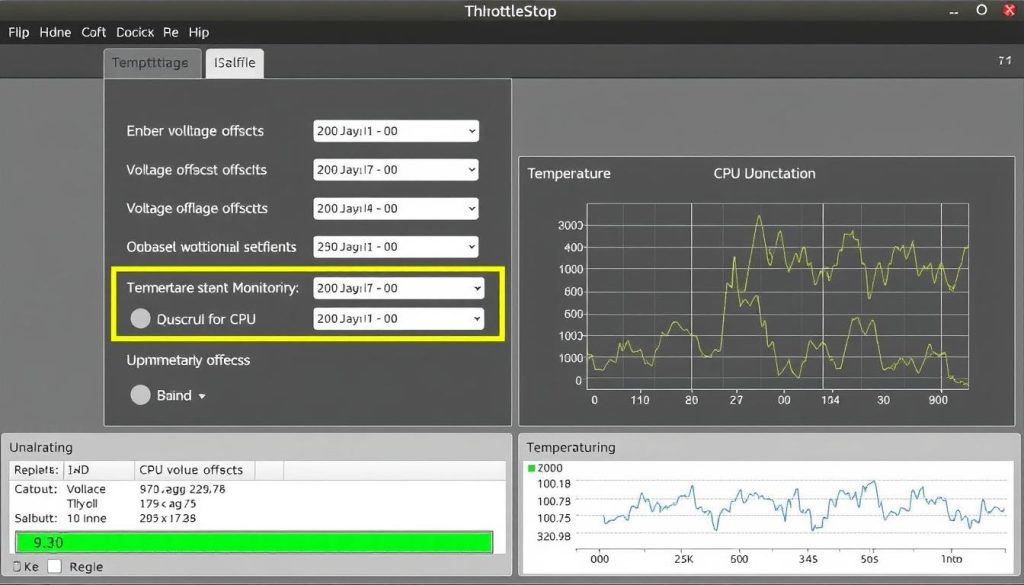
ThrottleStop allows precise CPU undervolting to reduce heat generation
Optimizing Fan Performance
Your laptop’s cooling fans are the first line of defense against overheating. Ensuring they’re working properly and running at optimal speeds can make a significant difference.
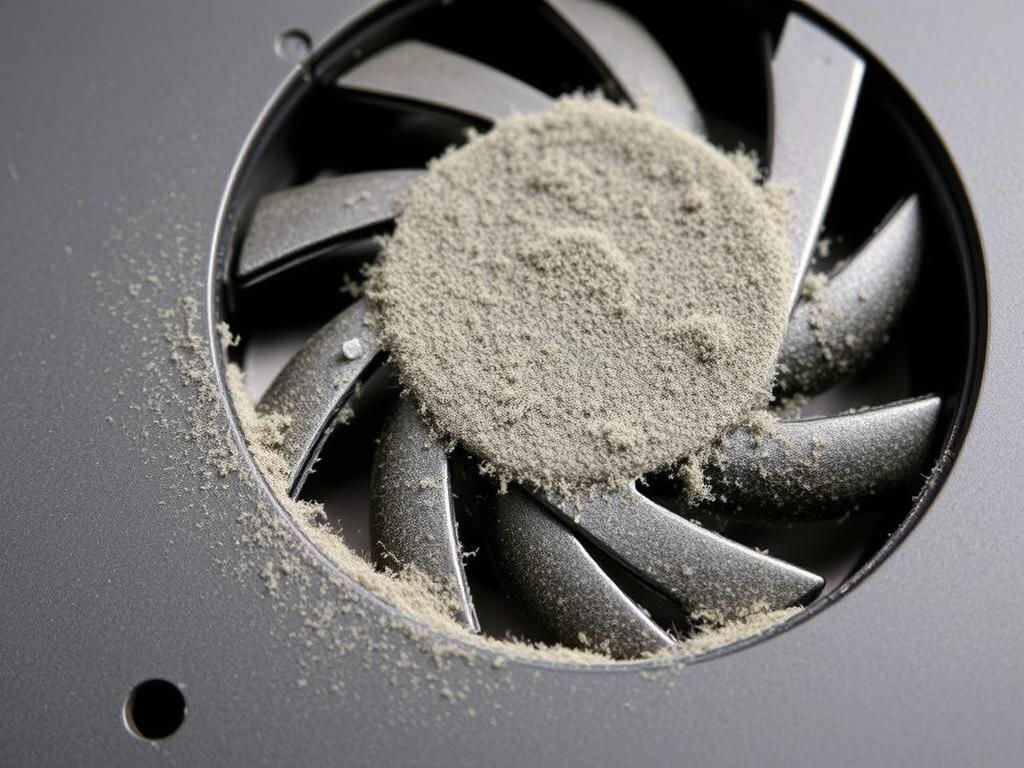
Dust accumulation on cooling fans significantly reduces their effectiveness
Fan Control Software
Some laptops allow manual control of fan speeds using specialized software:
- SpeedFan: Free utility for monitoring and controlling fan speeds
- Notebook FanControl: Specifically designed for laptop fan control
- MSI Afterburner: Controls GPU fans in gaming laptops
- Manufacturer utilities: Many laptop brands offer their own fan control software
Note: Not all laptops support manual fan control. Check your laptop model’s specifications or manufacturer support before attempting to adjust fan speeds.
Fan Replacement
If your laptop’s fan is making unusual noises (grinding, rattling) or has stopped working entirely, it may need replacement:
- Identify the exact fan model compatible with your laptop
- Purchase a replacement from a reputable source
- Follow a disassembly guide specific to your laptop model
- Carefully disconnect and remove the old fan
- Install the new fan and reconnect all cables
- Reassemble the laptop and test the new fan
Warning: Fan replacement requires significant disassembly of your laptop. Consider professional repair services if you’re not comfortable with this level of hardware maintenance.
Changing Usage Habits to Prevent Overheating
Sometimes the most effective way to prevent laptop overheating is to adjust how you use your device.
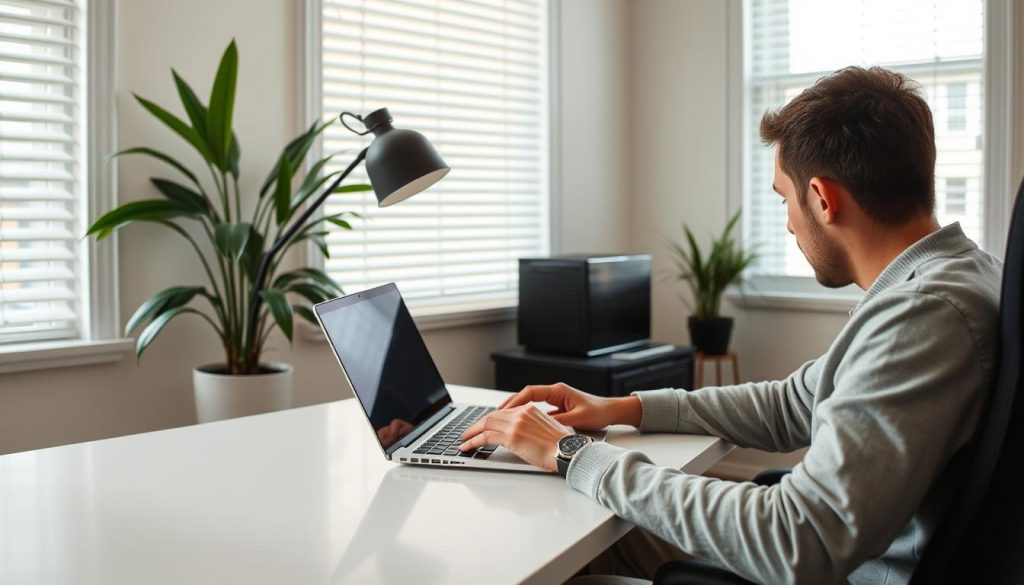
Using your laptop in a well-ventilated environment helps maintain optimal temperatures
Optimal Environment
Your working environment significantly impacts your laptop’s temperature:
- Keep room temperature between 68-77°F (20-25°C) when possible
- Avoid using your laptop in direct sunlight
- Ensure adequate air circulation around your workspace
- Keep your laptop away from other heat-generating devices
- Consider using air conditioning during hot weather
Task Management
How you manage your computing tasks affects heat generation:
- Close unused applications and browser tabs
- Schedule resource-intensive tasks for cooler parts of the day
- Take breaks to allow your laptop to cool down
- Use cloud computing services for demanding tasks when possible
- Consider external GPUs for gaming and video editing
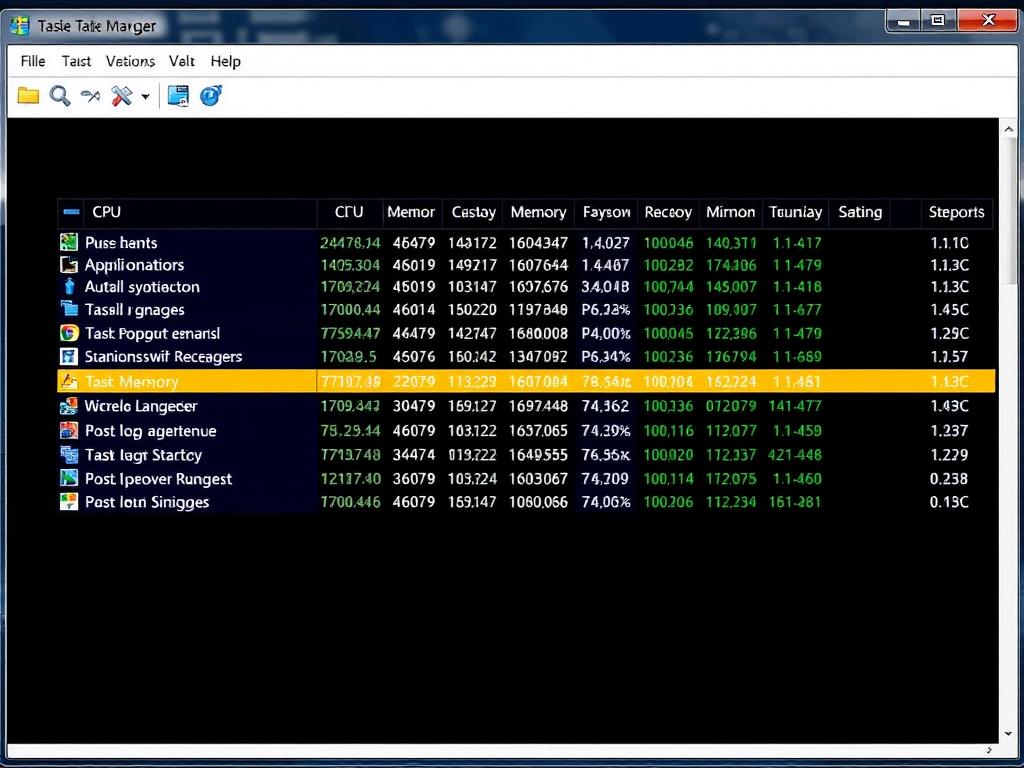
Use Task Manager to identify and close resource-intensive applications
Hardware Upgrades to Improve Cooling
For persistent overheating issues, hardware upgrades may be necessary to improve your laptop’s cooling capacity.

Advanced cooling systems with multiple heat pipes and fans provide superior heat dissipation
SSD Upgrade
Solid-state drives (SSDs) generate less heat than traditional hard disk drives (HDDs) while providing faster performance:
SSD Benefits
- Generates less heat than HDDs
- Faster data access and boot times
- No moving parts to generate friction heat
- Lower power consumption
- Reduced system strain during file operations
SSD Considerations
- Higher cost per GB than HDDs
- May require reinstalling operating system
- Limited write cycles (though rarely an issue)
- Requires data migration or fresh installation
- Some laptops may not support easy drive swapping
RAM Upgrade
Insufficient RAM forces your laptop to use virtual memory on the slower storage drive, increasing CPU usage and heat:
- More RAM allows smoother multitasking with less CPU strain
- Reduces reliance on virtual memory (page file/swap)
- Particularly beneficial for memory-intensive applications
- Check your laptop’s maximum supported RAM before upgrading
Upgrade Your Laptop’s Cooling Potential
Switching to an SSD and adding more RAM can significantly reduce heat generation while improving overall performance.
When to Seek Professional Help
While many overheating issues can be resolved with DIY solutions, some situations call for professional assistance.
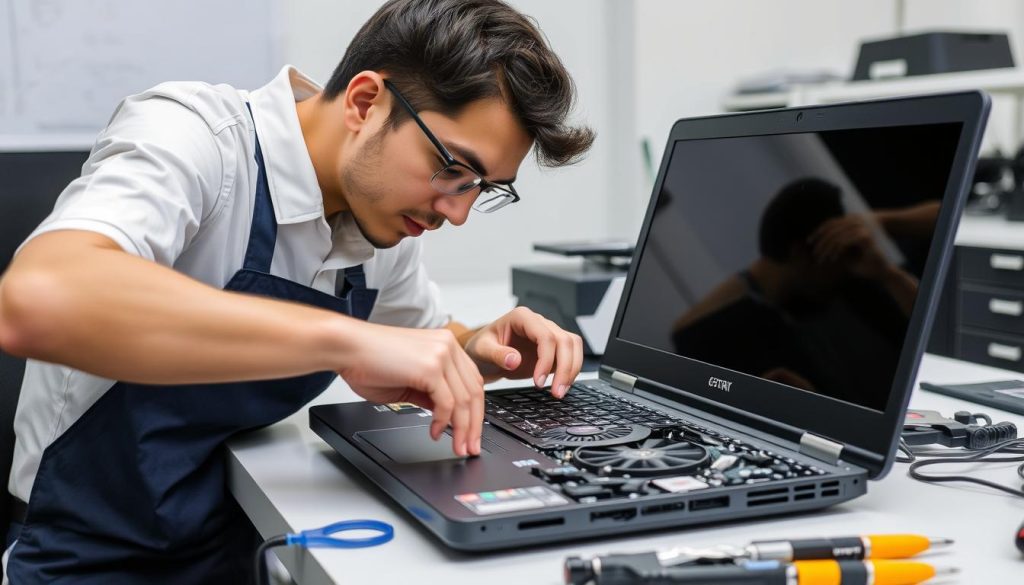
Professional technicians have the tools and expertise to safely repair complex cooling issues
Signs You Need Professional Help
Consider consulting a professional if:
- Your laptop shuts down randomly due to overheating despite trying multiple solutions
- You hear unusual noises from the cooling fan (grinding, rattling)
- The laptop overheats even when idle or performing light tasks
- You’ve tried cleaning and the problem persists
- Your laptop is still under warranty (DIY repairs may void it)
- You’re uncomfortable performing internal maintenance yourself
What to Expect from Professional Repair
A professional laptop repair service typically offers:
- Thorough internal cleaning with specialized equipment
- Replacement of thermal paste with high-quality compounds
- Fan testing and replacement if necessary
- Heat sink inspection and repair/replacement
- Diagnostic testing to identify other potential issues
- Software optimization for better thermal management
Tip: If your laptop is still under warranty, contact the manufacturer first. Many warranty services cover overheating issues and repairs will be performed at no additional cost.
Long-Term Prevention of Laptop Overheating
Preventing future overheating issues requires ongoing maintenance and mindful usage habits.
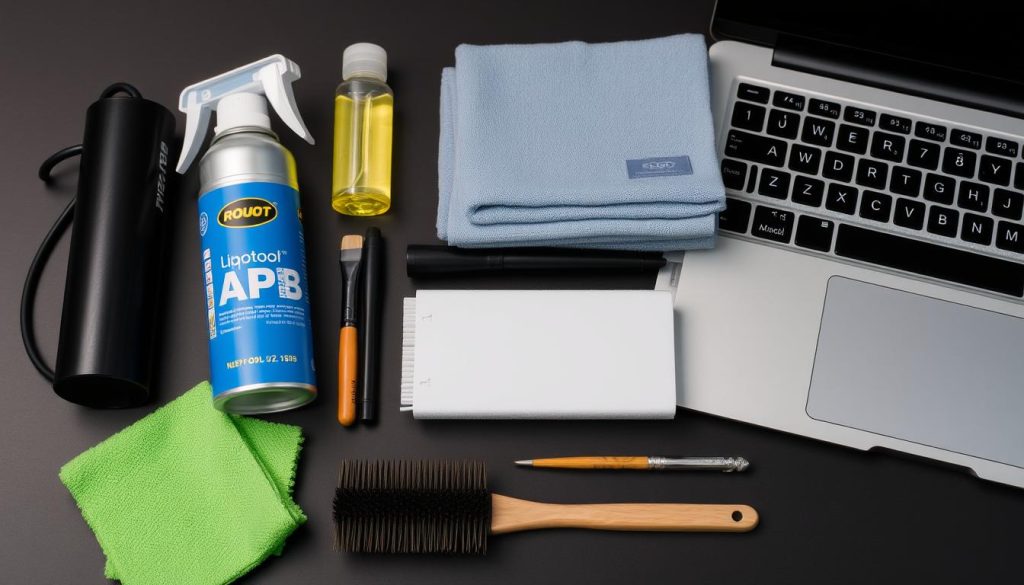
Regular maintenance with proper tools helps prevent overheating issues
Maintenance Schedule
Follow this maintenance schedule to keep your laptop running cool:
| Maintenance Task | Frequency | Difficulty | Impact on Cooling |
| External vent cleaning | Monthly | Easy | Medium |
| Software cleanup | Monthly | Easy | Medium |
| Internal dust removal | Every 6 months | Medium | High |
| Thermal paste replacement | Every 2-3 years | Hard | Very High |
Software Maintenance
Regular software maintenance helps prevent unnecessary system strain:
- Keep your operating system and drivers updated
- Uninstall unused applications
- Disable unnecessary startup programs
- Run disk cleanup and defragmentation (for HDDs only)
- Scan for and remove malware that might run in the background

Keeping drivers updated helps optimize system performance and thermal management
Conclusion: Keeping Your Laptop Cool for Optimal Performance
Laptop overheating is a common but solvable problem. By implementing the solutions outlined in this guide, you can significantly reduce your laptop’s operating temperature and prevent potential damage to internal components.
Start with the simplest solutions like improving ventilation and cleaning external vents. If problems persist, progress to more advanced solutions like internal cleaning and thermal paste replacement. Remember that consistent maintenance is key to preventing future overheating issues.
For gaming laptops and systems under heavy workloads, consider investing in quality cooling pads and optimizing your software settings. These steps will not only keep your laptop cooler but also extend its lifespan and maintain peak performance.
Take Action Today
Don’t wait until overheating causes permanent damage to your laptop. Implement these cooling solutions now to protect your investment and ensure optimal performance.