
Setting up a WordPress website can seem scary at first. But, with the right help, it’s actually pretty easy.
Having a professional website is key for a strong online presence. A good website draws in and keeps your audience interested. This can really help your business grow.
This beginner’s guide to WordPress will make setting up your site simple. We’ll show you the essential steps to get your site live.
Table of Contents:
Key Takeaways
- Understand the importance of setting up a WordPress website
- Learn the essential steps to create a professional-looking website
- Get started with your WordPress website setup today
- Discover how to navigate the WordPress setup process with ease
- Establish a strong online presence with a well-designed website
Why Choose WordPress for Your Website?
WordPress is a top choice for building websites. It offers many benefits for different users. Its flexibility and customization options make it perfect for creating a professional website.
With over 43% of the internet using WordPress, it’s clear it’s very popular. But why is it so loved?
The Benefits of Using WordPress
WordPress is easy to use, even for those without tech skills. You can manage and update your site easily. It also has a huge selection of customizable themes and plugins to improve your site’s look and function.
Here are some key benefits of using WordPress:
- Highly customizable
- User-friendly interface
- Extensive community support
- Regular updates and security patches
- SEO-friendly
Popularity and Community Support
WordPress’s popularity comes from its features and a strong community. Thousands of developers help it grow, adding new features and improvements.
The community support is very helpful. It offers forums, tutorials, and documentation. These resources can help you solve problems and learn new things.
| Feature | Description | Benefit |
|---|---|---|
| Customization | Thousands of themes and plugins | Personalize your website |
| Community Support | Active forums and documentation | Get help when you need it |
| SEO Optimization | Built-in SEO features and plugins | Improve your search engine rankings |
Step 1: Choosing the Right Hosting Provider
Choosing the right hosting provider is key to a successful WordPress website. Your host affects your site’s speed, security, and how often it’s up. With so many options, picking the right one is important.
Factors to Consider in Hosting
Several factors are important when picking a host. Storage and bandwidth are crucial; your site needs enough space and bandwidth to handle traffic. Reliable customer support is also key, ensuring help is there when you need it.
- Uptime guarantee: Look for providers that offer a high uptime guarantee, ideally 99.9%.
- Scalability: Choose a host that allows you to scale your resources as your website grows.
- Security features: Ensure the provider offers robust security features, such as firewalls and malware scanning.
Recommended Hosting Companies
Many hosting companies are well-liked in the WordPress world. Bluehost is known for its easy-to-use interface and reliable service. SiteGround is popular for its great customer support and strong security. WP Engine is a top choice for managed WordPress hosting, offering fast performance and top-notch security.
When picking a host, think about what you need and your budget. Choosing a reputable host ensures your WordPress site is well-supported and runs smoothly.
Step 2: Installing WordPress
Setting up WordPress is key to making your website. It’s easier than you might think. Most hosts make it simple to get WordPress running.
One-Click Install Options
Many web hosts offer a one-click install for WordPress. This makes it quick and easy, without the need for manual setup.
- Convenience: One-click installs are fast and simple.
- Time-saving: They cut down on the manual work needed.
- User-friendly: Great for beginners who don’t know how to install manually.
To use the one-click install, log into your hosting account. Then, go to the control panel (often cPanel). Look for the WordPress installer icon. Click it and follow the instructions to finish the setup.
Manual Installation Guide
If you like doing things yourself, manual installation is for you. It lets you control the setup process more closely.
- Get the latest WordPress from the official WordPress website.
- Upload the WordPress files to your server with an FTP client.
- Create a database for WordPress in your hosting control panel.
- Start the WordPress installation by visiting your website’s URL.
As WordPress.org says, “The famous five-minute installation is a breeze.” It might take a bit longer for some, but it’s still pretty easy.
“The installation process for WordPress is designed to be easy, and most hosting companies provide tools to make it even simpler.”
Here’s a look at how the installation methods compare:
| Installation Method | Time Required | Technical Skill Level |
|---|---|---|
| One-Click Install | Less than 5 minutes | Beginner |
| Manual Installation | 15-30 minutes | Intermediate |

By following these steps, you can set up WordPress and start building your site. Whether you go for the one-click install or manual setup, it’s made to be easy for everyone.
Step 3: Selecting a Suitable Theme
Choosing the right theme for your WordPress site is key to a professional online look. Your theme’s design and functionality impact user experience and SEO.
Free vs. Premium Themes
First, decide between a free or premium theme. Free themes are perfect for beginners or those on a tight budget. They’re easy to find and install through WordPress. But, they might lack features and customization options.
Premium themes offer more features, better support, and customization. They’re sold by third-party developers and can make your site stand out. You can find them on ThemeForest and Mojo-Themes.
| Feature | Free Themes | Premium Themes |
|---|---|---|
| Cost | Free | Varies (typically $20-$100) |
| Customization Options | Limited | Extensive |
| Support | Community Support | Dedicated Support |
| Features | Basic | Advanced |
“The choice between a free and premium theme depends on your specific needs and budget. If you’re serious about your online presence, investing in a premium theme can be worthwhile.” – Mark Wilkinson
Customizing Your Theme
After picking a theme, it’s time to customize. Most themes let you change colors, fonts, and add logos. Go to Appearance > Customize in your WordPress dashboard to start.
For deeper changes, use the WordPress Customizer or page builders like Elementor or Beaver Builder. These tools make complex changes easy without coding.
In conclusion, picking the right theme is vital in creating a professional WordPress site. Knowing the difference between free and premium themes and how to customize helps you build a site that looks great and works well.
Step 4: Essential Plugins to Install
Choosing the right plugins is key to a successful WordPress website. Plugins boost your site’s functionality, speed, and user experience.
Recommended Plugins for New Users
New WordPress users should start with easy-to-use plugins. Here are some top picks:
- Yoast SEO: Helps improve your site’s search engine ranking.
- Jetpack: Offers security, performance, and traffic insights.
- Wordfence: Protects your site from malware and threats.
These plugins are loved by the WordPress community. They make your site more functional and secure.
Managing Your Plugins
After installing essential plugins, managing them is important. Keep your plugins updated for the latest features and security. Here’s how to manage them well:
- Watch how plugins affect your site’s speed.
- Uninstall unused plugins to keep your site safe and clean.
- Test new plugins on a staging site before adding them to your live site.
Smart plugin management keeps your WordPress site fast, secure, and efficient.
Step 5: Setting Up Permalinks
Permalinks are key to your WordPress site’s structure and SEO. They are permanent URLs for your pages and posts. A good permalink structure boosts your site’s search engine ranking and user experience.
Why Permalinks Matter
Permalinks help search engines grasp your site’s content and structure. A clear permalink can lift your page’s search engine ranking. They also make sharing and navigating your content easier for users.
Here are some key reasons why permalinks matter:
- They improve your website’s SEO by making URLs more descriptive and keyword-rich.
- They enhance user experience by providing clear and understandable URLs.
- They help in organizing your website’s content in a logical and accessible manner.
Configuring Permalink Settings
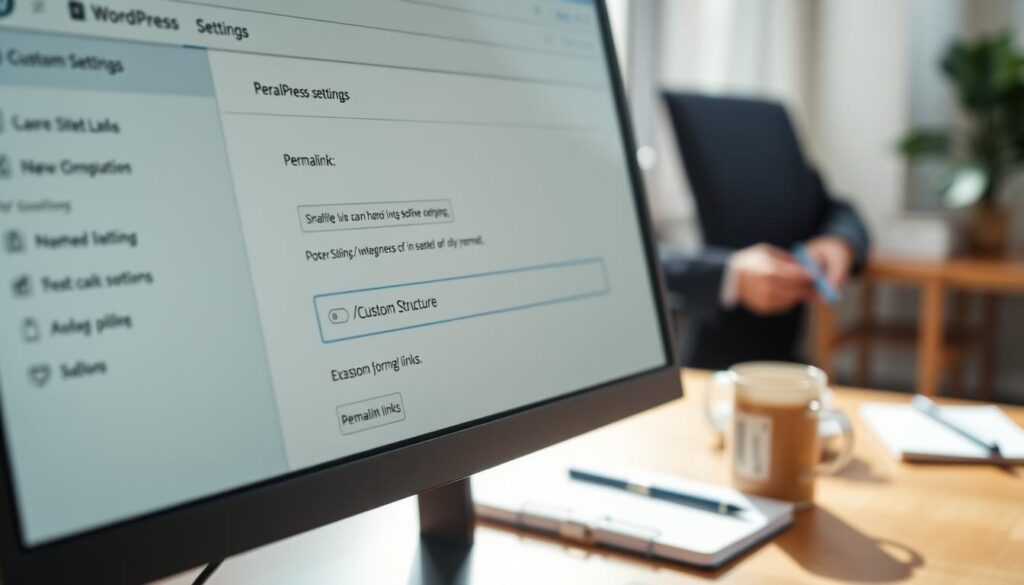
Setting up your permalink settings in WordPress is easy. Go to your WordPress dashboard, then to Settings, and click on Permalinks. You’ll find several options for your permalink structure.
Common permalink structures include:
- Plain: A basic URL structure that includes a query string.
- Post name: A clean and SEO-friendly structure that uses the post title.
- Custom Structure: Allows you to create a custom URL structure using available tags.
Most users choose the “Post name” option for its SEO benefits. But, you can pick a custom structure that fits your site’s needs.
By setting up your permalinks right, you boost your WordPress site’s SEO and user access. Remember, a good permalink structure is not just for looks. It’s crucial for search engines to crawl and index your site.
Step 6: Creating Essential Pages
A good WordPress website needs key pages for visitors. These pages are crucial for a great user experience and site performance.
Key Pages Every Website Should Have
Every WordPress site needs certain pages. You’ll need a home page, about page, and contact page. The home page introduces your site’s content. The about page shares your brand’s mission and values. The contact page lets visitors reach out to you.
Don’t forget the blog page for articles, the services page for your offerings, and the FAQ page for common questions. These pages help organize your content and make it easy for your audience to find.
Tips for Effective Page Design
Design your pages with user experience (UX) and search engine optimization (SEO) in mind. Use clear headings, short content, and relevant images to engage visitors. Make sure your pages work well on mobile devices, as many visitors will be using them.
To improve your pages:
- Use compelling headlines that capture your content’s essence.
- Keep paragraphs short and concise for better reading.
- Include relevant keywords to boost SEO.
- Use call-to-actions (CTAs) to guide visitors.
By focusing on these tips, you can make pages that look good and rank well in search engines.
Step 7: Configuring Your Site Settings
Setting up your WordPress site right is key for security and smooth running. Getting your site settings right boosts your website’s performance and safety.
General Settings Overview
The general settings in WordPress cover important site details like the site title and tagline. To get to these settings, go to the WordPress dashboard and click on “Settings” > “General.” Here, you can enter your site title and tagline, which show up on your website’s header.
- Site Title: This is your website’s title, shown in the header.
- Tagline: A short description or slogan that goes with your site title.
- WordPress Address (URL) and Site Address (URL): These URLs should usually be the same unless you’re using a different domain for your WordPress setup.
- Admin Email Address: The email linked to your WordPress admin account.
It’s important to make sure these settings are correct. They affect how your site looks to visitors and search engines.
Important Privacy and Security Settings
WordPress has many privacy and security settings to protect your site. One important setting is to stop search engines from indexing your site. This is helpful if you’re working on a new site and don’t want it to show up in search results yet.
To set up privacy settings:
- Go to “Settings” > “Reading.”
- Check the box next to “Discourage search engines from indexing this site” if you don’t want your site to appear in search results.
For security settings, consider these tips:
- Use strong passwords for all user accounts.
- Limit login attempts to prevent brute-force attacks.
- Keep your WordPress core, themes, and plugins updated.
Security is an ongoing process, not a one-time task.
By setting up your site settings correctly, you can greatly improve your WordPress website’s security and performance.
Step 8: Enhancing Website Security
Keeping your WordPress site safe is key in today’s digital world. A secure site protects your data and your users’, building trust and credibility.
Best Practices for WordPress Security
To keep your WordPress site safe, follow these steps:
- Use Strong Passwords: Don’t use easy-to-guess info. Mix letters, numbers, and symbols.
- Keep Software Up-to-Date: Update WordPress, themes, and plugins to fix security holes.
- Limit Login Attempts: Use plugins to block too many login tries and stop brute-force attacks.
- Use Secure Protocols: Make sure your site uses HTTPS to protect data.
A Sucuri report shows over 90% of hacked WordPress sites were outdated or had vulnerable plugins. This shows why updates are so important.
“Security is not just about technology; it’s also about the people using it and the processes in place.”
Recommended Security Plugins
While best practices are the base, security plugins offer extra protection. Here are some top picks:
| Plugin Name | Key Features |
|---|---|
| Wordfence | Firewall, malware scanning, login security |
| MalCare | Automated malware removal, website monitoring |
| iThemes Security | Two-factor authentication, file integrity monitoring |
Choosing the right security plugins can greatly lower the risk of your WordPress site being hacked.

By following best practices and using security plugins, you can greatly improve your WordPress site’s security. This protects your site and your users.
Step 9: Optimizing for SEO
Improving your WordPress website’s SEO is vital. It boosts your site’s visibility and user experience. A well-optimized site ranks better on search engines.
Understanding the Basics of WordPress SEO is key. SEO makes your site friendly to search engines. It involves keyword research, meta tags, and high-quality content. These steps can greatly improve your site’s ranking.
Basics of WordPress SEO
To begin with WordPress SEO, learn its basics. This includes:
- Conducting thorough keyword research to find relevant terms for your content.
- Optimizing your meta tags, such as title tags and meta descriptions, to accurately represent your content.
- Creating content that is not only rich in keywords but also provides value to your readers.
By using these strategies, you can make your website more visible. This will drive more traffic to your site.
Recommended SEO Plugins
WordPress has many SEO plugins to help with optimization. Some top picks are:
- Yoast SEO: Known for its detailed SEO analysis and optimization suggestions.
- All in One SEO Pack: Offers a user-friendly interface and robust features for optimizing your site.
- Rank Math: Provides advanced SEO features, including keyword optimization and local SEO.
These plugins offer insights and recommendations to boost your site’s SEO.
Using these tools and techniques can greatly improve your WordPress website’s SEO. This will increase your site’s online visibility and attract more visitors.
Step 10: Setting Up Backup Solutions
A good backup plan is key to a safe and reliable WordPress site. Regular backups help you quickly get back on track if data is lost or your site crashes. We’ll look at why backups are important and how to set them up right.
Why Backups Are Crucial
Backups protect your site’s data. Losing your content can be a big problem, whether it’s a blog, online store, or portfolio. Data loss can happen from hacking, server issues, or mistakes. With a recent backup, you can easily go back to a safe version, reducing downtime and losses.
Backups also let you try new things on your site without worry. You can update plugins, change themes, or add new features. If something goes wrong, you can always go back to a stable version.
Best Backup Plugins to Use
There are many great backup plugins for WordPress. Here are some top choices:
- UpdraftPlus: Easy to use and offers full backup features, including automatic cloud backups.
- BackupBuddy: Provides full-site backups, easy migration, and restoration.
- VaultPress: Part of Jetpack, it offers real-time backups and security checks.
When picking a backup plugin, think about how easy it is to use, where you can store backups, and how often it backs up automatically. It’s smart to keep backups in different places, like your server and a cloud service, for extra safety.
Final Thoughts on Your WordPress Setup
Setting up your WordPress site is just the start. To keep it safe, fast, and user-friendly, you need to keep learning and maintaining it.
Growth and Improvement
It’s important to keep learning and improving your WordPress site. Update your plugins, themes, and core software often. This keeps your site secure and running smoothly.
Also, join the WordPress community. This way, you’ll learn about the best ways to take care of your site.
Ongoing Learning Resources
For ongoing learning, use WordPress documentation, online courses, and tutorials. WordPress.org and WP Tavern are great places to find helpful information. These resources will help you stay updated with the latest WordPress tips.
By dedicating yourself to learning and maintenance, your WordPress site will keep growing and doing well.