
Your WordPress website loads slowly. Visitors leave before your content appears. Search engines push your site down in rankings. Every second of delay costs you traffic and revenue.
Website speed matters more in 2026 than ever before. Google’s Core Web Vitals directly impact your search rankings. Users expect pages to load in under two seconds. Mobile visitors abandon sites that take longer than three seconds to display content.
This comprehensive guide shows you exactly how to speed up your WordPress website. You’ll discover proven optimization techniques used by high-traffic sites. Each step includes specific actions you can implement today.
Whether you run a small blog or manage a busy e-commerce site, these methods will improve your loading time. You don’t need technical expertise to follow this guide. The strategies work for all WordPress installations and hosting environments.
Table of Contents:
Get Your Free WordPress Speed Optimization Checklist
Download our comprehensive checklist with 47 actionable steps to accelerate your WordPress site. Includes testing tools, recommended settings, and performance benchmarks.
Why Website Speed Matters in 2026
Website speed directly affects your business success. Fast sites rank higher in search results. They convert more visitors into customers. Speed optimization delivers measurable returns on investment.
Search Engine Rankings and Core Web Vitals
Google uses page speed as a ranking factor. The Core Web Vitals measure user experience through three key metrics. Largest Contentful Paint tracks loading performance. First Input Delay measures interactivity. Cumulative Layout Shift evaluates visual stability.
Sites that meet Core Web Vitals thresholds receive ranking boosts. Your WordPress website competes against thousands of other sites. Speed optimization gives you a competitive advantage in search results.
User Experience and Bounce Rates
Visitors expect instant page loads. Research shows that 53% of mobile users abandon sites taking longer than three seconds to load. Each additional second of loading time increases bounce rates by 32%.
Fast websites keep visitors engaged. Users view more pages when sites respond quickly. They return more frequently to fast-loading sites. Speed optimization improves every user interaction with your content.
Conversion Rates and Revenue Impact
Website speed directly impacts sales and conversions. Amazon found that every 100ms of latency cost them 1% in sales. Walmart discovered that improving page load time by one second increased conversions by 2%.
Your WordPress site loses money with every slow page load. E-commerce sites see immediate revenue increases after speed optimization. Even content sites benefit through improved ad viewability and engagement metrics.
Key Statistics: A one-second delay in page load time reduces customer satisfaction by 16%. Pages loading in two seconds have an average bounce rate of 9%, while pages taking five seconds see bounce rates jump to 38%.
Performance Testing Tools and Speed Measurement
You need accurate speed measurements before optimization. Testing tools reveal your current performance levels. They identify specific problems slowing down your WordPress site.

Google PageSpeed Insights
Google PageSpeed Insights analyzes your site using real user data. The tool provides separate scores for mobile and desktop performance. You receive specific recommendations for improvement based on Core Web Vitals.
Enter your URL into PageSpeed Insights. Review your performance score and Core Web Vitals metrics. Focus on opportunities marked as high impact. These changes deliver the biggest speed improvements.
GTmetrix Analysis
GTmetrix offers detailed performance reports. The tool tests your site from multiple locations. You see waterfall charts showing each file load time. Performance scores combine multiple speed factors.
Create a free GTmetrix account for advanced features. Run tests from locations matching your target audience. Monitor your speed over time to track optimization progress.
Pingdom Website Speed Test
Pingdom provides simple speed testing from seven global locations. You see total page size and number of requests. The tool grades your performance and identifies bottlenecks.
Test your site from a server near your primary audience. Note your load time and performance grade. Compare results after implementing each optimization technique.
WebPageTest for Advanced Analysis
WebPageTest delivers the most detailed performance data. You can test using different browsers and connection speeds. The tool shows filmstrip views of your page loading. Advanced metrics help diagnose complex speed issues.
Run WebPageTest using a 3G connection to simulate mobile users. Review the waterfall chart for render-blocking resources. Check the filmstrip view to see when content becomes visible.
Essential Speed Metrics to Track
- Time to First Byte (TTFB) – Server response time
- First Contentful Paint – When first content appears
- Largest Contentful Paint – Main content loading
- Total Blocking Time – Interactivity delays
- Cumulative Layout Shift – Visual stability score
- Total page size and number of requests
Testing Best Practices
- Run multiple tests to get average results
- Test from locations near your audience
- Check both mobile and desktop performance
- Test different pages on your site
- Record baseline scores before optimization
- Retest after each major change
Establishing Performance Baselines
Document your current speed metrics before optimization. Test your homepage and key landing pages. Record scores from at least two different testing tools.
Create a simple spreadsheet tracking these baselines. Include dates and specific URLs tested. This data helps you measure optimization success and identify which changes work best.
Server-Side Optimizations for WordPress Speed
Your web server handles every request to your WordPress site. Server performance affects your entire website speed. Optimization starts with choosing the right hosting and server configuration.

Choosing Performance-Optimized WordPress Hosting
Your hosting provider determines baseline site speed. Shared hosting often struggles with traffic spikes. Your site shares server resources with hundreds of other websites. This creates slow response times during peak hours.
Managed WordPress hosting optimizes servers specifically for WordPress. These hosts implement WordPress caching at the server level. They use faster storage systems and more powerful processors. Performance improves immediately after migration.
Virtual Private Server (VPS) hosting provides dedicated resources. You get guaranteed CPU and memory allocation. Your site performance remains consistent regardless of other users. VPS hosting costs more but delivers predictable speed.
Cloud hosting scales resources automatically during traffic spikes. Services like Google Cloud and AWS adjust to demand. You pay only for resources used. Cloud infrastructure handles sudden visitor increases without slowdowns.
Shared Hosting
- Lowest cost option
- Shared server resources
- Suitable for small blogs
- Limited traffic capacity
- Basic performance features
Advantages
- Very affordable pricing
- Easy setup and management
- Includes basic features
Disadvantages
- Slow during traffic spikes
- Limited optimization options
- Inconsistent performance
Managed WordPress Hosting
- WordPress-specific optimization
- Automatic updates and backups
- Built-in caching systems
- Expert support team
- Enhanced security features
Advantages
- Excellent performance
- Automatic maintenance
- WordPress expertise
Disadvantages
- Higher monthly cost
- Some plugin restrictions
- Limited customization
VPS and Cloud Hosting
- Dedicated server resources
- Scalable infrastructure
- Full server control
- Handles high traffic
- Custom configurations
Advantages
- Maximum performance
- Unlimited scalability
- Complete control
Disadvantages
- Requires technical knowledge
- Higher cost
- Complex management
Need Help Choosing the Right Hosting?
Our hosting comparison tool matches your website needs with optimal hosting solutions. Compare performance specs, pricing, and features from top WordPress hosting providers.
Implementing Server-Level Caching
Server caching stores prepared versions of your web pages. When visitors request your site, servers deliver cached content instantly. This eliminates the time needed to generate pages from scratch.
Many managed WordPress hosts include built-in caching. Check your hosting control panel for caching options. Enable all available caching features for immediate speed improvements.
Varnish cache operates at the server level before WordPress. It handles enormous traffic volumes efficiently. Ask your hosting provider about Varnish availability. Premium hosting plans often include this powerful caching system.
Upgrading PHP Version
WordPress runs on PHP programming language. Newer PHP versions execute code faster and more efficiently. PHP 8.1 and 8.2 offer significant performance improvements over older versions.
Check your current PHP version in WordPress dashboard. Navigate to Tools and then Site Health. Look for the PHP version number. Many sites still run outdated PHP 7.4 or earlier versions.
Contact your hosting provider to upgrade PHP. Most hosts allow PHP version changes through their control panel. Test your site thoroughly after upgrading. Some older plugins may require updates for PHP compatibility.
Performance Gain: Upgrading from PHP 7.4 to PHP 8.1 can improve WordPress performance by 30-40%. This single change often reduces server response time by several hundred milliseconds.
Database Server Optimization
WordPress stores all content in a MySQL or MariaDB database. Database queries slow down as your site grows. Optimization keeps database performance fast regardless of content volume.
Enable database query caching on your server. This stores frequent query results in memory. Repeated database requests return instantly from cache rather than querying the database again.
Use persistent database connections when possible. These maintain open connections between PHP and your database. New page requests skip the connection process and execute queries immediately.
Enabling HTTP/2 Protocol
HTTP/2 delivers multiple files simultaneously over a single connection. Older HTTP/1.1 loads files one at a time. This multiplexing reduces total page load time significantly.
Most modern hosting providers support HTTP/2. Check your server configuration or ask your host about HTTP/2 availability. Enable it through your hosting control panel or request activation from support.
Verify HTTP/2 activation using browser developer tools. Load your site and check the Protocol column in the Network tab. You should see “h2” listed for all requests.
WordPress Configuration and Settings Optimization
WordPress configuration directly impacts site performance. Default settings prioritize features over speed. Strategic adjustments optimize WordPress for faster loading times without sacrificing functionality.
Theme Selection and Optimization
Your WordPress theme controls frontend performance more than any other factor. Bloated themes load unnecessary code on every page. Lightweight themes deliver content faster with minimal overhead.
Choose themes built specifically for speed. Popular fast themes include GeneratePress, Astra, and Kadence. These themes load minimal CSS and JavaScript. They prioritize performance without sacrificing design flexibility.
Avoid multipurpose themes with hundreds of features. These themes include code for features you never use. Every unused feature adds file size and processing time. Specialized themes outperform all-in-one solutions.
Test theme performance before committing. Install a test theme on a staging site. Run speed tests and compare results with your current theme. Choose the theme with the best performance scores.
Fast WordPress Theme Characteristics
- Minimal CSS and JavaScript files
- No page builders required
- Clean, semantic HTML code
- Modular design loads only needed features
- Regular updates and optimization
- Positive performance reviews
- Small total file size under 100KB
Theme Features to Avoid
- Built-in sliders and animation libraries
- Bundled premium plugins
- Dozens of demo import options
- Icon font libraries
- Social media feeds integration
- Bundled page builders
- Large theme options panels
Strategic Plugin Management
WordPress plugins extend functionality but impact performance. Each active plugin adds code execution time. Many plugins load assets on every page regardless of need.
Audit all installed plugins regularly. Deactivate and delete unused plugins completely. Even inactive plugins can slow down your WordPress admin panel. Remove any plugin you haven’t used in three months.
Evaluate plugin necessity objectively. Can you achieve the same result with theme features or simple code? Many plugins replicate functionality available through lightweight alternatives. Choose plugins known for performance optimization.
Limit total plugin count strategically. Most high-performance sites run fewer than 20 active plugins. Quality matters more than quantity. One well-coded plugin outperforms five poorly optimized alternatives.
Plugin Performance Testing
Test each plugin’s performance impact individually. Use Query Monitor plugin to measure plugin load times. This tool shows exactly how much time each plugin adds to page generation.
Install P3 (Plugin Performance Profiler) for comprehensive plugin analysis. It scans your site and reports which plugins consume the most resources. Remove or replace the slowest performers.
Limiting Post Revisions
WordPress saves every draft and revision in your database. Large sites accumulate thousands of unnecessary revisions. This bloats your database and slows query execution.
Limit post revisions by editing your wp-config.php file. Add this line above “That’s all, stop editing”: define('WP_POST_REVISIONS', 3); This keeps only the three most recent revisions.
Disable revisions entirely with: define('WP_POST_REVISIONS', false); Use this setting carefully. You lose the ability to restore previous content versions.
Controlling Heartbeat API
The WordPress Heartbeat API checks for updates and autosaves content. It sends frequent requests consuming server resources. High-traffic sites experience performance issues from excessive heartbeat activity.
Install Heartbeat Control plugin to manage API frequency. Reduce heartbeat intervals or disable it on the frontend. Keep it active in the WordPress editor for autosave functionality.
Disable heartbeat on frontend pages entirely. Users don’t need real-time updates when viewing content. Reserve heartbeat activity for the admin dashboard and post editor.
Optimizing WordPress Permalinks
Permalink structure affects database query efficiency. Numeric permalinks perform fastest but lack SEO benefits. Post name permalinks balance performance with search optimization.
Avoid date-based permalinks for high-traffic sites. These create additional database queries. Choose post name or category-based structures for optimal performance.
Never change permalink structure on established sites. This breaks all existing links and destroys SEO rankings. Optimize permalinks only on new WordPress installations.
Important: Always backup your WordPress site before making configuration changes. Test modifications on a staging environment first. Monitor performance after each change to verify improvements.
Image Optimization Techniques for WordPress
Images account for most page weight on typical websites. Unoptimized images slow loading time dramatically. Proper image optimization reduces file size by 60-80% without visible quality loss.
Choosing Optimal Image Formats
Image format selection significantly impacts file size. Each format serves specific use cases. Modern formats deliver better compression than traditional options.
Use WebP format for most website images. WebP provides superior compression compared to JPEG and PNG. Browser support now exceeds 95% of all users. WebP images load 25-35% faster than JPEG equivalents.
JPEG works best for photographs and complex images. It offers good compression for images with many colors. Use JPEG quality settings between 75-85 for optimal balance.
PNG format suits graphics with transparency and simple colors. Use PNG for logos, icons, and illustrations. Avoid PNG for photographs due to large file sizes.
SVG format scales perfectly for vector graphics. Use SVG for logos, icons, and simple illustrations. SVG files remain small and look sharp at any size.
Image Compression Best Practices
Compression reduces file size while maintaining acceptable quality. All images should undergo compression before upload to WordPress. This single step dramatically improves loading time.
Use lossless compression for graphics and logos. PNG images compress significantly without quality degradation. Tools like TinyPNG reduce PNG file size by 50-70%.
Apply lossy compression to photographs. JPEG compression at 80% quality removes imperceptible details. Most users cannot distinguish between 100% and 80% quality images. File size drops by 40-60% at this setting.
Recommended Image Optimization Tools
ShortPixel
Comprehensive image optimization plugin with bulk processing. Converts images to WebP automatically. Offers both lossy and lossless compression options.
- Free tier includes 100 images monthly
- Automatic compression on upload
- Bulk optimization of existing images
- WebP conversion with fallback
Imagify
User-friendly optimization with three compression levels. Simple interface perfect for beginners. Automatically resizes oversized uploads.
- One-click optimization
- Resize images during upload
- Backup original images
- 25MB free monthly quota
EWWW Image Optimizer
Free unlimited local compression. No monthly quotas or external services. Processes images on your server.
- Completely free unlimited use
- Local server processing
- Lazy load integration
- WebP generation included
Implementing Lazy Loading
Lazy loading defers image loading until users scroll near them. Images below the viewport don’t load immediately. This technique dramatically improves initial page load time.
WordPress includes native lazy loading since version 5.5. It automatically adds loading=”lazy” attributes to images. This native feature works in all modern browsers without plugins.
Enhanced lazy loading plugins provide additional features. They handle iframes, videos, and background images. Popular options include Lazy Load by WP Rocket and a3 Lazy Load.
Exclude above-the-fold images from lazy loading. Images visible on initial page load should load immediately. Lazy loading these images actually hurts performance by delaying critical content.
Proper Image Sizing
Upload images at the exact dimensions needed. WordPress creates multiple sizes automatically. Oversized source images waste storage space and processing power.
Never upload images larger than 2000 pixels wide. Most website designs use maximum widths of 1200-1600 pixels. Larger images provide no benefit while consuming more bandwidth.
Use responsive images with srcset attributes. WordPress generates srcset automatically for uploaded images. Browsers download appropriately sized versions based on screen size.
Content Delivery for Images
Serve images from a separate domain or CDN. This enables parallel downloading and reduces main server load. Browser connection limits allow more simultaneous image downloads.
Configure a CDN specifically for image delivery. Services like Cloudflare and BunnyCDN cache images globally. Users receive images from servers nearest their location.
Quick Win: Implementing WebP format alone can reduce total image payload by 25-35%. Combined with compression and lazy loading, image optimization often improves page load time by 2-3 seconds.
Code Optimization: CSS, JavaScript, and HTML
Clean, efficient code loads faster and executes more quickly. Most WordPress sites load unnecessary code on every page. Code optimization removes bloat and streamlines delivery.

Minification of CSS and JavaScript
Minification removes unnecessary characters from code files. Spaces, line breaks, and comments disappear. File size decreases by 20-40% without affecting functionality.
Install a minification plugin to automate this process. WP Rocket, Autoptimize, and W3 Total Cache offer excellent minification features. These plugins minify files automatically as they’re served to visitors.
Enable CSS and JavaScript minification separately. Test your site after enabling each option. Some plugins or themes break with aggressive minification. Adjust settings if layout issues appear.
CSS Delivery Optimization
CSS files block page rendering until fully loaded. Render-blocking CSS delays content display. Optimization techniques allow content to appear faster.
Identify critical CSS needed for above-the-fold content. Inline this minimal CSS directly in your HTML. Move non-critical CSS to load asynchronously after page content.
Remove unused CSS from your WordPress site. Many themes load entire CSS frameworks even when using small portions. Tools like PurgeCSS eliminate unused styles automatically.
Combine multiple CSS files into one when possible. Each separate file requires a separate HTTP request. Fewer requests mean faster page loads, especially on mobile connections.
JavaScript Optimization Strategies
JavaScript often causes the worst performance problems. Scripts block page rendering and consume processing power. Strategic optimization keeps essential features while improving speed.
Defer non-critical JavaScript loading. Scripts marked as defer download in the background. They execute only after HTML parsing completes. This allows content to display faster.
Use async loading for independent scripts. Async scripts download without blocking page rendering. They execute immediately when ready. Use this for analytics and tracking codes.
Remove jQuery if possible. Modern WordPress themes often don’t require jQuery. Native JavaScript performs better and loads faster. Check theme compatibility before removing jQuery.
Eliminating Render-Blocking Resources
Render-blocking resources prevent content display. Browsers must download and process these files before showing page content. Elimination or deferral improves perceived loading speed.
Move JavaScript to page footer when possible. Footer placement allows HTML content to load first. Users see content while scripts download in the background.
Inline critical JavaScript required for initial display. Small scripts under 1KB should embed directly in HTML. This eliminates the additional request and speeds content display.
HTML Optimization Techniques
Clean HTML code improves browser parsing speed. Excessive HTML complexity slows rendering. Optimization creates lean, efficient markup.
Minimize DOM size for faster rendering. Large DOM trees with thousands of elements slow browser processing. Aim for fewer than 1500 total DOM elements per page.
Remove unnecessary HTML comments from production sites. Comments add file size without benefit to users. Eliminate them through minification or manually.
Use semantic HTML5 elements properly. Correct element usage helps browsers render pages more efficiently. Semantic markup also improves accessibility.
Database Query Optimization
Inefficient database queries slow page generation. Each query adds processing time. Optimization reduces query quantity and improves execution speed.
Install Query Monitor plugin to identify slow queries. This developer tool shows all database queries per page. Focus on queries taking over 100ms.
Add database indexes to frequently queried columns. Indexes speed up data retrieval dramatically. Consult a developer for proper index implementation on large databases.
Limit post queries to essential data only. Avoid loading complete post content when only titles are needed. Use specific query parameters to retrieve minimal data.
- Minify all CSS and JavaScript files
- Defer non-critical script loading
- Inline critical above-fold styles
- Combine similar file types
- Remove unused code and libraries
- Use async for independent scripts
Code Optimization Best Practices
- Breaking site with aggressive minification
- Deferring scripts that other code needs
- Inlining too much CSS
- Combining incompatible script files
- Removing code without testing
- Using async on dependent scripts
Code Optimization Mistakes
Content Delivery Network (CDN) Implementation
Content Delivery Networks distribute your site content across global servers. Visitors receive files from the nearest server location. This geographic proximity reduces latency and improves loading time worldwide.

How CDN Improves WordPress Speed
Distance between users and servers creates latency. Each mile adds milliseconds to loading time. International visitors experience significant delays connecting to distant servers.
CDNs cache static files on edge servers worldwide. Images, CSS, JavaScript, and other assets serve from nearby locations. Only dynamic content requests reach your origin server.
CDNs reduce bandwidth consumption on your web server. Offloading static files decreases hosting costs. Your server handles fewer requests and maintains better performance during traffic spikes.
Selecting a CDN Provider
CDN selection depends on your audience location and traffic patterns. Different providers excel in various geographic regions. Consider your primary visitor locations when choosing.
Cloudflare offers free CDN service with global coverage. The free tier includes unlimited bandwidth and basic security features. It’s ideal for small to medium WordPress sites.
BunnyCDN provides affordable premium service starting under $10 monthly. Pay-as-you-go pricing scales with usage. Excellent performance in North America and Europe.
Amazon CloudFront integrates well with AWS infrastructure. It offers the most comprehensive global network. Best suited for high-traffic sites with international audiences.
CDN Provider Comparison
| Provider | Starting Price | Free Tier | Server Locations | Best For |
| Cloudflare | Free | Unlimited bandwidth | 200+ cities | Small to medium sites |
| BunnyCDN | $1/TB | 14-day trial | 100+ locations | Budget-conscious sites |
| KeyCDN | $0.04/GB | $10 credit | 40+ locations | Developer-friendly sites |
| StackPath | $10/month | 30-day trial | 45+ locations | Security-focused sites |
| Amazon CloudFront | Pay per use | 50GB/month first year | 400+ locations | Enterprise sites |
CDN Configuration for WordPress
Most CDN providers offer WordPress plugins for easy setup. Install the provider’s official plugin from the WordPress repository. Follow the setup wizard to connect your site.
Configure CDN to cache static assets only. Include images, CSS, JavaScript, fonts, and downloadable files. Exclude dynamic content like user dashboards and checkout pages.
Set appropriate cache expiration times. Static assets should cache for at least one month. Frequently updated content can use shorter cache periods.
Enable CDN purging capabilities. You need to clear cached files when updating site content. Most plugins provide one-click cache purging from WordPress admin.
DNS Configuration
Point your domain DNS to the CDN nameservers. This routes all traffic through the CDN network. The CDN handles requests and forwards dynamic content to your origin server.
Update A records if using a pull CDN without nameserver changes. Point your CDN URL to your origin server IP address. Configure WordPress to serve static files through the CDN domain.
Testing CDN Performance
Verify CDN activation using browser developer tools. Check the Network tab for X-Cache headers. Values like HIT or CF-Cache-Status indicate successful CDN caching.
Run speed tests from multiple global locations. Compare loading times before and after CDN implementation. You should see significant improvements for international visitors.
Monitor CDN analytics regularly. Most providers offer detailed usage statistics. Review bandwidth consumption and cache hit ratios to optimize configuration.
Accelerate Your Site with Professional CDN Setup
Get expert CDN configuration optimized for your specific audience and traffic patterns. Our team implements and fine-tunes CDN settings for maximum speed improvement.
WordPress Database Optimization
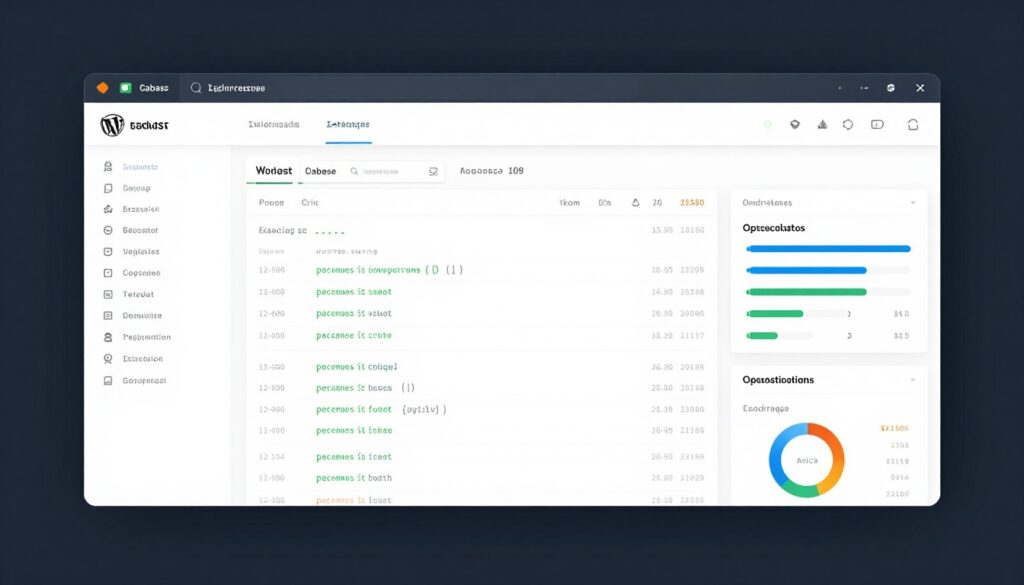
Your WordPress database stores all site content and settings. Database bloat slows query execution over time. Regular optimization maintains fast database performance as your site grows.
Understanding Database Bloat
WordPress databases accumulate unnecessary data continuously. Post revisions, spam comments, and transient options pile up. This overhead slows every database query your site executes.
Post revisions account for significant database bloat. Each saved draft creates a new database entry. Sites with hundreds of posts accumulate thousands of revisions.
Transient options store temporary data. Plugins create transients that should expire automatically. Many transients remain in the database long after expiration.
Spam comments and trashed posts waste database space. Even after moving to trash, WordPress retains this data. Permanent deletion requires manual action.
Database Cleaning Techniques
Install WP-Optimize plugin for automated database maintenance. This tool cleans revisions, spam, and transients with one click. Schedule automatic weekly cleanups.
Delete old post revisions to reclaim space. Keep only recent revisions for each post. Remove revisions older than 30 days for most sites.
Remove spam and trashed comments permanently. Empty the spam and trash folders in WordPress comments section. This data serves no purpose after deletion.
Clean expired transient options regularly. Use WP-CLI command or database optimization plugins. Transients rebuild automatically when needed.
Manual Database Optimization
Access phpMyAdmin through your hosting control panel. Select your WordPress database from the left sidebar. Choose all tables and select “Optimize table” from dropdown menu.
Run optimization during low-traffic periods. The process locks tables briefly during optimization. Schedule maintenance for your site’s quietest hours.
Database Index Optimization
Database indexes speed up data retrieval dramatically. WordPress creates basic indexes automatically. Additional custom indexes improve query performance on large sites.
Analyze slow queries to identify missing indexes. Use Query Monitor plugin to find queries over 100ms. Add indexes to columns frequently used in WHERE clauses.
Avoid excessive indexing which slows write operations. Each index increases the time required to insert new data. Index only columns that significantly impact query performance.
Database Table Repair
Corrupted database tables cause errors and slow performance. WordPress includes automatic repair functionality. Enable it temporarily when experiencing database errors.
Add this line to wp-config.php: define('WP_ALLOW_REPAIR', true); Visit yourdomain.com/wp-admin/maint/repair.php to access the repair tool. Remove the line after completing repairs.
Limiting Database Queries
Reduce total queries executed per page load. Object caching stores query results in memory. Subsequent requests retrieve data from cache instead of querying the database.
Install Redis or Memcached for persistent object caching. These systems dramatically reduce database load. Managed WordPress hosts often include object caching by default.
Disable unnecessary WordPress features generating queries. Turn off pingbacks and trackbacks if unused. Limit post revisions as discussed earlier.
Database Optimization Impact: Regular database maintenance keeps query execution times under 50ms. Sites with optimized databases handle 50-100% more traffic on the same server resources.
Advanced WordPress Speed Techniques for 2026
Emerging technologies and best practices continue evolving. Advanced optimization techniques provide competitive advantages. These methods represent the cutting edge of WordPress performance.

HTTP/3 and QUIC Protocol
HTTP/3 replaces TCP with QUIC protocol for faster connections. It eliminates head-of-line blocking problems. Connection establishment completes faster, especially on mobile networks.
Check if your CDN or hosting provider supports HTTP/3. Cloudflare and most major CDNs enabled HTTP/3 support. Enable it through your CDN dashboard for immediate benefits.
HTTP/3 particularly improves performance on unreliable connections. Mobile users see the greatest speed improvements. Desktop users on stable connections gain smaller benefits.
Edge Computing and Edge Side Includes
Edge computing executes code at CDN locations instead of origin servers. Dynamic content generation happens closer to users. Response times decrease dramatically for personalized content.
Cloudflare Workers and similar services enable edge computing. You can run JavaScript code at edge locations. This creates personalized experiences without sacrificing speed.
Edge Side Includes (ESI) cache page fragments separately. Dynamic sections update independently from static content. Your site serves mostly cached content while maintaining personalization.
WebAssembly for Performance-Critical Code
WebAssembly executes near-native speed in browsers. Complex calculations run much faster than JavaScript. Use WebAssembly for image processing, data visualization, and heavy computations.
WordPress themes and plugins begin incorporating WebAssembly. Gallery plugins use it for client-side image manipulation. Animation libraries leverage WebAssembly for smooth performance.
AI-Powered Optimization
Artificial intelligence optimizes WordPress sites automatically. AI systems analyze traffic patterns and adjust caching strategies. They predict content popularity and pre-cache likely requests.
NitroPack and similar services use machine learning for optimization. These systems continuously improve performance without manual intervention. They adapt to your specific traffic patterns automatically.
Image optimization increasingly relies on AI. Smart compression preserves important details while removing imperceptible data. AI determines optimal compression settings per image automatically.
Progressive Web App Implementation
Progressive Web Apps (PWAs) combine website and mobile app benefits. Service workers cache content for offline access. Users experience app-like speed on subsequent visits.
Install PWA plugins like SuperPWA or PWA for WP. These tools generate required files and configure your site as a PWA. Users can install your site to their home screen.
Service workers cache page shells and static assets. Returning visitors see content instantly from cache. Only dynamic data requires server requests.
Core Web Vitals Optimization
Google’s ranking algorithm emphasizes Core Web Vitals increasingly. Focus optimization efforts on these specific metrics. Improvements directly boost search rankings.
Largest Contentful Paint measures main content loading. Optimize LCP by prioritizing above-fold images and reducing render-blocking resources. Aim for LCP under 2.5 seconds.
First Input Delay tracks interactivity responsiveness. Reduce FID by minimizing JavaScript execution. Break long tasks into smaller chunks. Target FID under 100 milliseconds.
Cumulative Layout Shift prevents unexpected content movement. Reserve space for images and ads before loading. Include size attributes on all images. Keep CLS below 0.1.
Server-Side Rendering and Static Site Generation
Server-side rendering generates HTML on the server. Browsers receive complete pages ready for display. This eliminates client-side rendering delays.
Static site generators convert WordPress to static HTML files. These sites load incredibly fast with minimal server resources. Tools like WP2Static and Simply Static automate this process.
Consider headless WordPress architecture for maximum speed. Use WordPress as a content management system only. Deliver content through fast frontend frameworks like Next.js or Gatsby.
Implementing Advanced Techniques
- Assess current performance baseline with all testing tools
- Prioritize techniques based on expected impact
- Implement one advanced technique at a time
- Test thoroughly after each implementation
- Monitor performance metrics continuously
- Document changes and results
Future-Proofing: Advanced techniques require more technical knowledge but provide sustainable performance advantages. Stay updated with WordPress performance developments through community resources and testing new technologies on staging environments first.
Comprehensive Caching Strategies
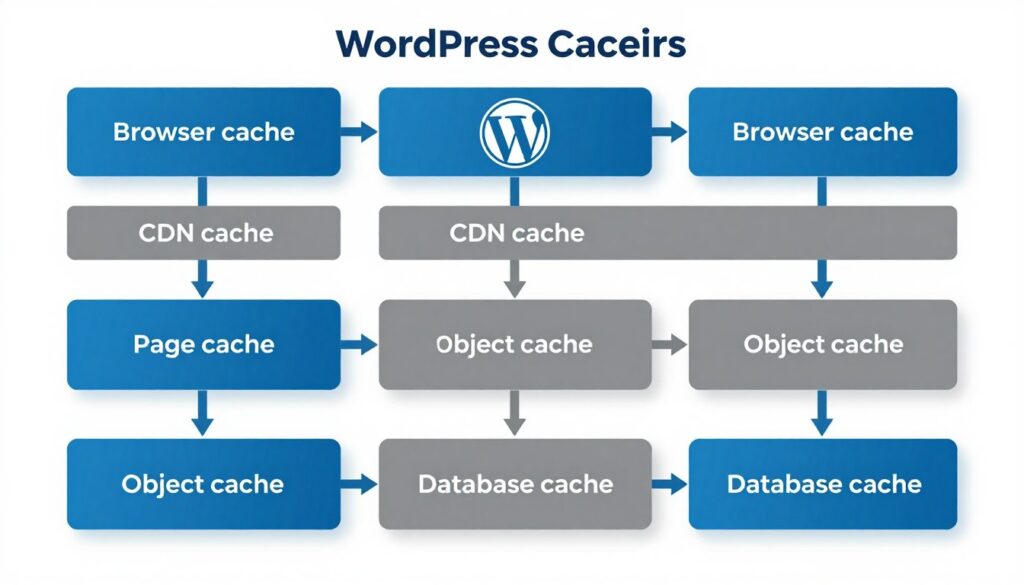
Caching represents the most effective WordPress speed optimization. Proper caching reduces server load by 90% or more. Understanding different caching layers maximizes performance benefits.
Browser Caching Configuration
Browser caching stores files on visitor devices. Returning visitors load cached files instantly. This eliminates downloads for unchanged resources.
Set long cache expiration times for static assets. Images, CSS, and JavaScript rarely change. Configure one-year expiration for maximum browser caching benefits.
Add cache-control headers through your .htaccess file. Include this code to enable browser caching:
 <IfModule mod_expires.c>
 ExpiresActive On
 ExpiresByType image/jpg "access plus 1 year"
 ExpiresByType image/jpeg "access plus 1 year"
 ExpiresByType image/png "access plus 1 year"
 ExpiresByType text/css "access plus 1 month"
 ExpiresByType application/javascript "access plus 1 month"
 </IfModule>
Page Caching Implementation
Page caching saves complete HTML output. Subsequent requests serve cached HTML without executing PHP. This reduces page generation time to nearly zero.
Install a robust caching plugin for WordPress. WP Rocket, WP Super Cache, and W3 Total Cache offer excellent page caching. These plugins create and serve cached versions automatically.
Configure cache preloading to generate caches proactively. Preloading crawls your site and creates cached versions. Visitors always receive pre-generated pages.
Exclude dynamic content from page cache. User dashboards, shopping carts, and checkout pages need current data. Configure exclusion rules for these pages.
Object Caching with Redis or Memcached
Object caching stores database query results in memory. WordPress retrieves data from memory instead of querying the database. This dramatically reduces database load.
Redis offers persistent object caching with better features. It handles complex data structures efficiently. Most managed WordPress hosts provide Redis integration.
Memcached provides simpler but effective caching. It works well for basic object caching needs. Choose Memcached when Redis isn’t available.
Install object cache plugins after enabling Redis or Memcached. Redis Object Cache plugin integrates Redis seamlessly. The plugin manages cache storage automatically.
Opcode Caching
Opcode cache stores compiled PHP code in memory. PHP doesn’t recompile files on each request. This speeds up PHP execution significantly.
OPcache comes built into PHP 5.5 and newer versions. Verify OPcache activation in your PHP configuration. Most hosts enable it by default.
Adjust OPcache settings for optimal performance. Increase memory allocation to 128MB or higher. Set revalidation frequency to check for file changes.
Fragment Caching
Fragment caching saves parts of pages independently. Different sections expire on different schedules. Dynamic widgets can update while main content remains cached.
Use transient API for custom fragment caching. Store expensive query results as transients. Set appropriate expiration times based on update frequency.
Professional Caching Configuration Service
Our WordPress experts implement multi-layer caching perfectly configured for your site. We optimize each caching layer and fine-tune settings for maximum performance gain.
Common WordPress Speed Optimization Mistakes to Avoid
Speed optimization seems straightforward but includes many pitfalls. Common mistakes actually slow sites down or break functionality. Avoiding these errors saves time and prevents problems.
Over-Optimization and Plugin Conflicts
Installing too many optimization plugins causes conflicts. Multiple caching plugins fight for control. Features overlap and create redundant processing.
Choose one comprehensive optimization plugin instead of many specialized ones. WP Rocket or Perfmatters handle most optimization needs alone. Additional plugins often create more problems than solutions.
Test plugin combinations carefully on staging sites. Conflicts may not appear immediately. Monitor for JavaScript errors and broken functionality.
Aggressive Minification Breaking Functionality
Excessive minification and combination breaks JavaScript dependencies. Scripts expecting separate files fail when combined. Site features stop working mysteriously.
Enable minification gradually while testing functionality. Start with CSS minification first. Add JavaScript minification only after verifying CSS works correctly.
Exclude problematic scripts from minification. Most optimization plugins allow file exclusions. Add troublesome scripts to exclusion lists rather than disabling minification entirely.
Improper CDN Configuration
Incorrect CDN settings break site layout and functionality. Mixed content warnings appear on HTTPS sites. Images and stylesheets fail to load.
Verify CDN SSL certificate configuration. Your CDN must support HTTPS if your site uses SSL. Configure SSL settings properly to avoid mixed content errors.
Test your site thoroughly after CDN activation. Check multiple pages and all dynamic features. Verify forms, shopping carts, and interactive elements work correctly.
Ignoring Mobile Performance
Optimization focuses on desktop performance while mobile suffers. Mobile users account for 60% of web traffic. Poor mobile speed severely impacts overall site success.
Test mobile performance separately from desktop. Use mobile-specific testing tools and throttled connections. Optimize for mobile-first since it represents the majority of traffic.
Reduce resource loading on mobile devices. Serve smaller images to mobile users. Eliminate unnecessary features on mobile versions.
Neglecting Security During Optimization
Speed optimization sometimes compromises security. Aggressive caching exposes sensitive data. Disabled security features create vulnerabilities.
Never cache user-specific content or sensitive pages. Exclude login pages, account dashboards, and checkout processes. Configure cache exclusions properly to protect user data.
Maintain security plugin compatibility with optimization plugins. Some security and optimization tools conflict. Test both security and performance after changes.
Failing to Test After Changes
Implementing optimizations without testing breaks sites. Problems only appear later when users report issues. This damages reputation and user trust.
Test every optimization on staging environments first. Verify all functionality works before deploying to production. Run speed tests to confirm actual improvements.
Keep backups before major optimization changes. You need quick rollback capabilities if problems occur. Backup plugins automate this essential safety step.
Critical Warning: Never implement multiple optimization techniques simultaneously on live sites. Change one setting at a time, test thoroughly, then proceed to the next optimization. This approach identifies exactly which changes help or hurt performance.
Overlooking Hosting Limitations
Optimization cannot overcome terrible hosting. Shared hosting with inadequate resources stays slow regardless of optimization. Your server fundamentals determine maximum possible speed.
Evaluate hosting performance honestly. If optimization provides minimal improvement, your hosting likely limits performance. Consider upgrading to better hosting as the primary optimization.
Understand your hosting plan resource limits. Optimization works within available CPU, memory, and bandwidth. Exceeding resource limits triggers throttling that negates optimization efforts.
Ongoing Speed Optimization Maintenance
WordPress speed optimization requires ongoing maintenance. Performance degrades over time without attention. Regular monitoring and updates maintain optimal speed.

Regular Performance Monitoring
Establish monthly performance testing routines. Run speed tests from multiple locations. Track your scores over time to identify performance degradation.
Set up automated monitoring with tools like Pingdom or UptimeRobot. These services alert you to performance problems immediately. You can address issues before they impact many users.
Monitor Core Web Vitals through Google Search Console. Review monthly reports showing your site’s real-world performance. Address pages failing Core Web Vitals thresholds.
Plugin and Theme Updates
Keep WordPress, themes, and plugins updated constantly. Updates often include performance improvements. Security patches also protect your site from vulnerabilities.
Review plugin necessity quarterly. Remove plugins you no longer need. Each eliminated plugin reduces code execution and improves speed.
Test updates on staging sites before production deployment. Occasionally updates introduce performance regressions. Staging environment testing catches problems early.
Database Maintenance Schedule
Schedule automatic weekly database optimization. Most optimization plugins include scheduling features. This prevents database bloat from accumulating.
Review database size monthly. Significant growth indicates bloat accumulation. Investigate and remove sources of unnecessary data.
Image Optimization for New Content
Optimize all images before upload. Make this standard operating procedure. Consistent optimization prevents new content from degrading performance.
Audit image library quarterly for optimization opportunities. New optimization tools and techniques emerge regularly. Reoptimize old images with better tools.
Cache Management
Clear caches after site updates. Old cached versions prevent users from seeing changes. Schedule cache clearing as part of your update process.
Review cache hit rates monthly. Low hit rates indicate configuration problems. Adjust cache settings to improve effectiveness.
Traffic Analysis and Optimization
Analyze traffic patterns to optimize strategically. Identify your most visited pages and prioritize their optimization. Focus efforts where they impact the most users.
Monitor server resource usage during traffic spikes. This identifies capacity limits and optimization priorities. Plan upgrades based on actual usage patterns.
Monthly Maintenance Checklist
- Run comprehensive speed tests
- Review Core Web Vitals scores
- Update WordPress core, themes, and plugins
- Optimize database tables
- Review and remove unused plugins
- Check broken links and errors
- Verify backup completion
- Monitor security logs
- Review analytics for issues
Quarterly Deep Optimization
- Complete image library audit
- Review all third-party scripts
- Test site on multiple devices
- Analyze competitor performance
- Evaluate hosting performance
- Review CDN analytics and costs
- Test mobile performance thoroughly
- Update optimization plugins
- Research new optimization techniques
Conclusion: Maintaining Fast WordPress Performance
WordPress speed optimization dramatically improves user experience and search rankings. Fast websites convert more visitors and generate higher revenue. The strategies in this guide deliver measurable speed improvements.
Start with foundational optimizations first. Choose quality hosting and implement comprehensive caching. These changes provide the biggest performance gains with minimal effort.
Progress to advanced techniques after mastering basics. Image optimization, code minification, and CDN implementation build on your foundation. Each additional optimization compounds previous improvements.
Remember that optimization requires ongoing maintenance. WordPress sites slow down over time without attention. Regular monitoring and updates maintain peak performance.
Test every change thoroughly before deployment. Not all optimization techniques benefit all sites equally. Measure results and focus on optimizations delivering real improvements.
Mobile performance deserves special attention in 2026. Most visitors access your site from smartphones. Prioritize mobile optimization to serve your largest audience segment.
Final Recommendation: Implement optimizations systematically over several weeks. Rushing the process causes mistakes and breaks functionality. Steady, tested progress delivers sustainable speed improvements.
WordPress speed optimization never truly finishes. New technologies and techniques continuously emerge. Stay informed about performance best practices. Join WordPress performance communities and follow industry experts.
Your faster WordPress website delivers better experiences for every visitor. Users stay engaged with your content longer. Search engines reward your optimization efforts with higher rankings. The time invested in speed optimization returns multiplied benefits.
Begin your WordPress speed optimization journey today. Implement the strategies from this guide systematically. Your visitors, search rankings, and conversion rates will reflect the improvements immediately.