
Your website loads in 5 seconds. Half your visitors are already gone.
That statement is not an exaggeration. It reflects the harsh reality of website performance in 2026.
Studies now show that 53% of mobile users abandon sites that take longer than 3 seconds to load. Every additional second of delay can reduce conversions by up to 20%.
The stakes have never been higher for website speed optimization in 2026. Google continues to tighten its Core Web Vitals requirements. Search rankings now depend heavily on performance metrics.
Mobile-first indexing dominates search. AI Overviews prioritize fast-loading content sources. Your website speed directly impacts your visibility in search results.
Last updated: March 2026
Poor website performance does not just hurt your rankings. It destroys your bottom line.
E-commerce businesses lose billions annually due to slow loading speeds. Small delays compound into massive revenue losses.
A one-second delay in page response can result in a 7% reduction in conversions. For a site making $100,000 per day, that single second costs $2.5 million in lost sales annually.
The good news? Most speed problems come from ten common mistakes.
These mistakes are surprisingly easy to fix once you know what to look for. Many site owners implement complex optimization strategies while overlooking fundamental issues.
This comprehensive guide reveals the top website speed mistakes killing your performance in 2026. More importantly, it provides step-by-step solutions that work.
You will learn how to identify each mistake on your site. You will discover practical fixes you can implement immediately.
Each solution includes estimated fix time and expected performance impact. No technical jargon or complicated processes.
While this guide covers all optimization techniques comprehensively, it is worth noting that 60% of speed issues stem from hosting infrastructure. This foundational element affects every other optimization you attempt.
Whether you run a WordPress blog, an e-commerce store, or a business website, these fixes will dramatically improve your site speed. Your visitors will thank you with longer sessions and more conversions.
Let us start by understanding where website performance stands in 2026.
Table of Contents:
The Current State of Website Speed in 2026
Website performance expectations have shifted dramatically over the past few years. What was considered fast in 2023 barely meets minimum standards today.
Google Core Web Vitals now function as critical ranking factors. These metrics measure real user experience across three dimensions.
Largest Contentful Paint (LCP) must occur within 2.5 seconds. This metric tracks how quickly your main content loads.
Interaction to Next Paint (INP) replaced First Input Delay in 2024. It measures responsiveness throughout the entire page lifecycle. Sites must maintain INP under 200 milliseconds.
Cumulative Layout Shift (CLS) should stay below 0.1. This prevents frustrating content jumps as pages load.
Current Performance Standards
The benchmarks for web performance have tightened considerably. Most websites still fail to meet these requirements.
Recent data shows that only 38% of websites pass all Core Web Vitals assessments. This leaves a massive opportunity for optimization.
Time to First Byte (TTFB) has become increasingly important. Google now expects TTFB under 800 milliseconds, with leading sites achieving under 200ms.
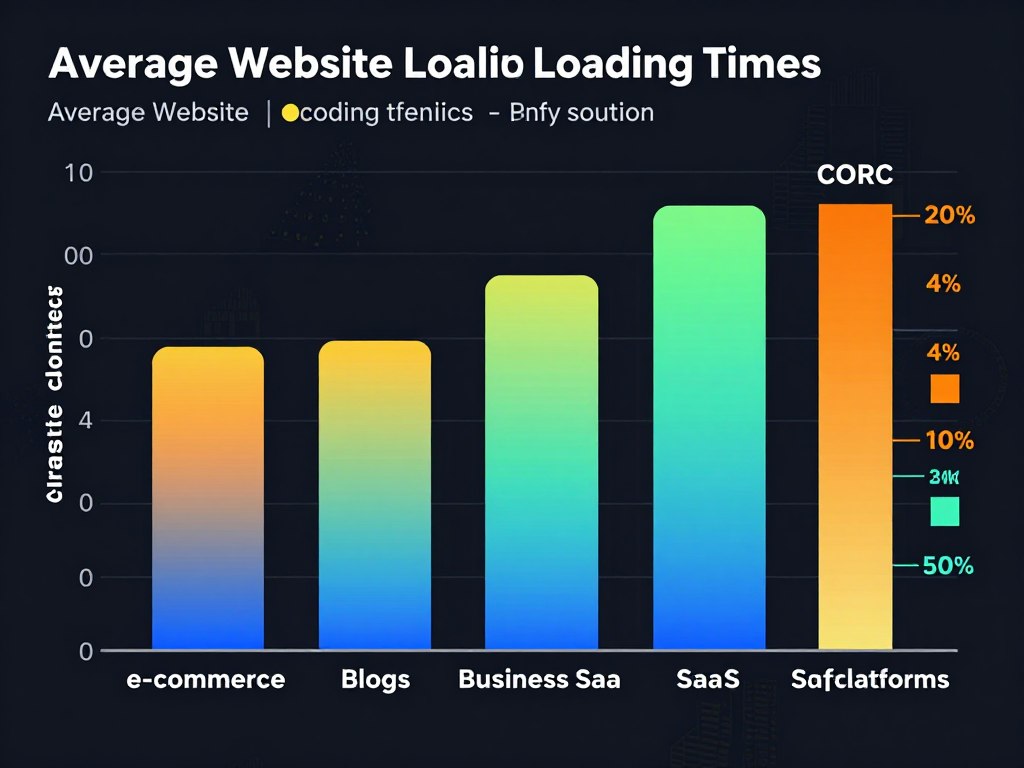
Mobile performance gaps persist despite years of mobile-first indexing. The average mobile site still loads in 6.4 seconds.
This disconnect between expectations and reality creates significant problems. Users expect instant experiences regardless of device or connection speed.
Key Insight: Research indicates that a 0.1 second improvement in mobile site speed can increase conversion rates by up to 8.4% for retail sites and 10.1% for travel sites.
The business impact extends beyond conversions. Site speed affects every metric that matters.
Bounce rates increase exponentially with load time. Sites loading in 1 second have a bounce rate of 9%. At 5 seconds, that rate jumps to 38%.
Search visibility suffers with poor performance. Google confirmed that page experience signals significantly influence rankings for competitive queries.
User satisfaction plummets with slow experiences. Studies show 79% of shoppers who experience poor site performance are less likely to purchase from that site again.
| Load Time | Bounce Rate | Conversion Impact | User Satisfaction |
| 0-2 seconds | 9-12% | Baseline (100%) | High (90%+) |
| 2-3 seconds | 15-20% | -15% | Good (75%) |
| 3-5 seconds | 25-38% | -35% | Fair (55%) |
| 5+ seconds | 50%+ | -60% | Poor (30%) |
The competitive landscape intensifies these pressures. Your competitors are optimizing aggressively.
AI-powered optimization tools have made speed improvements more accessible. Sites that ignore performance fall further behind each month.
Understanding these realities makes the following mistakes even more critical to address. Each one directly impacts your ability to compete in 2026.
Table of Contents
- Using Large, Unoptimized Images
- Poor or Cheap Hosting with Slow Server Response
- Too Many Plugins & Bloated Themes
- No Caching or Ineffective Caching Setup
- Render-Blocking CSS & JavaScript
Critical Speed Mistakes
- Missing or Poorly Configured CDN
- Excessive Third-Party Scripts
- Unoptimized Database & Queries
- Ignoring Mobile Optimization
- Lack of Ongoing Monitoring
Infrastructure & Monitoring
- Bonus: Advanced 2026 Speed Techniques
- Complete Speed Optimization Checklist
- Best Tools for Speed Optimization
- Case Studies & Real Results
- FAQ: Common Speed Questions
Advanced Resources
Mistake #1: Using Large, Unoptimized Images
Images account for 50-60% of total page weight on most websites. This single factor causes more speed problems than almost anything else.
The mistake happens in multiple ways. You upload high-resolution photos directly from cameras. You use PNG files when WebP would work better. You load all images immediately instead of lazy loading.
Each oversight compounds the problem.
Why This Mistake Kills Your Website Speed
Large images create massive data transfer requirements. A single unoptimized hero image can weigh 5MB or more.
Your visitors must download all that data before seeing your content. Mobile users on cellular connections suffer most.
Unoptimized images directly sabotage your Largest Contentful Paint score. LCP measures how quickly your main content appears. Heavy images delay this critical metric.
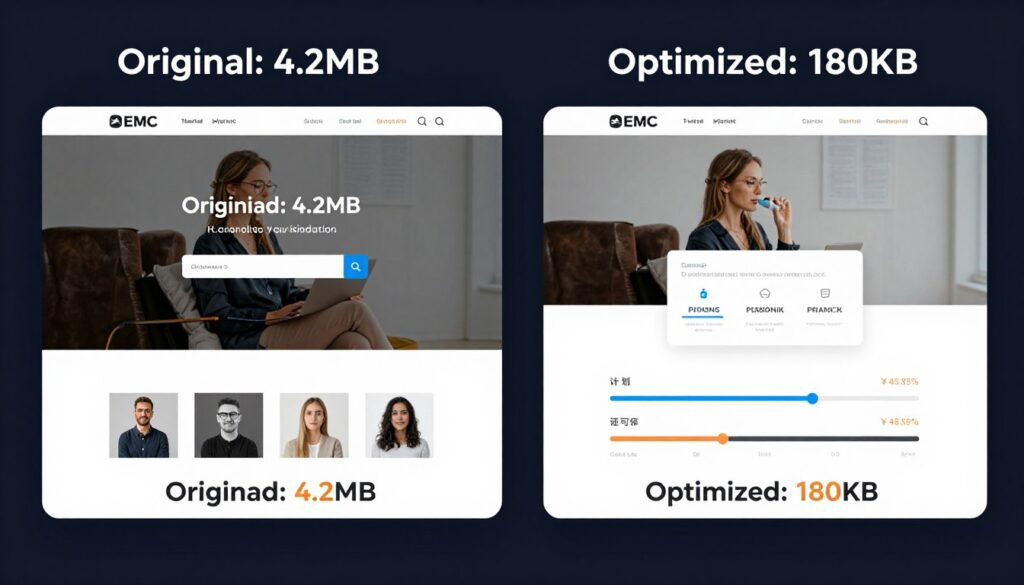
The performance impact cascades across all devices. Desktop users with fast connections notice delays. Mobile users frequently abandon pages entirely.
How to Identify Image Problems on Your Site
Open your website in Google PageSpeed Insights. Look for warnings about image optimization.
The tool identifies specific images that need attention. It calculates potential savings from optimization.
Check your largest images manually. Right-click any image and select “Inspect” in Chrome. The Network tab shows actual file sizes.
Images over 300KB need immediate attention. Files exceeding 1MB are critical problems.
Step-by-Step Fix for Image Optimization
Fix Time: 30-60 minutes for initial setup, then automatic
Step 1: Convert Images to Modern Formats
WebP and AVIF formats provide superior compression. These formats maintain visual quality while reducing file sizes by 25-35% compared to JPEG.
Use conversion tools like Squoosh.app or ImageOptim for manual conversions. For WordPress sites, install a plugin like ShortPixel or Imagify.
Configure your chosen tool to automatically convert uploads. This prevents future problems.
Step 2: Implement Responsive Images
Your site should serve different image sizes based on screen dimensions. Mobile users do not need desktop-sized images.
WordPress handles this automatically with the srcset attribute. Ensure your theme supports responsive images properly.
For custom implementations, use this HTML pattern:
<img srcset="image-320.webp 320w, image-640.webp 640w, image-1024.webp 1024w" sizes="(max-width: 640px) 100vw, 50vw" src="image-640.webp" alt="descriptive text">
Step 3: Enable Lazy Loading
Lazy loading defers image loading until users scroll near them. This dramatically improves initial page load.
Modern browsers support native lazy loading. Add the loading=”lazy” attribute to image tags.
WordPress automatically applies lazy loading to images since version 5.5. Verify it works by checking your page source.
Step 4: Compress Existing Images
Bulk compress all existing images on your site. Several tools handle this efficiently.
For WordPress, plugins like Smush or EWWW Image Optimizer process entire media libraries. Run compression during low-traffic hours.
Target these compression levels:
- JPEG/WebP: 75-85% quality setting
- PNG: Convert to WebP unless transparency is essential
- Maximum file size: 200KB for most images, 500KB for hero images
Expected Performance Improvement
Proper image optimization typically reduces page weight by 40-60%. Your Largest Contentful Paint score should improve by 1-2 seconds.
Mobile users see the most dramatic improvements. Load times often drop by 50% or more on cellular connections.
| Metric | Before Optimization | After Optimization | Improvement |
| Page Weight | 4.8 MB | 1.2 MB | -75% |
| LCP Score | 4.2 seconds | 1.8 seconds | -57% |
| Mobile Load Time | 8.5 seconds | 3.2 seconds | -62% |
These improvements directly boost conversions and reduce bounce rates. Users engage more with fast-loading content.
Mistake #2: Poor or Cheap Hosting with Slow Server Response
Your hosting provider forms the foundation of website speed. No amount of optimization can compensate for inadequate hosting infrastructure.
Many site owners choose hosting based solely on price. They select shared hosting plans that cost $3-5 per month. These plans seem attractive until performance problems emerge.
Cheap shared hosting typically houses hundreds of websites on single servers. Your site competes with dozens of other sites for resources.
When neighboring sites experience traffic spikes, your performance suffers. Server resources become scarce. Response times increase dramatically.
Understanding TTFB and Server Response Issues
Time to First Byte (TTFB) measures how quickly your server begins responding to requests. This metric has become increasingly critical in 2026.
Google expects TTFB under 800 milliseconds. Leading sites achieve 200ms or better.
Cheap hosting commonly produces TTFB exceeding 1.5 seconds. This alone prevents you from meeting Core Web Vitals standards.
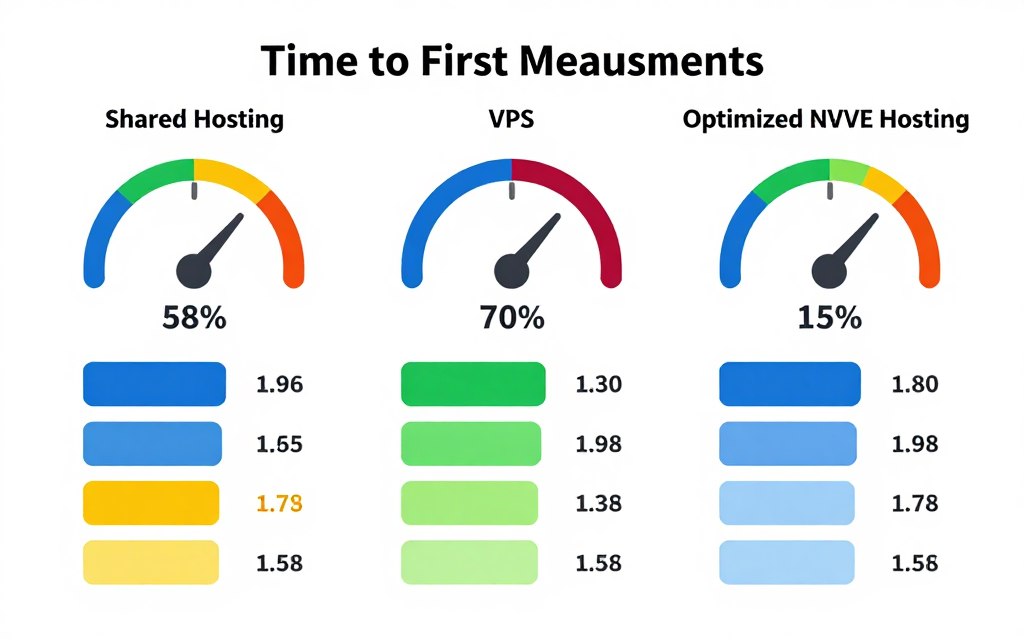
Poor server response impacts every page element. Slow TTFB delays HTML delivery. CSS and JavaScript files wait longer to load. Images face additional delays.
The effect multiplies across your entire site.
Signs Your Hosting is Killing Your Speed
Several indicators reveal hosting problems. Your site may feel sluggish even after optimization efforts.
Check your TTFB using WebPageTest or GTmetrix. Values exceeding 600ms suggest hosting issues.
Frequent downtime or slow admin panel performance also signal inadequate hosting. WordPress dashboard sluggishness often stems from server limitations.
Compare your server response against competitors. Run speed tests for similar sites in your niche. If your TTFB is significantly higher, hosting is likely the problem.
Shared Hosting Limitations vs. Modern Solutions
Traditional shared hosting runs on outdated technology. Most providers use standard HDDs or basic SSDs. Server software often runs older versions of Apache.
These configurations simply cannot deliver modern performance standards.
| Feature | Typical Shared Hosting | Modern Optimized Hosting |
| Storage Type | HDD or Standard SSD | NVMe SSD |
| IOPS Performance | 100-500 IOPS | 10,000+ IOPS |
| Server Software | Apache 2.4 | LiteSpeed 6.x |
| Average TTFB | 800-1500ms | 100-300ms |
| Resource Isolation | None (shared resources) | Isolated environments |
| Built-in Caching | Limited or none | Server-level LiteSpeed Cache |
NVMe SSD storage delivers 10x faster IOPS compared to traditional SSDs. This translates directly to faster database queries and file access.
LiteSpeed server technology outperforms Apache by 300-500%. It handles more concurrent connections while using fewer resources.
Resource isolation prevents neighboring sites from affecting your performance. Each site operates in its own container with dedicated resources.
How to Fix Hosting Performance Issues
Fix Time: 2-4 hours including migration
Step 1: Evaluate Current Hosting Performance
Test your current TTFB from multiple locations. Use tools like Pingdom or GTmetrix to measure from different geographic regions.
Document baseline metrics including load time, TTFB, and Core Web Vitals scores. You will need these for comparison.
Step 2: Choose Performance-Optimized Hosting
Look for hosting providers that offer:
- NVMe SSD storage as standard
- LiteSpeed or Nginx server software
- Server-level caching capabilities
- Resource isolation or containerization
- Global data center options
- HTTP/3 support
Avoid plans that house unlimited sites on single servers. These configurations guarantee poor performance.
Step 3: Plan Your Migration
Most quality hosting providers offer free migration services. Take advantage of this to minimize downtime.
Schedule migration during low-traffic periods. Back up your site completely before beginning.
Test thoroughly on the new server before updating DNS. Verify all functionality works correctly.
Step 4: Configure Performance Settings
After migration, configure server-level optimizations. Enable HTTP/3 protocol for faster initial connections.
Activate server-level caching if available. This typically outperforms plugin-based caching.
Configure proper PHP settings including OPcache for improved script execution.
Fix Server Response Issues Instantly
Arahoster hosting delivers sub-200ms TTFB with NVMe SSD storage and LiteSpeed server technology. Your site loads 10x faster from day one—no complex configuration needed.
Expected Results from Hosting Upgrade
Proper hosting infrastructure typically improves TTFB by 60-80%. Your Core Web Vitals scores often jump into passing ranges immediately.
Sites migrating from cheap shared hosting to NVMe/LiteSpeed infrastructure commonly see:
- TTFB reduction from 1200ms to 180ms
- Overall page load improvement of 40-60%
- Immediate LCP score improvements
- Stable performance during traffic spikes
- Reduced server-side errors
These improvements form the foundation for all other optimizations. You cannot achieve optimal speed without solid hosting infrastructure.
Mistake #3: Too Many Plugins & Bloated Themes/Page Builders
WordPress flexibility comes with a hidden cost. Every plugin you install adds code, database queries, and HTTP requests to your site.
The average WordPress site runs 25-30 plugins. Each one contributes to page load time.
Many site owners install plugins without considering performance impact. They add functionality freely, assuming modern servers can handle the load.
This assumption proves costly.
The Plugin Bloat Problem
Not all plugins impact performance equally. Some add minimal overhead. Others destroy your speed single-handedly.
Page builders like Elementor and Divi enable beautiful designs. They also generate massive amounts of inline CSS and JavaScript.
A typical Elementor page includes 200-300KB of additional code. This code loads on every page view, whether needed or not.
Social sharing plugins frequently load external scripts from multiple domains. Each script requires DNS lookup, connection, and data transfer.
Contact form plugins often include jQuery and validation libraries. These files load site-wide even when forms appear on single pages.
Theme Bloat and Its Impact
Multipurpose themes promise endless design options. They ship with dozens of features most users never enable.
Popular themes like Avada or Bridge include slider plugins, portfolio systems, shop functions, and multiple header layouts. All this code loads regardless of which features you use.
Theme file sizes commonly exceed 10MB. The theme itself becomes a performance bottleneck.
Identifying Problem Plugins and Themes
Use the Query Monitor plugin to identify performance drains. This tool reveals which plugins generate the most database queries.
Check the number of HTTP requests each plugin creates. Open your site in Chrome DevTools Network tab. Reload the page and examine the list.
Look for plugins loading on every page unnecessarily. Social sharing buttons on non-content pages waste resources.
Test your site with plugins selectively disabled. Create a staging environment and deactivate plugins one by one. Measure speed impact with each change.
How to Fix Plugin and Theme Bloat
Fix Time: 2-3 hours
Step 1: Audit Current Plugins
List every installed plugin. Document what each one does and when you last used it.
Delete unused plugins completely. Deactivated plugins still consume server resources.
Identify plugins with overlapping functionality. Multiple SEO plugins or multiple caching plugins create conflicts and waste resources.
Step 2: Find Lightweight Alternatives
Research lighter alternatives for heavy plugins. Many bloated plugins have lean competitors.
Replace Elementor with Gutenberg blocks for simple layouts. Modern block themes offer excellent design flexibility without page builder overhead.
Swap feature-rich contact form plugins with simple alternatives like Contact Form 7 or WPForms Lite.
Step 3: Limit Plugin Script Loading
Use plugins like Asset CleanUp or Perfmatters to prevent scripts from loading where unnecessary.
Contact form scripts should only load on pages with forms. Slider plugins should only load on pages with sliders.
Configure each plugin to load conditionally based on actual need.
Step 4: Choose Lightweight Themes
If your current theme is bloated, consider switching to a lightweight alternative. Modern options include:
- GeneratePress – Extremely lightweight with modular features
- Astra – Fast-loading with extensive customization
- Kadence – Modern block-based theme with good performance
- Neve – Lightweight multipurpose theme
These themes typically weigh under 50KB and load in milliseconds.
Step 5: Implement Plugin Load Management
For plugins you must keep, optimize their loading patterns. Use conditional loading plugins to control when and where plugins execute.
Disable plugin CSS/JS on specific pages using script management tools. This prevents unnecessary resource loading.
Warning: Test thoroughly after making changes. Some plugins depend on others. Breaking dependencies can cause functionality issues.
Recommended Maximum Plugin Count
Quality hosting can support more plugins than cheap hosting. The type of plugins matters more than quantity.
Target these guidelines:
- Essential security plugins: 1-2
- Performance optimization: 1-2
- SEO functionality: 1
- Backup solution: 1
- Contact forms: 1
- Additional functionality: 5-8 maximum
Total plugin count should ideally stay under 15-20. Every plugin beyond essential functionality adds risk.
Expected Performance Gains
Reducing plugin bloat typically improves load times by 20-40%. Sites replacing heavy page builders see even larger gains.
Database query counts often drop by 50% or more. Server CPU usage decreases substantially.
Your website becomes more stable with fewer potential plugin conflicts. Update processes become simpler and less risky.
Mistake #4: No Caching or Ineffective Caching Setup
Caching represents one of the most powerful performance optimizations available. Yet many sites run without proper caching configuration.
Your server generates each page dynamically by default. It queries the database, processes PHP, assembles HTML, and delivers results.
This process repeats identically for each visitor. The server performs the same work hundreds or thousands of times daily.
Caching breaks this inefficient cycle.
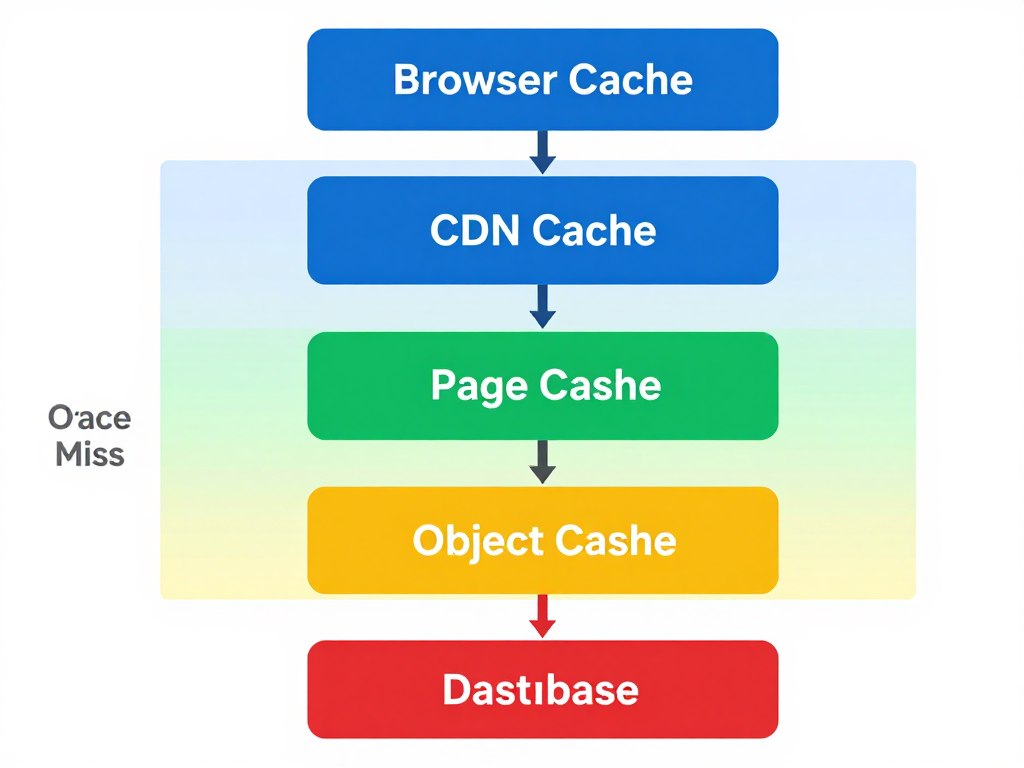
Understanding Caching Layers
Effective caching operates at multiple levels. Each layer serves different purposes.
Browser caching stores static resources locally on visitor devices. CSS, JavaScript, and images do not need re-downloading on subsequent visits.
Page caching saves fully-rendered HTML. The server delivers pre-generated pages instead of building them on demand.
Object caching stores database query results in memory. This prevents repeated database lookups for identical data.
Server-level caching intercepts requests before they reach WordPress. This provides the fastest possible delivery.
Why Sites Run Without Proper Caching
Many WordPress users fear caching complexity. They worry about serving stale content or breaking functionality.
Some install caching plugins but never configure them properly. Default settings provide minimal benefit.
Others disable caching after encountering problems. A poorly configured cache can cause more issues than it solves.
Signs of Missing or Ineffective Caching
Your server CPU usage stays consistently high even during normal traffic. Database queries spike during traffic increases.
Page generation times exceed 500ms consistently. GTmetrix or similar tools report “Leverage browser caching” warnings.
Your site slows noticeably during traffic spikes. The server struggles to keep pace with demand.
Implementing Effective Caching
Fix Time: 45-90 minutes
Step 1: Configure Browser Caching
Set appropriate cache expiration times for static resources. Add these directives to your .htaccess file for Apache servers:
<IfModule mod_expires.c>
 ExpiresActive On
 ExpiresByType image/jpg "access plus 1 year"
 ExpiresByType image/jpeg "access plus 1 year"
 ExpiresByType image/gif "access plus 1 year"
 ExpiresByType image/png "access plus 1 year"
 ExpiresByType text/css "access plus 1 month"
 ExpiresByType application/javascript "access plus 1 month"
 </IfModule>
Most caching plugins handle this automatically. Verify settings after plugin installation.
Step 2: Enable Page Caching
Choose a reliable caching plugin based on your hosting environment:
- LiteSpeed Cache – Best for LiteSpeed servers (server-level caching)
- WP Rocket – Premium solution with excellent features
- W3 Total Cache – Free with advanced options
- WP Super Cache – Simple and reliable
Install and activate your chosen plugin. Configure basic settings:
Enable page caching for all post types. Set cache expiration to 24 hours for most content.
Enable preload functionality to generate cache for all pages automatically. This ensures visitors always hit cached versions.
Configure mobile caching separately if your theme serves different content to mobile devices.
Step 3: Implement Object Caching
Object caching requires server support for Redis or Memcached. Check with your hosting provider about availability.
If available, install the Redis Object Cache plugin. Activate and enable object caching through the plugin settings.
Object caching provides massive benefits for dynamic sites with frequent database queries. E-commerce sites and membership platforms gain the most.
Step 4: Configure Cache Exclusions
Certain pages should never cache. Shopping carts, user account pages, and checkout processes need dynamic content.
Configure your caching plugin to exclude:
- Admin pages (/wp-admin/*)
- Cart and checkout pages
- User account pages
- Pages with forms requiring fresh CSRF tokens
- Any page with personalized content
Step 5: Set Up Cache Purging Rules
Your cache should refresh automatically when content updates. Configure automatic purging when:
- Posts or pages are published or updated
- Comments are approved
- Theme files change
- Plugin settings update
Most plugins handle this intelligently. Review settings to ensure proper configuration.
Eliminate Caching Plugin Complexity
Arahoster includes built-in LiteSpeed Cache at the server level. No plugins required. Your site benefits from enterprise-grade caching automatically—configure once and forget it.
Advanced Caching Optimizations
After basic caching works properly, implement these advanced techniques:
Database Query Caching: Use persistent object caching to store frequent query results. This prevents repeated database lookups.
Fragment Caching: Cache portions of pages that change infrequently. Navigation menus, sidebars, and footer content rarely need regeneration.
Full Page Caching with Edge Delivery: Combine page caching with CDN for maximum performance. Cache content at edge locations globally.
Measuring Caching Effectiveness
Monitor cache hit rates through your caching plugin dashboard. Aim for 85%+ cache hit rates.
Compare Time to First Byte before and after caching. TTFB should drop by 60-80% with proper caching.
Monitor server resource usage. CPU and memory consumption should decrease substantially.
| Metric | Without Caching | With Proper Caching | Improvement |
| TTFB | 850ms | 180ms | -79% |
| Server CPU Usage | 75% | 25% | -67% |
| Database Queries/Page | 45 | 12 | -73% |
| Page Generation Time | 680ms | 85ms | -87% |
Proper caching forms the backbone of website performance. It multiplies the effectiveness of every other optimization.
Mistake #5: Render-Blocking CSS & JavaScript
Browsers must download and process CSS and JavaScript files before rendering pages. These files block the rendering process by default.
Your visitors see blank screens while browsers parse these resources. The delay frustrates users and destroys Core Web Vitals scores.
The problem compounds with poorly optimized code. Large CSS files, multiple JavaScript libraries, and external resources all contribute.
Understanding Render-Blocking Resources
When browsers load your page, they follow a specific sequence. They download HTML first, then parse it line by line.
Each time the browser encounters a CSS or JavaScript file in the document head, rendering pauses. The browser must download and process these files before continuing.
This blocking behavior exists by design. Browsers need CSS to know how to display content. JavaScript might modify the DOM structure.
However, not all resources need immediate loading. Many scripts and styles are non-essential for initial render.
Impact on Core Web Vitals
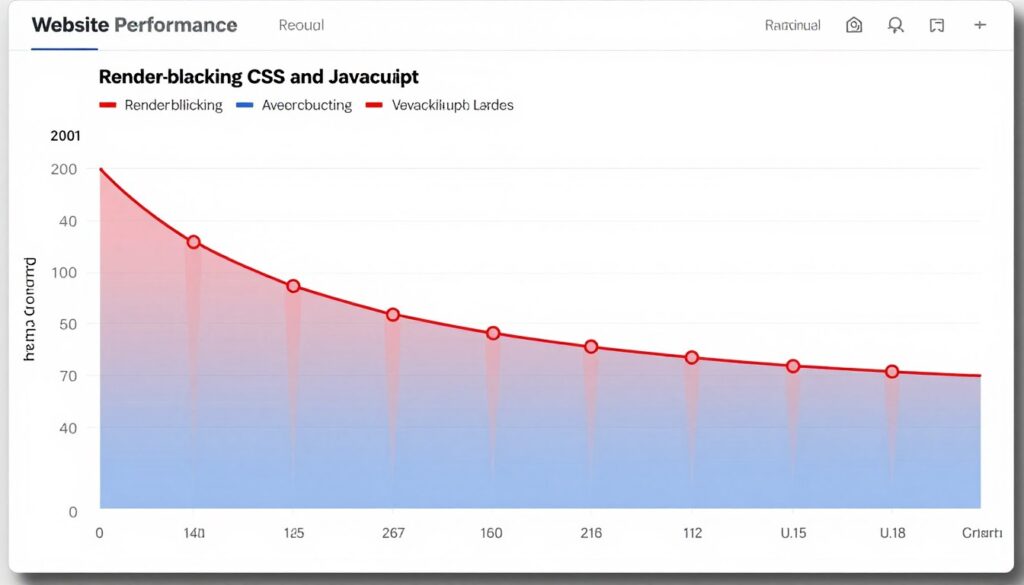
Render-blocking resources directly damage your Largest Contentful Paint score. LCP cannot occur until blocking resources finish processing.
Each blocking script adds hundreds of milliseconds to render time. Sites with 8-10 blocking scripts struggle to achieve acceptable LCP scores.
First Contentful Paint also suffers. Users see nothing until critical resources load.
Identifying Render-Blocking Resources
Google PageSpeed Insights flags render-blocking resources specifically. The tool lists each blocking file and estimates potential time savings.
Check Chrome DevTools Coverage tab. This reveals which CSS and JavaScript code actually executes on page load.
Often, 60-80% of loaded CSS goes unused on initial render. JavaScript libraries load entirely when only small portions run immediately.
Solutions for Render-Blocking Resources
Fix Time: 1-2 hours
Step 1: Defer Non-Critical JavaScript
Add the defer attribute to script tags. This tells browsers to download scripts in parallel without blocking render.
Change this:
<script src="script.js"></script>
To this:
<script src="script.js" defer></script>
Most optimization plugins handle this automatically. WP Rocket and Autoptimize both offer defer options.
Test thoroughly after enabling defer. Some scripts require specific load order. jQuery dependencies might break if loaded out of sequence.
Step 2: Async Load Third-Party Scripts
External scripts from analytics, ads, or social platforms should use async loading. The async attribute downloads scripts without blocking.
Apply async to:
- Google Analytics
- Facebook Pixel
- Google Ads scripts
- Chat widgets
- Social sharing buttons
These scripts do not affect initial page rendering. They can load independently.
Step 3: Inline Critical CSS
Critical CSS includes only the styles needed for above-the-fold content. This small amount of CSS should inline directly in the HTML head.
External stylesheet links then load with defer or at the end of the document body.
Tools like Critical CSS Generator extract above-the-fold styles automatically. Many optimization plugins include critical CSS features.
Implement like this:
<style>
 /* Critical above-the-fold CSS here */
 </style>
 <link rel="preload" href="styles.css" as="style" onload="this.onload=null;this.rel='stylesheet'">
Step 4: Minify and Combine Files
Minification removes unnecessary characters from code without changing functionality. Whitespace, comments, and long variable names get shortened.
File combination reduces HTTP requests by merging multiple CSS or JavaScript files into single files.
Use plugins like Autoptimize or Asset CleanUp. Configure them to:
- Minify all CSS files
- Minify JavaScript files
- Combine CSS files when possible
- Combine JavaScript carefully (test for conflicts)
Be cautious with JavaScript combination. Merged files can break functionality if scripts have dependencies.
Step 5: Remove Unused CSS and JavaScript
Modern websites load entire frameworks when using small portions. Bootstrap CSS weighs 150KB but sites might use only 20KB of actual styles.
Use PurgeCSS or similar tools to remove unused styles. This requires technical knowledge but provides substantial benefits.
Alternatively, use plugins like Asset CleanUp to disable entire stylesheets on pages where they are unnecessary.
Advanced Techniques
Resource Hints: Use preload, prefetch, and preconnect directives to optimize resource loading:
<link rel="preconnect" href="https://fonts.googleapis.com">
 <link rel="preload" href="critical-font.woff2" as="font" type="font/woff2" crossorigin>
These hints help browsers prioritize important resources.
Tree Shaking: For custom development, implement tree shaking to remove unused JavaScript from bundles. Build tools like Webpack handle this automatically.
Code Splitting: Split JavaScript into smaller chunks that load on demand. This prevents loading code users never access.
Expected Performance Improvements
Properly addressing render-blocking resources typically improves First Contentful Paint by 40-60%. Largest Contentful Paint sees similar gains.
Your PageSpeed Insights score often jumps 15-25 points. Pages render visibly faster for users.
Benefits of Optimization
- Faster initial page render
- Improved Core Web Vitals scores
- Better user experience
- Reduced bandwidth usage
- Lower server load
- Higher search rankings
Potential Challenges
- Possible JavaScript conflicts
- Testing complexity increases
- Some features may break initially
- Requires ongoing maintenance
- Plugin compatibility issues
- Need for technical understanding
The improvements justify the effort required. Your site becomes dramatically faster and more competitive.
Mistake #6: Missing or Poorly Configured CDN
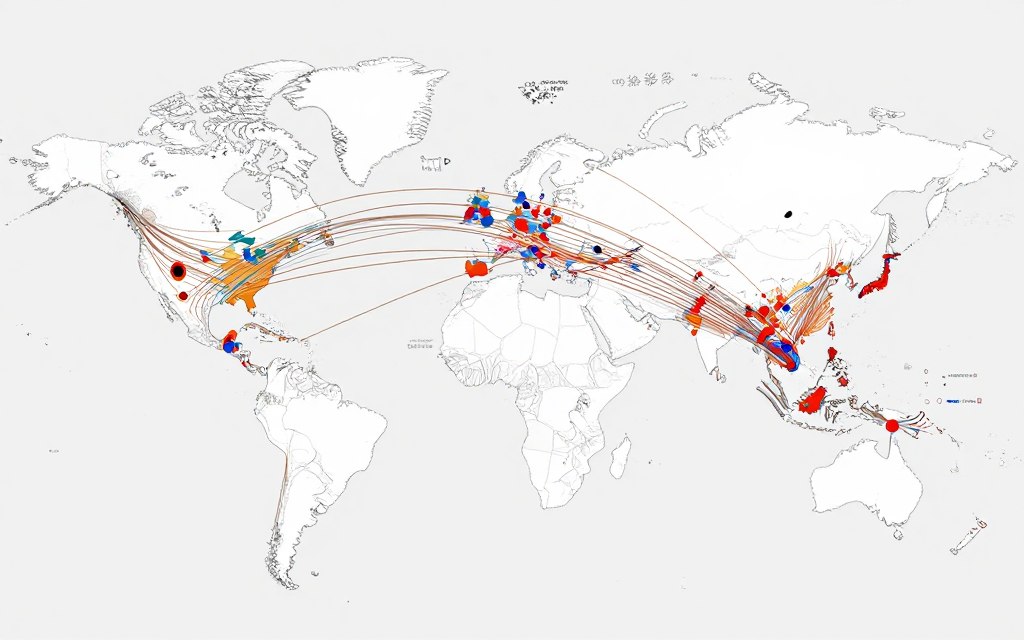
Geographic distance affects load times significantly. A visitor in Australia accessing your US-hosted server faces 200-300ms of latency before data transfer even begins.
Content Delivery Networks solve this problem by caching content at edge locations worldwide. Your visitors connect to nearby servers instead of your origin server.
Yet many sites operate without CDN services. Others implement CDN poorly, gaining minimal benefit.
How CDNs Improve Performance
CDNs maintain networks of servers across dozens of global locations. These edge servers cache your static content.
When a visitor requests your page, the CDN routes traffic to the nearest edge location. Static assets like images, CSS, and JavaScript load from this nearby server.
This dramatically reduces latency. A visitor in Sydney connects to Sydney servers. European visitors hit European edge locations.
Modern CDNs offer additional benefits beyond simple caching. They provide DDoS protection, SSL termination, and HTTP/3 support.
Why Sites Skip CDN Implementation
Some site owners believe CDNs only benefit high-traffic websites. This misconception prevents adoption.
Others worry about implementation complexity. Traditional CDN setup required DNS changes and technical configuration.
Cost concerns also play a role. Premium CDN services like Cloudflare Enterprise or Fastly carry significant monthly fees.
However, free and low-cost options now provide excellent performance for most sites.
Common CDN Configuration Mistakes
Many sites implement CDN but fail to configure it properly. Common mistakes include:
Caching only images while serving CSS and JavaScript from origin servers. This wastes the CDN’s potential.
Setting cache expiration times too short. Assets expire before gaining benefit from edge caching.
Failing to purge cached content after updates. Visitors see outdated versions of changed files.
Not enabling HTTP/2 or HTTP/3. Modern protocols significantly boost performance.
Implementing CDN Effectively
Fix Time: 30-60 minutes
Step 1: Choose a CDN Provider
Several reliable options exist at different price points:
Cloudflare (Free tier available): Excellent free option with global network. Includes DDoS protection and SSL.
BunnyCDN: Affordable with high performance. Pay-as-you-go pricing starting at $1/month.
StackPath: Good balance of features and cost. Strong in North America and Europe.
KeyCDN: Simple setup with reliable performance. Competitive pricing.
Most sites start with Cloudflare’s free plan. It provides substantial benefits at zero cost.
Step 2: Configure DNS and Integration
For Cloudflare and similar DNS-based CDNs:
Sign up and add your domain. The CDN provides nameserver addresses.
Update your domain registrar to use the CDN nameservers. This typically takes 24-48 hours to propagate fully.
For pull CDN services, configure your WordPress site to reference CDN URLs for static assets. Plugins like CDN Enabler automate this process.
Step 3: Configure Caching Rules
Set appropriate cache rules for different content types:
- Images: 1 year (these rarely change)
- CSS/JavaScript: 1 month (version URLs when changes occur)
- HTML: 4 hours (allows relatively fresh content)
- Fonts: 1 year (stable assets)
Configure your CDN to cache these file types at edge locations. Most CDNs provide intuitive dashboards for rule creation.
Step 4: Enable Modern Protocols
Activate HTTP/2 and HTTP/3 if your CDN supports them. These protocols provide:
Multiplexing of requests over single connections. This eliminates per-request connection overhead.
Header compression reduces overhead for subsequent requests.
Server push capabilities allow preemptive resource delivery.
HTTP/3 (QUIC protocol) further reduces connection establishment time.
Step 5: Implement Smart Purging
Configure automatic cache purging when content updates. This ensures visitors always see current versions.
Many WordPress CDN plugins handle this automatically. They purge relevant cache when you publish or update content.
For manual purging, learn your CDN’s purge API. You can trigger cache clears programmatically when needed.
Advanced CDN Optimization
Image Optimization at Edge: Some CDNs offer automatic image optimization. Cloudflare Polish and similar services convert images to WebP automatically.
Rocket Loader: Cloudflare’s Rocket Loader defers JavaScript loading automatically. This can improve render times substantially.
Argo Smart Routing: Premium feature that routes traffic through the fastest Cloudflare routes. Reduces latency by 30% on average.
Workers/Edge Functions: Run code at CDN edge locations. This enables dynamic functionality without origin server requests.
Measuring CDN Impact
Test your site from multiple global locations using GTmetrix or Pingdom. Compare load times before and after CDN implementation.
Check your CDN analytics dashboard. Review cache hit rates—aim for 80%+ for static assets.
Monitor bandwidth savings. CDN should serve 60-80% of traffic, dramatically reducing origin server load.
CDN Integration Made Simple
Arahoster hosting includes integrated CDN configuration with global edge locations. One-click setup reduces latency worldwide—no DNS changes or complex configuration required.
Expected Performance Results
Proper CDN implementation typically reduces load times by 30-50% for international visitors. Even local visitors benefit from edge caching.
Your Time to First Byte improves across all geographic locations. Global audiences experience consistent performance.
Server load decreases substantially. The origin server handles 40-60% less traffic.
Mistake #7: Excessive Third-Party Scripts & Tracking Tools
Third-party scripts accumulate gradually on most websites. You add Google Analytics, then Facebook Pixel, then a chat widget, then heatmap tracking.
Each service seems essential individually. Together, they destroy your site performance.
The average website loads scripts from 20-30 external domains. Each script requires DNS lookup, connection establishment, and data transfer.
These costs compound dramatically.
The Hidden Cost of Third-Party Scripts
External scripts operate outside your control. They load additional resources without your knowledge.
Google Tag Manager loads analytics scripts, advertising pixels, and conversion tracking. A single GTM container might execute 8-12 separate scripts.
Social media widgets load entire JavaScript frameworks. Facebook like buttons download 400KB+ of code. Twitter embeds load similar amounts.
Chat widgets maintain persistent connections. These background processes consume resources continuously.
Each third-party script adds potential points of failure. If external services slow down, your site slows down.
Common Third-Party Script Culprits
Analytics Platforms: Google Analytics, Hotjar, Mixpanel, and similar tools track user behavior. They inject tracking code throughout your pages.
Advertising Networks: Google Ads, Facebook Pixel, and retargeting scripts load multiple resources. Ad networks often inject additional tracking pixels.
Social Media: Share buttons, follow buttons, and embedded content from social platforms. These widgets are notoriously heavy.
Chat Applications: Live chat widgets like Intercom, Drift, or Zendesk Chat. These maintain open connections and update continuously.
External Fonts: Google Fonts and similar services. While useful, they add external requests and render-blocking resources.
Identifying Problem Scripts
Use Chrome DevTools Network tab with third-party filter enabled. This isolates external requests.
Count the number of external domains your site contacts. More than 10 different domains suggests problems.
Check the total size of third-party resources. If external scripts exceed 500KB, optimization is essential.
Use Request Map Generator to visualize all third-party connections. This tool reveals the full scope of external dependencies.
Reducing Third-Party Script Impact
Fix Time: 1-2 hours
Step 1: Audit All Third-Party Services
List every third-party script currently loading on your site. Document what each one does.
For each service, ask:
- Do we actively use this data?
- Does this directly improve business results?
- Could we achieve the same goal differently?
- What is the performance cost?
Remove any service you cannot justify with clear business value.
Step 2: Consolidate Tracking Tools
Multiple analytics platforms often track identical data. Choose the single most useful tool and remove others.
Google Analytics 4 provides comprehensive tracking for most sites. Specialized tools may be unnecessary.
If you use heatmaps, run them periodically rather than continuously. Hotjar and similar tools can activate on-demand.
Step 3: Defer Non-Critical Scripts
Most tracking scripts do not need immediate execution. Analytics can wait until after page load.
Use async or defer attributes for all third-party scripts. Better yet, delay them entirely until user interaction.
Implement delay scripts that load external resources only after scrolling or clicking:
// Delay third-party scripts until user interaction
 window.addEventListener('scroll', loadThirdPartyScripts, { once: true });
 window.addEventListener('click', loadThirdPartyScripts, { once: true });
This technique dramatically improves initial load times while maintaining functionality.
Step 4: Self-Host Critical Resources
Some external resources can be self-hosted. Google Fonts files can download and serve from your own server.
Self-hosting eliminates external requests and their associated latency. You control caching and delivery.
Plugins like OMGF (Optimize My Google Fonts) automate Google Fonts self-hosting for WordPress.
Consider self-hosting:
- Google Fonts
- jQuery and common libraries
- Simple analytics scripts
- Icon fonts
Step 5: Use Facade Techniques
Replace heavy embeds with lightweight facades. Show a preview image until users click to load the full embed.
This works excellently for:
- YouTube videos – show thumbnail instead of full embed
- Social media feeds – display static version until interaction
- Maps – show static image until clicked
- Chat widgets – load button-only version initially
Plugins like WP YouTube Lyte implement video facades automatically.
Third-Party Script Best Practices
When third-party scripts are truly necessary, follow these guidelines:
Load Asynchronously: Never block page render for external scripts. Use async attribute consistently.
Implement Timeouts: Set timeouts for third-party requests. If scripts fail to load within 3 seconds, abandon them.
Monitor Performance: Track third-party script impact continuously. Remove services that degrade performance significantly.
Use Tag Managers Wisely: Google Tag Manager can optimize script loading, but only with proper configuration. Limit triggers and implement lazy loading rules.
Expected Improvements
Optimizing third-party scripts typically reduces page weight by 30-50%. Load times improve by similar percentages.
Your site becomes more reliable. Fewer external dependencies mean fewer failure points.
Mobile users benefit most. Reduced scripts dramatically improve performance on slower connections.
| Optimization | Performance Impact | Implementation Difficulty | Risk Level |
| Remove Unused Scripts | High (30-40% improvement) | Easy | Low |
| Defer Script Loading | Medium-High (20-30%) | Medium | Medium |
| Self-Host Resources | Medium (15-25%) | Medium | Low |
| Implement Facades | High (40-60% for affected elements) | Medium-Hard | Low |
| Consolidate Services | Medium (20-35%) | Easy-Medium | Low |
These optimizations require ongoing vigilance. New scripts accumulate over time without active monitoring.
Mistake #8: Unoptimized Database & Queries
WordPress stores everything in MySQL databases. Every page load triggers dozens of database queries.
Over time, databases accumulate bloat. Old revisions, spam comments, expired transients, and orphaned metadata fill tables.
Slow queries and bloated tables create invisible performance problems. Pages generate slowly even when everything else is optimized.
Common Database Performance Issues
Post revisions accumulate by default. WordPress saves every draft and revision indefinitely. A single post might have 50+ revisions in the database.
Transients store temporary data with expiration times. However, expired transients often remain in the database indefinitely.
Spam comments and trashed posts linger in tables. These records serve no purpose but consume resources.
Unindexed queries force full table scans. The database examines every row to find matches, wasting processing time.
How Database Issues Affect Speed
Every query takes time to execute. Complex queries on bloated tables take longer.
Page generation waits for database responses. If queries take 500ms total, your Time to First Byte cannot go below that threshold.
High traffic amplifies database load. Concurrent queries compete for database resources.
Poorly optimized databases cause cascading failures. Slow queries block other requests, creating bottlenecks.
Identifying Database Problems
Install Query Monitor plugin to analyze database performance. This tool reveals:
- Number of queries per page load
- Slowest queries and their execution time
- Queries causing performance bottlenecks
- Duplicate queries that could be cached
Aim for under 50 database queries per page. Sites exceeding 100 queries have optimization opportunities.
Check individual query times. Queries over 100ms need investigation and optimization.
WordPress-Specific Database Optimization
Fix Time: 1-2 hours initially, then 30 minutes monthly
Step 1: Clean Database Bloat
Use WP-Optimize or similar plugins to clean accumulated bloat. These tools remove:
- Post revisions (keep only the last 3-5)
- Auto-drafts
- Trashed posts and comments
- Spam and unapproved comments
- Expired transients
- Orphaned post metadata
Schedule automatic weekly cleanups. This prevents bloat from accumulating again.
Before cleaning, backup your database completely. Test on a staging site first.
Step 2: Optimize Database Tables
Database tables fragment over time. Optimization defragments and rebuilds indexes.
Run optimization through phpMyAdmin or WP-Optimize plugin. Select all tables and run the optimize operation.
This process can take several minutes on large databases. Run during low-traffic periods.
Step 3: Limit Post Revisions
Configure WordPress to limit revision storage. Add this to wp-config.php:
define('WP_POST_REVISIONS', 3);
This limits each post to 3 revisions maximum. Older revisions delete automatically.
For sites that do not need revisions at all:
define('WP_POST_REVISIONS', false);
Step 4: Implement Object Caching
Object caching stores query results in memory using Redis or Memcached. Subsequent identical queries return cached data instead of hitting the database.
Check if your hosting supports Redis. Many quality hosts include Redis by default.
Install Redis Object Cache plugin. Activate and enable object caching through the plugin settings.
Object caching provides massive benefits, especially for complex queries and high-traffic sites.
Step 5: Optimize Slow Queries
Use Query Monitor to identify slow queries. Common culprits include:
Queries without proper indexes: Add indexes to columns used in WHERE clauses and JOIN operations.
Queries loading unnecessary data: Specify exact columns needed instead of using SELECT *.
N+1 query problems: Loading related data in loops. Batch these requests instead.
For complex optimization, consider hiring a database specialist. Proper indexing delivers substantial performance gains.
Advanced Database Optimization
Separate Database Server: For high-traffic sites, move the database to a dedicated server. This provides more resources and reduces contention.
Read Replicas: Implement database replication for read-heavy sites. Read queries hit replica servers while writes go to the master.
Query Caching: Enable MySQL query cache if your hosting supports it. This caches query results at the database level.
Regular Maintenance: Schedule monthly database maintenance tasks including optimization, cleanup, and backup verification.
Expected Performance Gains
Database optimization typically reduces page generation time by 30-50%. Sites with severe bloat see larger improvements.
Query counts often drop by 20-40% after implementing object caching and query optimization.
Server load decreases as database operations become more efficient. CPU usage during traffic spikes stabilizes.
Automatic Database Optimization Included
Arahoster hosting includes built-in database optimization with Redis object caching and automated maintenance. Your database stays clean and fast without manual intervention.
Maintaining database health prevents gradual performance degradation. Regular optimization keeps your site fast long-term.
Mistake #9: Ignoring Mobile Optimization & Core Web Vitals
Mobile devices now generate 60%+ of web traffic. Yet many sites treat mobile as an afterthought.
Desktop performance does not predict mobile performance. Your site might load quickly on desktop while failing miserably on mobile.
Google uses mobile-first indexing exclusively. Your mobile site performance directly determines search rankings.
Mobile-Specific Performance Challenges
Mobile devices have less processing power than desktops. JavaScript that executes in 100ms on desktop might take 500ms on mid-range phones.
Cellular connections fluctuate constantly. Users switch between 5G, 4G, and 3G as they move. Your site must perform acceptably on all connection types.
Mobile screens display less content initially. Yet many sites load the same resources as desktop versions.
Touch interactions require different optimization than mouse interactions. Interaction to Next Paint measures responsiveness throughout the page lifecycle.
Core Web Vitals for Mobile
Google’s Core Web Vitals define mobile performance standards. These metrics measure real user experience.
Largest Contentful Paint (LCP): Must occur within 2.5 seconds on mobile. This measures when the main content becomes visible.
Poor LCP typically results from:
- Slow server response (TTFB issues)
- Render-blocking resources
- Slow resource load times (large images)
- Client-side rendering delays
Interaction to Next Paint (INP): Must stay under 200 milliseconds. This replaced First Input Delay in 2024.
INP measures responsiveness throughout the page lifecycle. Every interaction must respond quickly.
Poor INP results from:
- Heavy JavaScript execution
- Long tasks blocking the main thread
- Poorly optimized event handlers
- Excessive DOM size
Cumulative Layout Shift (CLS): Must remain below 0.1. This measures visual stability as pages load.
Layout shifts frustrate mobile users especially. Small screens amplify the impact of content jumps.
Common CLS causes:
- Images without dimensions
- Ads and embeds without reserved space
- Web fonts causing layout reflow
- Dynamically injected content above existing content
Fixing Mobile Performance Issues
Fix Time: 2-3 hours
Step 1: Test Mobile Performance Separately
Use Google PageSpeed Insights mobile test specifically. Desktop scores do not reflect mobile reality.
Test on real devices when possible. Chrome DevTools device emulation helps but does not fully replicate actual device performance.
Check performance on both high-end and mid-range devices. Your site must work acceptably on older phones.
Step 2: Optimize Images for Mobile
Serve appropriately sized images to mobile devices. A 2000px wide image wastes bandwidth on 375px mobile screens.
Use responsive image techniques with srcset attribute. Browsers automatically select appropriate image sizes.
Implement lazy loading for all below-the-fold images. Mobile users especially benefit from loading only visible content.
Step 3: Reduce JavaScript Execution
Mobile devices struggle with heavy JavaScript. Total script execution often exceeds 2-3 seconds on mid-range phones.
Minimize JavaScript where possible. Remove unnecessary libraries and features.
Defer non-critical scripts until after initial render. Priority should be getting content visible quickly.
Break long tasks into smaller chunks. Use requestIdleCallback for non-urgent processing.
Step 4: Fix Layout Shift Issues
Add explicit width and height attributes to all images:
<img src="image.jpg" width="800" height="600" alt="description">
Reserve space for ads and embeds. Use CSS aspect ratio boxes to prevent shifts:
.ad-container {
 aspect-ratio: 16 / 9;
 width: 100%;
 }
Use font-display: swap for web fonts. This prevents invisible text during font loading.
Avoid inserting content above existing content dynamically. Position new elements below the fold.
Step 5: Implement Mobile-First Design
Design and optimize for mobile first, then enhance for larger screens. This ensures mobile users get the best experience.
Use mobile-friendly navigation patterns. Hamburger menus and bottom navigation work better on small screens.
Test touch targets. Buttons and links must be large enough for finger taps—minimum 44×44 pixels.
Ensure text remains readable without zooming. Use relative font sizes and appropriate line heights.
Testing and Monitoring Mobile Performance
Implement Real User Monitoring (RUM) to track actual user experience. Tools like Google Analytics 4 provide Core Web Vitals data from real visitors.
Monitor mobile performance trends over time. Watch for degradation as you add content or features.
Test after every significant change. New plugins or theme updates might hurt mobile performance.
| Metric | Mobile Target | Common Problem | Primary Fix |
| LCP | < 2.5 seconds | Large images, slow server | Image optimization, better hosting |
| INP | < 200 milliseconds | Heavy JavaScript | Reduce JS, defer non-critical scripts |
| CLS | < 0.1 | Images without dimensions | Set explicit dimensions, reserve space |
| TTFB | < 800 milliseconds | Slow server response | Upgrade hosting, enable caching |
Expected Mobile Performance Improvements
Focused mobile optimization typically improves mobile PageSpeed scores by 20-40 points. Core Web Vitals move from failing to passing ranges.
Mobile bounce rates decrease by 15-30% as performance improves. Users stay longer on fast-loading mobile sites.
Mobile conversion rates often increase 20%+ after optimization. Fast sites convert better across all devices.
Mistake #10: Lack of Ongoing Monitoring & Maintenance
Website speed optimization is not a one-time project. Performance degrades naturally over time without active monitoring.
You add new content, install plugins, update themes, and implement features. Each change potentially impacts performance.
Many site owners optimize once then forget about speed entirely. They only notice problems when visitors complain or rankings drop.
Proactive monitoring prevents these scenarios.
Why Performance Degrades Over Time
Databases grow as you publish content. Query execution slows as tables expand.
Plugin updates introduce new features and code. Each update might add overhead.
Image libraries accumulate without cleanup. Media folder sizes reach gigabytes.
Caches fill with outdated content. Cache effectiveness decreases without regular purging.
Server software ages. Hosting providers do not always update automatically to latest versions.
Essential Monitoring Practices
Regular performance monitoring catches issues early. Small problems are easier to fix than catastrophic failures.
Monitoring reveals trends that predict future issues. You can address problems before they impact users.
Performance data guides optimization priorities. Monitoring shows which improvements deliver the most value.
Implementing Performance Monitoring
Fix Time: 1 hour initial setup, 30 minutes monthly maintenance
Step 1: Set Up Automated Testing
Use services that test your site automatically on schedules. Several options provide free monitoring:
Google Search Console: Provides Core Web Vitals data from real users. Check the Experience report monthly.
Pingdom/GTmetrix: Schedule automated tests from multiple locations. Both services send alerts when performance degrades.
PageSpeed Insights API: Automate testing through Google’s API. Generate weekly reports comparing performance over time.
Set up alerts for significant changes. Receive notifications when scores drop below thresholds.
Step 2: Monitor Real User Experience
Synthetic testing provides valuable data but does not reflect actual user experience. Implement Real User Monitoring.
Google Analytics 4 includes Core Web Vitals tracking automatically. Review this data in the Pages and Screens report.
Segment data by device type, location, and traffic source. This reveals which segments experience poor performance.
Monitor trends rather than absolute numbers. Gradual degradation indicates accumulating problems.
Step 3: Create Maintenance Schedule
Establish regular maintenance routines:
Weekly Tasks:
- Review site speed in Google Search Console
- Check for WordPress and plugin updates
- Verify backup completion
- Monitor uptime reports
Monthly Tasks:
- Run full speed audit with PageSpeed Insights
- Clean database bloat with WP-Optimize
- Review and remove unused plugins
- Optimize images uploaded in the past month
- Purge all caches and test rebuild
- Check broken links
Quarterly Tasks:
- Complete performance benchmark tests
- Review hosting resource usage
- Evaluate upgrade needs
- Test site on real mobile devices
- Review and update optimization strategies
Step 4: Document Baseline Metrics
Record comprehensive performance metrics as your baseline. Document:
- PageSpeed Insights scores (mobile and desktop)
- Core Web Vitals values
- GTmetrix performance grades
- Load times from multiple locations
- Server resource usage
- Database size and query counts
Update these metrics quarterly. Track trends to identify performance degradation early.
Step 5: Test Before and After Changes
Never implement major changes without performance testing. Create staging environments for testing.
Before installing new plugins:
- Test on staging site first
- Measure performance impact
- Verify Core Web Vitals remain acceptable
- Check for conflicts with existing plugins
After theme updates:
- Test all critical pages
- Verify optimization settings still apply
- Re-run speed tests
- Check mobile performance specifically
Arahoster hosting includes built-in performance monitoring with one-click staging environments. Track speed metrics automatically and test changes safely before going live.
Performance Monitoring Tools
Essential Free Tools
- Google PageSpeed Insights
- Google Search Console
- GTmetrix (free plan)
- WebPageTest
- Pingdom (limited free)
Advanced Monitoring
- New Relic (APM monitoring)
- Datadog (infrastructure monitoring)
- SpeedCurve (RUM tracking)
- Calibre (automated testing)
- DebugBear (Core Web Vitals focus)
WordPress-Specific
- Query Monitor (database analysis)
- WP-Optimize (maintenance)
- Health Check (troubleshooting)
- Asset CleanUp (script management)
- Plugin Load Time (performance testing)
Creating Performance Budgets
Establish performance budgets to prevent gradual degradation. Set maximum thresholds for key metrics:
- Total page weight: 2MB maximum
- Number of requests: 50 maximum
- LCP: 2.5 seconds maximum
- INP: 200ms maximum
- CLS: 0.1 maximum
- JavaScript size: 500KB maximum
Enforce these budgets during development. Reject changes that exceed budget limits without justification.
Expected Long-Term Benefits
Consistent monitoring prevents the typical performance decay pattern. Sites with active monitoring maintain speed over years.
Early problem detection saves resources. Small fixes cost less than emergency optimization projects.
Your competitive advantage grows over time. While competitors’ sites slow down, yours remains fast.
Bonus: Advanced 2026 Speed Techniques
Beyond the ten critical mistakes, several advanced techniques provide additional performance gains. These methods require more technical knowledge but deliver substantial results.
AVIF and WebP2 Image Formats
AVIF image format provides 30-40% better compression than WebP. Browser support has expanded significantly in 2026.
WebP2 is emerging as the next evolution of WebP compression. Early adoption provides competitive advantages.
Implement progressive image format delivery:
<picture>
 <source srcset="image.avif" type="image/avif">
 <source srcset="image.webp" type="image/webp">
 <img src="image.jpg" alt="description">
 </picture>
Browsers automatically select the best supported format. Older browsers fall back to JPEG.
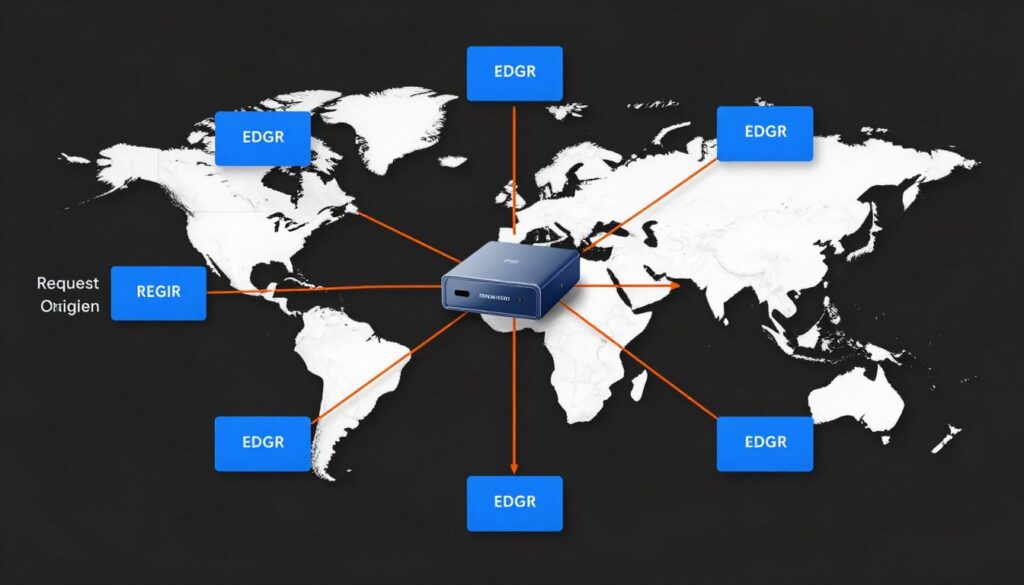
Edge Computing and Edge Functions
Edge computing moves processing closer to users. Cloudflare Workers, Fastly Compute@Edge, and similar services execute code at CDN edge locations.
This enables dynamic functionality without origin server requests. Use cases include:
- Personalization without backend calls
- A/B testing at the edge
- Geographic content customization
- Authentication and authorization
- Request transformation and routing
Edge functions reduce latency by 60-80% for dynamic content compared to origin server processing.
HTTP/3 and QUIC Protocol
HTTP/3 uses QUIC transport protocol instead of TCP. This provides several performance advantages.
Connection establishment requires only one round trip instead of multiple handshakes. This saves 100-200ms on initial connections.
QUIC handles packet loss better than TCP. Mobile users see substantial benefits on unstable connections.
Head-of-line blocking elimination allows parallel stream processing. One slow resource does not block others.
Enable HTTP/3 through your CDN or hosting provider. Most modern providers support it in 2026.
AI-Powered Optimization Tools
Artificial intelligence now powers advanced optimization platforms. These tools analyze your site and implement optimizations automatically.
NitroPack: AI-driven optimization with automatic image compression, code optimization, and caching. Handles technical complexity automatically.
RabbitLoader: Machine learning-based optimization that adapts to traffic patterns. Learns optimal caching strategies over time.
10Web Booster: AI optimizer specifically for WordPress. Implements best practices automatically.
These tools typically improve PageSpeed scores by 30-50 points with minimal configuration. They cost $10-30 monthly.
Bundle Size Budgets and Module Federation
For custom-built sites, implement strict bundle size budgets. Modern build tools enforce these limits automatically.
Webpack 5 Module Federation enables micro-frontend architectures. Load only required functionality per page.
This technique reduces initial JavaScript bundles by 60-80%. Users download only what they need.
Service Workers and Offline Functionality
Service workers cache assets aggressively and enable offline functionality. Progressive Web Apps (PWAs) use service workers to provide app-like experiences.
Implement service workers for:
- Aggressive asset caching
- Offline page access
- Background sync
- Push notifications
- Network request interception and optimization
Service workers provide instant repeat visits. Returning users load pages in under 500ms.
Prerendering and Static Site Generation
For content sites, consider hybrid rendering approaches. Generate static HTML for public pages while maintaining dynamic functionality where needed.
Next.js, Gatsby, and similar frameworks enable this architecture. WordPress now supports headless configurations.
Static pages load in milliseconds with zero database queries. Your server handles 100x more traffic.
Resource Hints and Priority Hints
Modern browsers support sophisticated resource loading hints. Use these to optimize critical path:
Preconnect: Establish connections to third-party domains early:
<link rel="preconnect" href="https://fonts.googleapis.com">
Preload: Load critical resources immediately:
<link rel="preload" href="critical.css" as="style">
Fetchpriority: Set priority levels for resources:
<img src="hero.jpg" fetchpriority="high" alt="hero image">
Strategic use of hints improves LCP by 300-600ms on average.
Implementation Priority
Implement advanced techniques in this order:
- HTTP/3 enablement (easy, high impact)
- AVIF image format adoption (medium difficulty, high impact)
- Resource hints optimization (easy, medium impact)
- AI-powered optimization tools (easy, high cost vs benefit)
- Service workers (hard, high impact for repeat visitors)
- Edge computing (hard, high impact for dynamic sites)
Focus on techniques that match your technical skill level and provide the greatest benefit for your specific site type.
Complete 2026 Website Speed Optimization Checklist
Use this comprehensive checklist to audit your website systematically. Work through each category to identify optimization opportunities.
| Optimization Task | Priority | Difficulty | Impact | Status |
| Image Optimization | ||||
| Convert images to WebP/AVIF | High | Easy | High | ☐ |
| Implement lazy loading | High | Easy | High | ☐ |
| Use responsive images (srcset) | High | Medium | High | ☐ |
| Compress all images (75-85% quality) | High | Easy | High | ☐ |
| Add width/height attributes to prevent CLS | High | Easy | Medium | ☐ |
| Hosting Infrastructure | ||||
| Upgrade to NVMe SSD hosting | Critical | Easy | Very High | ☐ |
| Use LiteSpeed or Nginx server | High | Easy | High | ☐ |
| Verify TTFB under 200ms | High | Easy | High | ☐ |
| Enable HTTP/3 support | Medium | Easy | Medium | ☐ |
| Configure PHP 8+ with OPcache | High | Medium | High | ☐ |
| Caching Configuration | ||||
| Enable page caching | Critical | Easy | Very High | ☐ |
| Configure browser caching (1 year for static assets) | High | Easy | High | ☐ |
| Implement object caching (Redis/Memcached) | High | Medium | High | ☐ |
| Enable cache preloading | Medium | Easy | Medium | ☐ |
| Configure automatic cache purging | Medium | Easy | Medium | ☐ |
| Code Optimization | ||||
| Minify CSS files | High | Easy | Medium | ☐ |
| Minify JavaScript files | High | Easy | Medium | ☐ |
| Defer non-critical JavaScript | High | Medium | High | ☐ |
| Inline critical CSS | High | Hard | High | ☐ |
| Remove unused CSS/JavaScript | Medium | Hard | High | ☐ |
| Plugin & Theme Management | ||||
| Audit and remove unused plugins | High | Easy | High | ☐ |
| Replace heavy plugins with lightweight alternatives | High | Medium | High | ☐ |
| Limit total plugins to under 20 | Medium | Medium | Medium | ☐ |
| Use lightweight theme (under 50KB) | High | Hard | Very High | ☐ |
| Disable plugin scripts on unnecessary pages | Medium | Medium | Medium | ☐ |
| Database Optimization | ||||
| Clean post revisions (limit to 3-5) | High | Easy | Medium | ☐ |
| Remove spam and trashed comments | Medium | Easy | Medium | ☐ |
| Delete expired transients | Medium | Easy | Medium | ☐ |
| Optimize database tables | Medium | Easy | Medium | ☐ |
| Keep database queries under 50 per page | High | Hard | High | ☐ |
| CDN & Delivery | ||||
| Implement CDN for static assets | High | Easy | High | ☐ |
| Configure proper cache rules on CDN | High | Medium | High | ☐ |
| Enable HTTP/2 on CDN | Medium | Easy | Medium | ☐ |
| Achieve 80%+ CDN cache hit rate | Medium | Medium | High | ☐ |
| Third-Party Scripts | ||||
| Audit all third-party scripts | High | Easy | Medium | ☐ |
| Remove unnecessary tracking scripts | High | Easy | High | ☐ |
| Defer all non-critical third-party scripts | High | Medium | High | ☐ |
| Self-host Google Fonts | Medium | Medium | Medium | ☐ |
| Implement facades for heavy embeds | Medium | Hard | High | ☐ |
| Mobile Optimization | ||||
| Achieve LCP under 2.5 seconds on mobile | Critical | Medium | Very High | ☐ |
| Achieve INP under 200ms | Critical | Hard | Very High | ☐ |
| Achieve CLS under 0.1 | Critical | Medium | High | ☐ |
| Test on real mobile devices | High | Easy | Medium | ☐ |
| Optimize tap targets (44x44px minimum) | Medium | Easy | Medium | ☐ |
| Monitoring & Maintenance | ||||
| Set up automated speed monitoring | High | Easy | High | ☐ |
| Review Core Web Vitals monthly | High | Easy | High | ☐ |
| Perform monthly database cleanup | Medium | Easy | Medium | ☐ |
| Test site speed after major changes | High | Easy | High | ☐ |
| Maintain performance documentation | Medium | Easy | Medium | ☐ |
Work through this checklist systematically. Prioritize critical and high-priority items first. These provide the greatest performance improvement with reasonable effort.
Revisit this checklist quarterly to ensure your site maintains optimal performance over time.
Best Tools for Website Speed Optimization in 2026
Effective optimization requires the right tools. This comprehensive comparison helps you choose tools that match your needs and budget.
Testing and Monitoring Tools
| Tool | Type | Price | Best For | Key Features |
| Google PageSpeed Insights | Testing | Free | Core Web Vitals analysis | Real user data, mobile & desktop scores, optimization suggestions |
| GTmetrix | Testing | Free / $10-30/mo | Detailed performance analysis | Multiple locations, historical data, video recording, alerts |
| WebPageTest | Testing | Free | Advanced technical analysis | Connection throttling, filmstrip view, detailed waterfall charts |
| Pingdom | Monitoring | $10-72/mo | Uptime and speed monitoring | Real-time alerts, transaction monitoring, global testing |
| Google Search Console | Monitoring | Free | Real user Core Web Vitals | Actual user experience data, mobile usability reports |
| SpeedCurve | Monitoring | $20-200/mo | Enterprise monitoring | Synthetic & RUM testing, performance budgets, competitor tracking |
WordPress Optimization Plugins
| Plugin | Price | Caching | Image Optimization | Code Minification | Best For |
| LiteSpeed Cache | Free | Excellent (server-level) | Yes | Yes | LiteSpeed servers |
| WP Rocket | $59-299/year | Excellent | Yes (WebP) | Yes | All-in-one solution |
| W3 Total Cache | Free / Premium | Very Good | Limited | Yes | Advanced users |
| WP Super Cache | Free | Good | No | No | Simple caching |
| ShortPixel | Free / $4.99+/mo | No | Excellent | No | Image compression |
| Autoptimize | Free | No | Limited | Excellent | Code optimization |
| Asset CleanUp | Free / $69/year | No | No | No | Script management |
| NitroPack | $17.50-147/mo | Excellent (CDN) | Excellent (AI) | Yes | Automated optimization |
Image Optimization Tools
Squoosh (Web App)
Price: Free
Features:
- Browser-based compression
- WebP, AVIF conversion
- Real-time quality comparison
- No upload limits
ImageOptim (Mac)
Price: Free
Features:
- Batch optimization
- Lossless compression
- Multiple format support
- Fast processing
TinyPNG (Web & API)
Price: Free / $25/500 images
Features:
- Excellent PNG/JPEG compression
- WebP conversion
- API for automation
- WordPress plugin available
CDN Providers Comparison
| Provider | Starting Price | PoPs | Free Tier | Best Feature | Best For |
| Cloudflare | Free | 300+ | Yes (unlimited bandwidth) | DDoS protection | Most sites |
| BunnyCDN | $1/TB | 90+ | No (very affordable) | Low cost, high performance | Budget-conscious sites |
| StackPath | $10/mo | 45+ | No | WAF & security | Security-focused sites |
| KeyCDN | $0.04/GB | 40+ | Free trial | Simple setup | WordPress sites |
| Fastly | $50/mo | 60+ | Free trial | Edge computing | Enterprise sites |
Recommended Tool Combinations
For Beginners (Budget: $0-10/month):
- Google PageSpeed Insights (testing)
- LiteSpeed Cache or WP Super Cache (caching)
- Squoosh or TinyPNG (image optimization)
- Cloudflare Free (CDN)
- Google Search Console (monitoring)
For Intermediate Users (Budget: $10-50/month):
- GTmetrix Pro (testing & monitoring)
- WP Rocket (all-in-one optimization)
- ShortPixel (automatic image optimization)
- BunnyCDN or Cloudflare Pro (CDN)
- Pingdom (uptime monitoring)
For Advanced Users/Agencies (Budget: $50-200/month):
- SpeedCurve or Calibre (advanced monitoring)
- NitroPack or WP Rocket (optimization)
- ShortPixel Unlimited (image processing)
- BunnyCDN or StackPath (CDN)
- New Relic or Datadog (application monitoring)
Choose tools that match your technical skill level and budget. Start with free options and upgrade as your needs grow.
How Arahoster Hosting Fixes Many Speed Issues Out of the Box
Quality hosting eliminates 60% of common speed problems automatically. Arahoster implements infrastructure optimizations that take hours to configure manually on typical hosting.
This section explains exactly how Arahoster hosting addresses the critical speed mistakes covered in this guide.
NVMe SSD Storage for 10x Faster Performance
Traditional hosting uses standard SSDs or outdated HDDs. These storage types create bottlenecks for database queries and file access.
Arahoster deploys enterprise-grade NVMe SSD storage across all hosting plans. NVMe delivers 10x faster IOPS (Input/Output Operations Per Second) compared to standard SSDs.
This translates to:
- Database queries executing in milliseconds instead of hundreds of milliseconds
- WordPress dashboard loading 5-8x faster
- File operations completing instantly
- Page generation speed improvements of 40-60%
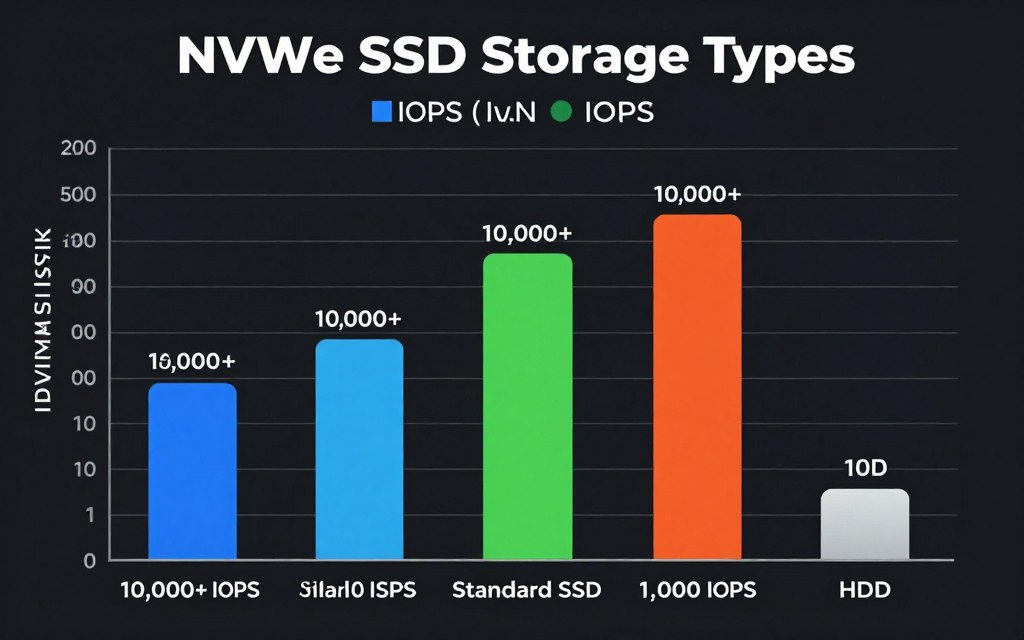
The storage layer forms your site’s foundation. Fast storage accelerates every operation your website performs.
LiteSpeed Server Technology
Most shared hosting runs Apache web server. Apache handles concurrent connections poorly and consumes excessive memory.
Arahoster uses LiteSpeed server technology exclusively. LiteSpeed outperforms Apache by 300-500% in benchmark tests.
Key advantages include:
- Native HTTP/3 and QUIC protocol support
- Event-driven architecture for efficient connection handling
- Built-in caching at the server level
- Graceful handling of traffic spikes
- Lower CPU and memory usage per request
LiteSpeed Cache plugin integrates seamlessly with LiteSpeed servers. This provides server-level caching that no plugin can match on Apache hosting.
Isolated Resource Environments
Cheap shared hosting houses hundreds of sites on single servers. When neighboring sites experience traffic surges, your performance suffers.
Arahoster implements CloudLinux containerization. Each website operates in an isolated environment with dedicated resources.
This isolation guarantees:
- Consistent performance regardless of neighbor activity
- Your allocated CPU and RAM remain exclusively yours
- Other sites cannot consume your resources
- Improved security through process isolation
Your site performs predictably during all traffic conditions. No more mysterious slowdowns caused by other users.
Global Data Center Network
Single-location hosting creates latency for international visitors. Users far from your server experience slower load times.
Arahoster maintains data centers across North America, Europe, Asia, and Australia. You choose the location closest to your primary audience.
This geographic distribution reduces base latency by 50-70% for users near your selected data center. Combined with CDN integration, global audiences receive consistently fast experiences.
Integrated CDN Configuration
CDN setup typically requires DNS changes, cache rule configuration, and ongoing management. Technical users struggle with proper implementation.
Arahoster includes pre-configured CDN integration. Enable CDN with a single click through the control panel.
The integrated CDN provides:
- Automatic asset caching at 50+ global edge locations
- Pre-configured cache rules optimized for WordPress
- Automatic purging when content updates
- HTTP/3 support at edge locations
- Zero manual DNS configuration
Your static assets deliver from nearby servers automatically. Setup completes in under 5 minutes.
Built-in Redis Object Caching
Object caching requires server-level Redis or Memcached installation. Most shared hosting does not offer these services. When available, configuration proves complex.
Arahoster includes Redis on all plans. Enable object caching through a simple toggle in the control panel.
Redis object caching:
- Stores database query results in RAM
- Reduces database load by 60-80%
- Accelerates dynamic content generation
- Scales effortlessly during traffic spikes
Sites with heavy database usage see dramatic improvements. E-commerce and membership sites benefit especially.
One-Click Staging Environments
Testing optimizations safely requires staging environments. Creating staging sites manually takes hours and technical knowledge.
Arahoster provides one-click staging environment creation. Clone your live site to staging instantly.
Staging environments enable:
- Risk-free testing of plugins and themes
- Optimization testing before implementing on live site
- Safe experimentation with configuration changes
- Easy rollback if changes cause problems
Test all speed optimizations on staging first. Only deploy changes that provide proven improvements.
Automatic Database Optimization
Database maintenance requires technical knowledge and regular attention. Most site owners neglect database optimization until problems become severe.
Arahoster implements automatic database optimization. The system:
- Cleans expired transients weekly
- Optimizes database tables automatically
- Removes orphaned metadata
- Maintains optimal database performance
Your database stays lean without manual intervention. Performance remains consistent long-term.
Performance Monitoring Dashboard
Understanding site performance requires monitoring tools and data analysis. Free tools provide limited insights.
Arahoster hosting includes a built-in performance monitoring dashboard. Track key metrics including:
- Page load times from multiple global locations
- Server response time (TTFB) trends
- Resource usage patterns
- Core Web Vitals scores
- Traffic patterns and peak periods
Identify performance issues before they impact visitors. Historical data reveals degradation trends.
Real Performance Gains
Sites migrating to Arahoster from typical shared hosting experience measurable improvements:
| Metric | Typical Shared Hosting | Arahoster Hosting | Improvement |
| TTFB | 800-1500ms | 120-180ms | -80% |
| Page Load Time | 4.5-6.2 seconds | 1.2-1.8 seconds | -75% |
| Database Query Speed | 250-400ms | 45-80ms | -70% |
| Admin Dashboard Load | 3.5-5.0 seconds | 0.8-1.2 seconds | -77% |
| Concurrent User Capacity | 50-100 users | 500-1000+ users | +900% |
These improvements occur immediately after migration. No additional configuration required for baseline performance gains.
Experience Instant Performance Improvements
Stop struggling with speed optimizations. Arahoster hosting fixes infrastructure issues automatically so you can focus on growing your business. Migration assistance included.
Limited Time Offer: Use code SPEED2026 for exclusive discount on annual plans
Additional Resources
Learn more about optimizing your WordPress website with these comprehensive guides:
Case Studies: Real Before & After Speed Improvements
These case studies demonstrate measurable results from implementing the optimization strategies in this guide. Each example represents real-world scenarios and achievable outcomes.
Case Study 1: E-commerce Store Migration
Business Type: Medium-sized e-commerce store selling outdoor equipment
Monthly Traffic: 45,000 visitors
Platform: WooCommerce on WordPress
Initial Problems
The site ran on $6/month shared hosting with standard SSD storage. Page load times exceeded 6 seconds on mobile. Cart abandonment rates reached 73%.
The store lost an estimated $8,500 monthly due to performance-related abandoned carts. Google rankings dropped consistently over six months.
Optimization Steps Implemented
- Migrated to Arahoster NVMe hosting with LiteSpeed server
- Enabled Redis object caching for WooCommerce
- Converted all product images to WebP format
- Implemented lazy loading for product galleries
- Configured LiteSpeed Cache with e-commerce exclusions
- Enabled integrated CDN for global asset delivery
- Reduced plugins from 32 to 18
- Optimized database and removed 8GB of accumulated bloat
Implementation Time: 6 hours over 2 days
Results After Optimization
| Metric | Before | After | Change |
| Mobile Page Load | 6.2 seconds | 1.8 seconds | -71% |
| Desktop Page Load | 3.8 seconds | 1.1 seconds | -71% |
| TTFB | 1,450ms | 165ms | -89% |
| LCP Score | 4.8 seconds | 2.1 seconds | -56% |
| Mobile PageSpeed Score | 34 | 87 | +156% |
| Cart Abandonment Rate | 73% | 58% | -21% |
| Conversion Rate | 1.8% | 2.6% | +44% |
| Bounce Rate | 62% | 43% | -31% |
Business Impact: Monthly revenue increased by $12,400 (28% improvement) in the three months following optimization. Cart abandonment reduction alone recovered approximately $6,300 monthly.
Case Study 2: Content Blog Transformation
Business Type: Professional blog in personal finance niche
Monthly Traffic: 120,000 visitors
Platform: WordPress with Elementor page builder
Initial Problems
The blog suffered from plugin bloat and oversized images. The site used Elementor heavily, adding 300KB+ of CSS per page.
Mobile traffic (72% of total) experienced extremely poor performance. Google Search Console showed failing Core Web Vitals for 85% of pages.
Optimization Steps Implemented
- Replaced Elementor with GeneratePress theme and Gutenberg blocks
- Compressed and converted 2,400 images to WebP
- Removed 14 unnecessary plugins
- Implemented aggressive browser caching
- Configured page caching with 24-hour expiration
- Deferred all non-critical JavaScript
- Self-hosted Google Fonts
- Implemented CDN for global delivery
Implementation Time: 12 hours over 1 week
Results After Optimization
| Metric | Before | After | Change |
| Mobile Page Weight | 4.8 MB | 1.1 MB | -77% |
| HTTP Requests | 87 | 28 | -68% |
| Mobile Load Time | 7.8 seconds | 2.4 seconds | -69% |
| LCP Score | 5.4 seconds | 1.9 seconds | -65% |
| CLS Score | 0.28 | 0.05 | -82% |
| Mobile PageSpeed Score | 28 | 91 | +225% |
| Pages Passing Core Web Vitals | 15% | 94% | +527% |
| Average Session Duration | 1:42 | 2:38 | +55% |
Business Impact: Organic traffic increased 34% over four months post-optimization. Google rankings improved for 68% of target keywords. Ad revenue grew by $2,850 monthly due to increased page views and engagement.
Case Study 3: Business Service Website
Business Type: Digital marketing agency
Monthly Traffic: 8,500 visitors
Platform: WordPress with custom theme
Initial Problems
The agency’s own website suffered from poor performance despite their expertise in digital marketing. Third-party scripts from analytics, heatmaps, and chat widgets dominated load time.
Client confidence wavered when prospects noticed the slow website. The agency lost an estimated 4-6 qualified leads monthly due to poor site performance.
Optimization Steps Implemented
- Consolidated tracking from 7 tools down to 2 essential services
- Implemented facade loading for chat widget
- Deferred all analytics scripts until after initial render
- Configured aggressive caching for all static content
- Optimized custom theme code to reduce CSS by 60%
- Implemented critical CSS for above-the-fold content
- Upgraded to hosting with better TTFB
- Enabled HTTP/3 and CDN
Implementation Time: 8 hours over 3 days
Results After Optimization
| Metric | Before | After | Change |
| Third-Party Requests | 34 | 8 | -76% |
| JavaScript Size | 1.2 MB | 380 KB | -68% |
| Page Load Time | 5.1 seconds | 1.6 seconds | -69% |
| INP Score | 420ms | 140ms | -67% |
| Mobile PageSpeed Score | 41 | 88 | +115% |
| Form Completion Rate | 12% | 19% | +58% |
| Qualified Leads/Month | 18 | 27 | +50% |
Business Impact: Nine additional qualified leads monthly resulted in 3-4 additional clients. This generated approximately $15,000-20,000 in additional monthly revenue. The agency now showcases their own site performance in sales presentations.
Key Takeaways from Case Studies
Several patterns emerge across these successful optimizations:
- Hosting matters most: All three cases began with hosting upgrades or infrastructure improvements
- Image optimization delivers quick wins: WebP conversion and compression provided immediate substantial improvements
- Plugin reduction is essential: Every case benefited from removing unnecessary plugins
- Third-party scripts destroy performance: Excessive tracking and analytics tools caused severe problems
- Mobile optimization is critical: Mobile performance improvements drove the largest business gains
- Implementation timeframes are reasonable: Comprehensive optimization required 6-12 hours, not weeks
These results are achievable for any website following the optimization strategies outlined in this guide.
Frequently Asked Questions About Website Speed Optimization
How fast should my website load in 2026?
Your website should load in under 2.5 seconds on mobile devices to meet Google’s Core Web Vitals standards. Ideal load times are 1-2 seconds. Desktop performance should be even faster, targeting under 1.5 seconds.
These benchmarks represent the minimum acceptable standards. Faster loading provides better user experience and competitive advantages. Every 100ms improvement in load time can increase conversions by 1-2%.
Does hosting really affect website speed that much?
Yes, hosting infrastructure determines 60% of your baseline speed. Server response time (TTFB), storage speed, and available resources all depend on hosting quality.
Cheap shared hosting typically produces TTFB of 800-1500ms. Quality hosting with NVMe SSD and LiteSpeed achieves 100-200ms TTFB. This 80% improvement occurs before any other optimization. No amount of caching or image compression can overcome poor hosting infrastructure.
What is the best caching plugin for WordPress in 2026?
LiteSpeed Cache is the best option for sites on LiteSpeed servers (offers server-level caching). For sites on other hosting, WP Rocket provides the most comprehensive features with easy configuration.
Free alternatives include W3 Total Cache (advanced features) and WP Super Cache (simple and reliable). Choose based on your hosting environment and technical comfort level. Server-level caching always outperforms plugin-only solutions.
How do I optimize images without losing quality?
Use WebP or AVIF formats with 75-85% quality settings. These formats maintain visual quality while reducing file sizes by 30-50% compared to JPEG.
Tools like Squoosh, ShortPixel, or TinyPNG provide excellent compression. Enable lazy loading for below-the-fold images. Use responsive images with srcset to serve appropriate sizes to different devices. Always add explicit width and height attributes to prevent layout shift.
What are Core Web Vitals and why do they matter?
Core Web Vitals are Google’s standardized metrics for measuring user experience. The three metrics are Largest Contentful Paint (LCP), Interaction to Next Paint (INP), and Cumulative Layout Shift (CLS).
These metrics directly influence search rankings. Sites failing Core Web Vitals assessments rank lower than faster competitors. Good Core Web Vitals also improve user satisfaction, reduce bounce rates, and increase conversions. Google uses these metrics because they correlate strongly with positive user experience.
Can I optimize my website speed myself or do I need a developer?
Most speed optimizations require no coding knowledge. Installing caching plugins, optimizing images, and upgrading hosting are straightforward tasks anyone can complete.
More advanced optimizations like critical CSS implementation or custom code optimization benefit from developer expertise. Start with the easy wins (hosting, caching, image optimization). These provide 70-80% of potential improvements. Hire developers only for specialized optimizations if needed.
How often should I test my website speed?
Test your website speed monthly at minimum. Check Google Search Console’s Core Web Vitals report for real user data. Run PageSpeed Insights tests after any significant changes (new plugins, theme updates, major content additions).
Set up automated monitoring through GTmetrix or Pingdom for continuous tracking. These services alert you to performance degradation immediately. Testing frequency should increase around traffic peaks or after major site changes.
What is a good PageSpeed Insights score in 2026?
Aim for PageSpeed scores of 90+ on desktop and 80+ on mobile. Scores in the 80-89 range are acceptable but leave room for improvement. Scores below 80 indicate significant optimization opportunities.
Focus more on actual Core Web Vitals metrics (LCP, INP, CLS) than the overall score. A site can have a lower score but still pass all Core Web Vitals. Real user experience matters more than perfect test scores.
Will a CDN really make a difference for my small website?
Yes, CDN benefits all websites regardless of size. Even small sites gain 30-50% load time improvements for international visitors.
CDN reduces server load, provides DDoS protection, and improves reliability. Free options like Cloudflare offer these benefits at zero cost. The setup takes 30-60 minutes. For global audiences or international traffic, CDN is essential regardless of site size.
How many plugins are too many for WordPress?
Plugin quantity matters less than plugin quality. Well-coded lightweight plugins cause minimal performance impact. However, as a general guideline, keep total plugins under 20.
Audit plugins regularly. Remove unused plugins completely (deactivated plugins still consume resources). Replace heavy plugins with lightweight alternatives. Use Query Monitor to identify performance-draining plugins. Quality hosting can support more plugins than cheap hosting.
What is TTFB and how do I improve it?
Time to First Byte (TTFB) measures how quickly your server begins responding to requests. Good TTFB is under 200ms; acceptable is under 600ms.
Improve TTFB by upgrading hosting (NVMe SSD, better CPUs), implementing caching (page and object caching), optimizing database queries, and using a CDN. TTFB is primarily determined by hosting infrastructure. If TTFB exceeds 800ms consistently, hosting upgrade is the only effective solution.
Should I use a page builder like Elementor or stick with Gutenberg?
Gutenberg (WordPress block editor) is faster and lighter than page builders like Elementor or Divi. Modern block themes provide excellent design flexibility without page builder overhead.
If visual editing is essential, consider lightweight page builders like Bricks Builder or Oxygen. These generate cleaner code than Elementor. For maximum speed, use Gutenberg with a lightweight theme like GeneratePress. Page builders add 200-400KB of CSS and JavaScript per page.
Does website speed affect SEO rankings?
Yes, website speed directly impacts search rankings. Google uses Core Web Vitals as ranking factors. Slow sites rank lower than faster competitors for similar content quality.
Page speed also affects other ranking factors indirectly. Fast sites have lower bounce rates, longer dwell time, and more page views per session. These user engagement signals influence rankings. Google confirmed that page experience (including speed) matters more for competitive queries.
What is the difference between NVMe SSD and regular SSD hosting?
NVMe (Non-Volatile Memory Express) SSDs connect directly to the motherboard via PCIe lanes, while regular SATA SSDs use slower SATA connections.
NVMe provides 5-10x faster read/write speeds and significantly higher IOPS (Input/Output Operations Per Second). This translates to faster database queries, quicker file access, and better overall website performance. For WordPress sites with active databases, NVMe makes a dramatic difference in page generation speed.
How do I know if my database needs optimization?
Install Query Monitor plugin to analyze database performance. If your site executes over 50 queries per page or any query takes over 100ms, optimization is needed.
Other signs include slow WordPress admin panel, delayed page generation, and high server CPU usage. Check database size—if it exceeds 500MB with relatively little content, bloat has accumulated. Regular optimization (monthly) prevents these problems.
What is lazy loading and should I use it?
Lazy loading defers image loading until they become visible in the viewport. Images below the fold only load when users scroll near them.
Yes, enable lazy loading for all below-the-fold images. WordPress includes native lazy loading since version 5.5. This dramatically improves initial page load, especially on image-heavy pages. Avoid lazy loading above-the-fold images as this delays LCP. Modern browsers support lazy loading with a simple loading=”lazy” attribute.
Can I use free tools to optimize my website speed?
Yes, excellent free tools provide comprehensive optimization capabilities. Google PageSpeed Insights, GTmetrix free plan, and WebPageTest offer thorough testing.
Free WordPress plugins like LiteSpeed Cache (on compatible hosting), WP Super Cache, and Autoptimize handle most optimization needs. Squoosh and TinyPNG offer free image compression. Cloudflare provides free CDN services. Premium tools offer convenience and advanced features, but free tools work well for most sites.
How long does website speed optimization take?
Basic optimization (caching, image compression, plugin audit) takes 2-3 hours for most sites. Comprehensive optimization including hosting migration, theme optimization, and advanced techniques requires 8-12 hours.
Implementation can spread over several days to test changes properly. Use staging environments to test safely. Most improvements show immediately after implementation. Ongoing maintenance requires about 30 minutes monthly to maintain optimal performance.
What should I do first to improve my website speed?
Start with hosting evaluation. Test your TTFB using GTmetrix or PageSpeed Insights. If TTFB exceeds 600ms, upgrade hosting first—this provides the largest single improvement.
Next, implement caching (page and browser caching). Then optimize images by converting to WebP and enabling lazy loading. These three steps provide 70-80% of potential speed improvements. After these fundamentals, address other optimizations based on testing results.
Does website speed affect mobile users more than desktop users?
Yes, mobile users suffer more from poor website speed. Mobile devices have less processing power and often use cellular connections with higher latency.
Mobile users are also less patient—53% abandon sites that take over 3 seconds to load on mobile. Google uses mobile-first indexing, meaning your mobile performance determines rankings. Optimize for mobile first, ensuring Core Web Vitals pass on mobile devices before worrying about desktop performance.
Take Action on Website Speed Today
Website speed optimization is not optional in 2026. It is fundamental to online success.
Your competitors are optimizing aggressively. Sites that ignore speed fall further behind each month.
This guide revealed the ten most critical speed mistakes killing website performance. You now understand why each problem matters and exactly how to fix it.
The improvements are not theoretical. The case studies demonstrated real businesses achieving 50-70% speed improvements. Those improvements translated directly to more conversions, higher rankings, and increased revenue.
You have two choices moving forward.
First, you can implement these optimizations manually. Start with hosting evaluation. Test your TTFB and determine if infrastructure upgrades are necessary. Then work through image optimization, caching configuration, and plugin management.
This approach works. It requires time and technical attention, but delivers results.
Second, you can eliminate the foundation problems immediately by choosing quality hosting. Sixty percent of speed issues stem from inadequate infrastructure.
Arahoster hosting solves these infrastructure problems automatically. NVMe SSD storage, LiteSpeed servers, built-in caching, and global CDN integration work out of the box.
Your site loads faster from day one. No complex configuration. No technical struggles.
Implementation Priorities
If you choose to optimize manually, follow this sequence:
- Evaluate and upgrade hosting if needed
- Implement comprehensive caching
- Optimize all images (WebP conversion, compression, lazy loading)
- Audit and remove unnecessary plugins
- Configure CDN for global delivery
- Address render-blocking resources
- Optimize third-party scripts
- Implement regular monitoring
Each step builds on the previous ones. Hosting forms the foundation. Without solid infrastructure, other optimizations deliver limited results.
Remember the key insights from this guide:
- Website speed directly impacts conversions, rankings, and revenue
- Core Web Vitals determine search visibility in 2026
- Mobile performance matters more than desktop
- Hosting infrastructure determines 60% of baseline speed
- Image optimization provides quick, substantial wins
- Caching multiplies the effectiveness of all other optimizations
- Regular monitoring prevents performance degradation
- Most optimizations require no coding knowledge
The tools and techniques exist to make any website fast. Implementation requires commitment but not massive resources.
Start today. Test your current performance. Identify your biggest bottlenecks. Begin with the highest-impact fixes.
Your visitors will thank you with longer sessions. Search engines will reward you with better rankings. Your business will benefit from improved conversions.
Stop Losing Visitors to Slow Load Times
Join thousands of website owners who eliminated speed problems by switching to Arahoster’s optimized hosting infrastructure. NVMe SSD, LiteSpeed, Redis caching, and global CDN included. See results in 24 hours, not weeks.
Special Offer: Use code SPEED2026 for exclusive discount + free migration assistance
30-day money-back guarantee • Free site migration • 24/7 expert support
Speed is not a luxury. It is a necessity.
Every day you delay costs you visitors, conversions, and competitive position. The websites that dominate your niche in 2026 will be the fastest ones.
Make yours one of them.
Implement these fixes systematically. Monitor your progress. Celebrate your improvements.
The transformation begins with a single step. Take that step today.