Last updated: March 2026
Website security is no longer optional. In 2026, cybercriminals launch attacks every 39 seconds. The average cost of a data breach has reached $4.88 million.
Small businesses face even greater risks. Nearly 60% of small companies close within six months of a cyberattack. Your website holds customer data, business information, and your reputation.
This comprehensive guide provides 150 actionable security checkpoints. You’ll learn how to protect your website from modern threats. We cover everything from basic SSL setup to advanced zero-trust architectures.
Whether you run WordPress, manage an e-commerce store, or develop web applications, this checklist helps you build strong defenses. Each section includes step-by-step instructions and practical code examples.
Table of Contents:
Table of Contents
The 2026 Threat Landscape: What Changed
Cyber threats evolved dramatically in 2026. Understanding these changes helps you prioritize security efforts effectively.

AI-Powered Attacks Surge
Artificial intelligence transformed hacking methods. Threat actors now use machine learning to identify vulnerabilities faster. AI-generated phishing emails became 300% more convincing in 2026.
Automated bot attacks increased by 167% compared to 2025. These sophisticated bots bypass traditional CAPTCHA systems. They probe websites for weaknesses 24/7 without human intervention.
Supply Chain Vulnerabilities
Third-party plugins and dependencies became prime attack vectors. The 2026 XZ Utils backdoor incident showed how malicious code infiltrates trusted software.
WordPress plugin vulnerabilities affected 47% of compromised websites. Many site owners installed updates too slowly. Hackers exploited known vulnerabilities within hours of public disclosure.
Ransomware Evolution
Ransomware attacks doubled in sophistication. Criminals now use triple extortion tactics. They encrypt your data, steal sensitive information, and threaten customers directly.
The average ransom demand reached $2.3 million in 2026. Small businesses paid an average of $187,000. Many never fully recovered their data despite payment.
Zero-Day Exploit Economy
The market for zero-day vulnerabilities exploded. Security researchers and criminals sell unknown exploits for six-figure sums. This created a race between attackers and defenders.
Major browsers faced 89 zero-day exploits in 2025. Web applications remained vulnerable until patches arrived. This gap left businesses exposed to attacks.
Security Reality Check: Managing website security manually requires constant vigilance and technical expertise. Many businesses now choose managed hosting solutions that handle server-level security automatically, letting you focus on your business instead of threat monitoring.
DDoS Attacks Scale Up
Distributed denial of service attacks reached unprecedented sizes. The largest recorded attack in 2026 peaked at 5.6 terabits per second. Even small websites faced regular DDoS attempts.
Attackers rented botnets for as little as $50 per hour. This democratized DDoS capabilities. Any competitor or disgruntled user could launch attacks.
API Security Gaps
Application programming interfaces became the weakest link. API attacks increased 400% as businesses connected more services. Poor authentication and rate limiting exposed sensitive data.
Most breaches in 2026 involved API exploitation. Attackers bypassed front-end security by targeting backend interfaces directly.
Hosting & Server Foundation Security
Your hosting environment forms the foundation of website security. A compromised server affects everything built on top of it.

Choose Security-Focused Hosting
Not all hosting providers prioritize security equally. Your provider should offer several critical features from day one.
Look for isolated server environments. Shared hosting often allows one compromised site to affect neighbors. Container-based isolation prevents cross-contamination between accounts.
Server-level firewalls should filter malicious traffic before it reaches your site. Hardware firewalls outperform software solutions installed after the fact.
Server Hardening Essentials
Server configuration determines your security baseline. Default settings often prioritize convenience over protection.
Disable unnecessary services and ports. Every open port represents a potential entry point. Most websites only need ports 80 (HTTP), 443 (HTTPS), and sometimes 22 (SSH).
Remove unused software packages. Outdated services create vulnerabilities even if you don’t actively use them. Regular audits identify software to eliminate.
Server Hardening Checklist
- Disable root SSH login
- Change default SSH port from 22
- Install and configure fail2ban
- Enable automatic security updates
- Configure firewall rules (UFW or iptables)
- Disable directory listing
- Remove server signature information
- Set up intrusion detection (AIDE or Tripwire)
File Permission Standards
- Directories: 755 (rwxr-xr-x)
- PHP files: 644 (rw-r–r–)
- Configuration files: 600 (rw——-)
- Upload directories: 755 with write restrictions
- Database files: 600 (rw——-)
- Log files: 640 (rw-r—–)
- Script executables: 750 (rwxr-x—)
- Backup files: 600 (rw——-)
SSH Security Configuration
Secure Shell access needs special attention. SSH provides powerful server control that attackers covet.
Implement key-based authentication instead of passwords. SSH keys are virtually impossible to brute-force. Generate strong 4096-bit RSA or Ed25519 keys.
Here’s how to disable password authentication in SSH:
# Edit SSH configuration
sudo nano /etc/ssh/sshd_config # Add or modify these lines
PasswordAuthentication no
PermitRootLogin no
PubkeyAuthentication yes
Port 2222 # Restart SSH service
sudo systemctl restart sshd
Operating System Updates
Keep your server operating system current. Security patches fix vulnerabilities that hackers actively exploit.
Enable automatic security updates for critical patches. This ensures emergency fixes apply immediately without manual intervention.
For Ubuntu/Debian servers:
# Install unattended upgrades
sudo apt install unattended-upgrades # Configure automatic updates
sudo dpkg-reconfigure --priority=low unattended-upgrades # Enable automatic security updates
sudo nano /etc/apt/apt.conf.d/50unattended-upgrades
Network Security Configuration
Network-level controls add defense layers before threats reach your application. Configure firewalls to allow only necessary traffic.
Basic UFW (Uncomplicated Firewall) setup:
# Install UFW
sudo apt install ufw # Default policies
sudo ufw default deny incoming
sudo ufw default allow outgoing # Allow SSH (custom port)
sudo ufw allow 2222/tcp # Allow HTTP and HTTPS
sudo ufw allow 80/tcp
sudo ufw allow 443/tcp # Enable firewall
sudo ufw enable
Simplified Security: Manual server hardening requires Linux expertise and constant maintenance. Arahoster’s security-hardened hosting includes pre-configured firewalls, automatic security updates, and isolated server environments on all plans. This eliminates the technical complexity while providing enterprise-grade protection.
Web Server Security Headers
Configure your web server to send security headers with every response. These headers tell browsers how to handle your content securely.
For Apache servers, add to your .htaccess or virtual host configuration:
# Security Headers
Header set X-Content-Type-Options "nosniff"
Header set X-Frame-Options "SAMEORIGIN"
Header set X-XSS-Protection "1; mode=block"
Header set Referrer-Policy "strict-origin-when-cross-origin"
Header set Permissions-Policy "geolocation=(), microphone=(), camera=()"
For Nginx servers:
# Security Headers
add_header X-Content-Type-Options "nosniff" always;
add_header X-Frame-Options "SAMEORIGIN" always;
add_header X-XSS-Protection "1; mode=block" always;
add_header Referrer-Policy "strict-origin-when-cross-origin" always;
SSL/TLS Encryption Implementation
SSL certificates encrypt data between your server and visitors. This protects sensitive information from interception. Modern browsers flag sites without SSL as “Not Secure.”

Choose the Right SSL Certificate Type
Different SSL certificate types serve different needs. Understanding options helps you select appropriate protection.
| Certificate Type | Validation Level | Best For | Typical Cost |
| Domain Validation (DV) | Basic – Domain ownership only | Blogs, personal sites, small business websites | Free – $50/year |
| Organization Validation (OV) | Moderate – Company verification | Business websites, customer portals | $50 – $200/year |
| Extended Validation (EV) | Highest – Extensive company vetting | E-commerce, banking, high-trust sites | $200 – $600/year |
| Wildcard SSL | Varies – Covers subdomains | Sites with multiple subdomains | $100 – $400/year |
SSL Certificate Installation
Most hosting providers offer automated SSL installation. Let’s Encrypt provides free SSL certificates that renew automatically.
For manual installation on Apache, you need three files: certificate, private key, and chain file. Place them in a secure directory.
# Apache SSL configuration
<VirtualHost *:443> ServerName yourdomain.com DocumentRoot /var/www/html SSLEngine on SSLCertificateFile /path/to/certificate.crt SSLCertificateKeyFile /path/to/private.key SSLCertificateChainFile /path/to/chain.crt # Modern SSL configuration SSLProtocol all -SSLv2 -SSLv3 -TLSv1 -TLSv1.1 SSLCipherSuite HIGH:!aNULL:!MD5
</VirtualHost>
Force HTTPS Across Entire Site
Redirect all HTTP traffic to HTTPS. This prevents accidental unencrypted connections. Users should never access your site without encryption.
Add to your .htaccess file for Apache:
# Force HTTPS redirect
RewriteEngine On
RewriteCond %{HTTPS} off
RewriteRule ^(.*)$ https://%{HTTP_HOST}%{REQUEST_URI} [L,R=301]
For Nginx, add to your server block:
# Redirect HTTP to HTTPS
server { listen 80; server_name yourdomain.com www.yourdomain.com; return 301 https://$server_name$request_uri;
}
Implement HSTS (HTTP Strict Transport Security)
HSTS tells browsers to only connect via HTTPS. This prevents downgrade attacks where hackers force HTTP connections.
Add the HSTS header to your configuration:
# Apache
Header always set Strict-Transport-Security "max-age=31536000; includeSubDomains; preload" # Nginx
add_header Strict-Transport-Security "max-age=31536000; includeSubDomains; preload" always;
The max-age value sets the duration in seconds. 31536000 equals one year. The includeSubDomains directive extends protection to all subdomains.
Configure SSL for Maximum Security
Default SSL settings often include weak protocols for backward compatibility. Modern security requires stronger configurations.
Disable outdated protocols like SSLv2, SSLv3, TLSv1.0, and TLSv1.1. These contain known vulnerabilities. Support only TLSv1.2 and TLSv1.3.
Test your SSL configuration at SSL Labs (ssllabs.com/ssltest). Aim for an A+ rating. The tool identifies weaknesses and suggests improvements.
Access Control & Authentication
Strong authentication prevents unauthorized access to your website. Most breaches begin with compromised credentials. Multi-layered access control stops attackers even if passwords leak.
Implement Strong Password Policies
Weak passwords remain the easiest attack vector. Enforce minimum complexity requirements across all user accounts.
Password requirements should include:
- Minimum 12 characters length (16+ for admin accounts)
- Mix of uppercase, lowercase, numbers, and symbols
- No dictionary words or common patterns
- No reuse of previous passwords
- Regular password expiration (every 90 days for sensitive accounts)
- Prohibition of commonly compromised passwords
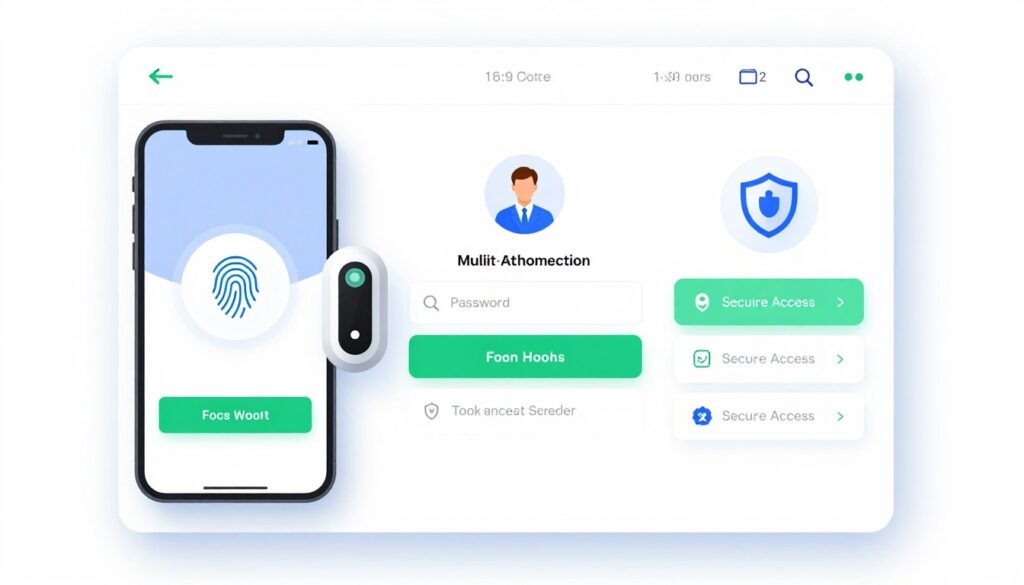
Enable Multi-Factor Authentication (MFA)
MFA adds security layers beyond passwords. Even if credentials leak, attackers cannot access accounts without the second factor.
Popular MFA methods include:
Time-Based One-Time Passwords (TOTP)
Apps like Google Authenticator or Authy generate rotating codes. These codes expire every 30 seconds. TOTP works offline and doesn’t require SMS.
Hardware Security Keys
Physical devices like YubiKey provide the strongest MFA protection. Users must physically possess the key to authenticate. This stops remote attacks completely.
SMS Authentication
Text message codes offer basic MFA protection. However, SIM swapping attacks can intercept SMS. Use SMS only when better options aren’t available.
Biometric Authentication
Fingerprint or face recognition adds convenience with security. Modern devices include secure biometric storage. This works best for mobile applications.
Adopt Passkeys for Modern Authentication
Passkeys represent the future of authentication. They use public key cryptography instead of passwords. Users authenticate with biometrics or device PINs.
Passkeys resist phishing because they’re tied to specific domains. Attackers cannot trick users into entering passkeys on fake sites. Support for passkeys grew rapidly in 2026.
Limit Login Attempts
Brute-force attacks try thousands of password combinations. Rate limiting stops these automated attempts.
Configure login attempt restrictions:
- Maximum 5 failed attempts within 15 minutes
- Temporary account lockout after limit exceeded
- Progressive delays between attempts
- CAPTCHA requirement after 3 failed attempts
- IP blocking for repeated failures
- Email notifications for lockout events
For WordPress, install a security plugin that includes login protection. Configure it to block IP addresses after failed attempts.
Implement Role-Based Access Control (RBAC)
Not every user needs full administrative access. RBAC grants minimum necessary permissions for each role.
Common permission levels:
| Role | Permissions | Use Case |
| Administrator | Full system access, user management, settings | Site owners, technical managers |
| Editor | Create, edit, publish content; manage media | Content managers, senior writers |
| Author | Create and publish own posts only | Regular contributors, bloggers |
| Contributor | Create posts, cannot publish | Guest writers, freelancers |
| Subscriber | View content, manage own profile | Registered users, community members |
Secure Admin Access Points
Hide or rename admin login URLs. Default paths like /wp-admin or /admin are well-known targets. Changing these URLs reduces automated attack traffic.
Additional admin security measures:
- Use unique admin usernames (never “admin” or site name)
- Restrict admin access to specific IP addresses when possible
- Require MFA for all admin accounts
- Log out inactive admin sessions after 15 minutes
- Disable admin access during off-hours if feasible
Session Management Security
Secure session handling prevents hijacking attacks. Configure sessions with appropriate timeouts and security flags.
Session security best practices:
# PHP session security settings
ini_set('session.cookie_httponly', 1);
ini_set('session.cookie_secure', 1);
ini_set('session.cookie_samesite', 'Strict');
ini_set('session.use_strict_mode', 1);
ini_set('session.cookie_lifetime', 0);
session_regenerate_id(true);
These settings prevent JavaScript access to cookies, enforce HTTPS, and regenerate session IDs to stop fixation attacks.
Software, Plugins & Update Management
Outdated software creates security holes. Hackers scan millions of websites for known vulnerabilities. They exploit unpatched systems within hours of vulnerability disclosure.

Maintain Core Software Updates
Your content management system receives regular security patches. WordPress, Joomla, Drupal, and other platforms release updates frequently.
Enable automatic updates for minor security releases. This ensures critical patches apply immediately. Review major version updates manually to test compatibility.
For WordPress, add this to wp-config.php:
# Enable automatic updates for core
define('WP_AUTO_UPDATE_CORE', true); # Enable automatic plugin updates
add_filter('auto_update_plugin', '__return_true'); # Enable automatic theme updates
add_filter('auto_update_theme', '__return_true');
Plugin and Extension Security
Third-party plugins introduce external code into your site. Each plugin represents a potential vulnerability. Exercise caution when installing extensions.
Plugin selection criteria:
- Check last update date (avoid plugins not updated in 6+ months)
- Review active installation count (popular plugins receive more scrutiny)
- Read user reviews and ratings carefully
- Verify developer reputation and support responsiveness
- Check compatibility with your CMS version
- Review required permissions and data access
- Test on staging environment before production installation
Remove Unused Plugins and Themes
Inactive plugins still create vulnerabilities. Attackers can exploit dormant code. Delete anything you don’t actively use.
Conduct quarterly plugin audits:
- List all installed plugins and themes
- Identify which ones you actively use
- Deactivate unused items
- Delete deactivated plugins completely
- Document remaining plugins and their purposes
- Check for available updates
Many WordPress sites run 20+ plugins when 8-10 would suffice. Each additional plugin increases attack surface and slows performance.
Vulnerability Scanning
Scan your site regularly for known vulnerabilities. Multiple tools check installed software against vulnerability databases.
Use WPScan for WordPress sites:
# Install WPScan
gem install wpscan # Scan your site
wpscan --url https://yoursite.com --api-token YOUR_TOKEN # Scan for vulnerable plugins
wpscan --url https://yoursite.com --enumerate vp
WPScan identifies outdated software and known vulnerabilities. Run scans weekly to catch new threats quickly.
Dependency Management
Modern websites rely on numerous dependencies. JavaScript libraries, PHP packages, and other components need regular updates.
For Node.js projects, check dependencies with:
# Check for vulnerabilities
npm audit # Fix vulnerabilities automatically
npm audit fix # Update all packages
npm update
For PHP projects using Composer:
# Check for security issues
composer audit # Update dependencies
composer update # Install only security updates
composer update --prefer-stable --with-dependencies
Testing Updates Before Deployment
Updates occasionally break functionality. Test changes in a staging environment before applying to production.
Update testing workflow:
- Clone production site to staging environment
- Apply updates on staging
- Test critical functionality (checkout, forms, login)
- Check for plugin conflicts or errors
- Review site performance impact
- Deploy to production during low-traffic hours
- Monitor for issues post-deployment
Automated Update Management: Manually tracking and testing updates for WordPress core, 15+ plugins, and themes requires significant time and technical knowledge. Arahoster’s managed WordPress hosting includes automatic security updates, staging environments for testing, and rollback capability if issues arise. Our security team monitors and applies patches so you don’t have to.
WAF and DDoS Protection
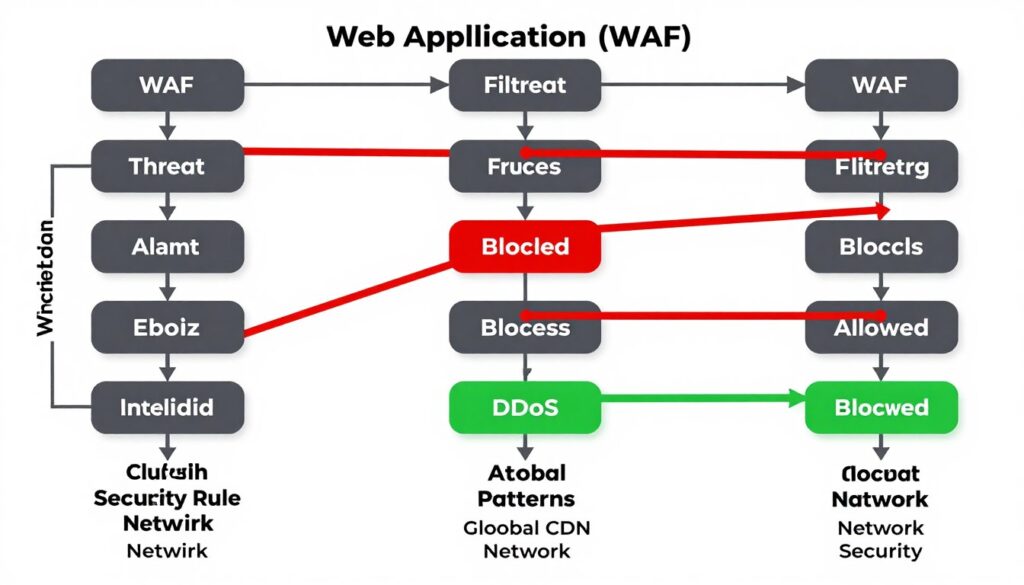
Web Application Firewalls (WAF) and DDoS mitigation protect against traffic-based attacks. These defenses filter malicious requests before they reach your server.
Understanding Web Application Firewalls
WAFs analyze HTTP requests using predefined security rules. They block common attack patterns like SQL injection, cross-site scripting, and malicious file uploads.
WAF deployment options:
Cloud-Based WAF
Services like Cloudflare, Sucuri, or AWS WAF sit between users and your server. Traffic routes through their network first. They filter attacks before requests reach your infrastructure.
Benefits include global DDoS mitigation, automatic rule updates, and no server software installation required.
Server-Based WAF
Software like ModSecurity installs directly on your web server. It provides deep integration with your server configuration. You maintain complete control over rules and policies.
Requires technical expertise to configure and maintain. Server resources handle all filtering.
Implementing ModSecurity
ModSecurity offers powerful open-source WAF protection. It integrates with Apache and Nginx servers.
Install ModSecurity on Ubuntu/Apache:
# Install ModSecurity
sudo apt install libapache2-mod-security2 # Enable module
sudo a2enmod security2 # Copy configuration
sudo cp /etc/modsecurity/modsecurity.conf-recommended /etc/modsecurity/modsecurity.conf # Enable rule engine
sudo nano /etc/modsecurity/modsecurity.conf
# Change: SecRuleEngine DetectionOnly
# To: SecRuleEngine On # Install OWASP Core Rule Set
sudo git clone https://github.com/coreruleset/coreruleset.git /usr/share/modsecurity-crs
sudo cp /usr/share/modsecurity-crs/crs-setup.conf.example /usr/share/modsecurity-crs/crs-setup.conf # Restart Apache
sudo systemctl restart apache2
OWASP Core Rule Set Configuration
The OWASP CRS provides comprehensive protection against common web attacks. Configure it to match your security requirements.
Paranoia levels determine rule strictness:
- Paranoia Level 1: Basic protection, few false positives
- Paranoia Level 2: Recommended for most sites, balanced security
- Paranoia Level 3: Strict rules, higher false positive rate
- Paranoia Level 4: Maximum security, requires careful tuning
Start with level 1 and gradually increase while monitoring for false positives. Whitelist legitimate requests that trigger rules incorrectly.
DDoS Protection Strategies
Distributed Denial of Service attacks overwhelm your server with traffic. Multiple defense layers provide the best protection.
DDoS mitigation approaches:
| Protection Layer | Attack Types Blocked | Implementation |
| Network-Level Filtering | SYN floods, UDP floods, ICMP attacks | ISP or hosting provider infrastructure |
| CDN DDoS Protection | Volumetric attacks, HTTP floods | Cloudflare, AWS CloudFront, Akamai |
| Application-Level Rate Limiting | Application-layer floods, bot attacks | Server configuration, WAF rules |
| Behavioral Analysis | Sophisticated bots, low-and-slow attacks | AI-powered security services |
Rate Limiting Configuration
Limit request rates per IP address to prevent abuse. This stops both DDoS attempts and aggressive scrapers.
For Nginx, implement rate limiting:
# Define rate limit zone
limit_req_zone $binary_remote_addr zone=general:10m rate=10r/s; # Apply to location
location / { limit_req zone=general burst=20 nodelay; limit_req_status 429;
}
This allows 10 requests per second with bursts up to 20. Exceeding limits returns HTTP 429 (Too Many Requests).
Cloudflare Protection Setup
Cloudflare offers free DDoS protection and WAF capabilities. Setting up Cloudflare adds a protective layer with minimal configuration.
Cloudflare setup steps:
- Create a free Cloudflare account
- Add your domain and verify ownership
- Update nameservers at your domain registrar
- Enable proxy (orange cloud) for DNS records
- Configure SSL/TLS to “Full (Strict)” mode
- Enable “Under Attack Mode” during active DDoS
- Configure firewall rules for additional protection
Cloudflare’s network absorbs attacks before they reach your server. This protects against even massive DDoS attempts.
Bot Management
Not all bots are malicious, but many create security risks. Implement bot management to distinguish legitimate bots from harmful ones.
Bot categories:
- Good bots: Search engine crawlers, monitoring services, legitimate APIs
- Neutral bots: Scrapers respecting robots.txt, research crawlers
- Bad bots: Credential stuffers, content scrapers, vulnerability scanners
- Malicious bots: DDoS participants, spam bots, brute-force attackers
Use robots.txt to guide good bots and WAF rules to block bad ones. Advanced bot management services use behavioral analysis to identify sophisticated bots.
Database Security Hardening
Your database holds the most valuable information on your site. Customer data, user credentials, and business records reside in database tables. Proper security prevents unauthorized access and SQL injection attacks.
Prevent SQL Injection Attacks
SQL injection remains one of the most dangerous web vulnerabilities. Attackers insert malicious SQL code through input fields. This can expose, modify, or delete entire databases.
Always use prepared statements with parameterized queries:
# Vulnerable code (NEVER use this)
$query = "SELECT * FROM users WHERE username = '" . $_POST['username'] . "'"; # Secure code with prepared statements
$stmt = $pdo->prepare("SELECT * FROM users WHERE username = :username");
$stmt->execute(['username' => $_POST['username']]);
Prepared statements separate SQL logic from user data. The database treats user input as data only, never as executable code.
Database User Permissions
Create separate database users for different purposes. Your application should never connect using the root database account.
Follow the principle of least privilege:
# Create limited database user
CREATE USER 'webapp'@'localhost' IDENTIFIED BY 'strong_password'; # Grant only necessary permissions
GRANT SELECT, INSERT, UPDATE, DELETE ON website_db.* TO 'webapp'@'localhost'; # Do NOT grant DROP, CREATE, or SUPER privileges
FLUSH PRIVILEGES;
Limit permissions to specific databases and tables. If attackers compromise your application, they cannot drop databases or modify system tables.
Secure Database Connections
Never transmit database credentials over unencrypted connections. Use SSL/TLS for remote database connections.
For MySQL, enable SSL connections:
# Generate SSL certificates
sudo mysql_ssl_rsa_setup # Edit MySQL configuration
sudo nano /etc/mysql/mysql.conf.d/mysqld.cnf # Add SSL settings
[mysqld]
require_secure_transport=ON
ssl-ca=/var/lib/mysql/ca.pem
ssl-cert=/var/lib/mysql/server-cert.pem
ssl-key=/var/lib/mysql/server-key.pem # Restart MySQL
sudo systemctl restart mysql
Change Default Database Ports
Attackers scan for databases on default ports. MySQL uses 3306, PostgreSQL uses 5432, MongoDB uses 27017. Changing ports adds obscurity.
While not a primary security measure, non-standard ports reduce automated attacks. Combine port changes with firewall rules that allow connections only from your web server.
Database Backup Encryption
Encrypt database backups both in transit and at rest. Backups contain the same sensitive data as production databases.
Create encrypted MySQL backup:
# Dump and encrypt database
mysqldump -u root -p database_name | gzip | openssl enc -aes-256-cbc -salt -out backup.sql.gz.enc # Decrypt backup when needed
openssl enc -aes-256-cbc -d -in backup.sql.gz.enc | gunzip | mysql -u root -p database_name
Regular Security Audits
Audit database security quarterly. Check for weak passwords, excessive permissions, and suspicious activity.
Database audit checklist:
- Review all database user accounts and permissions
- Check for unused accounts and remove them
- Verify strong passwords for all database users
- Review recent query logs for suspicious activity
- Test backup restoration procedures
- Check database server patch level
- Verify firewall rules restrict database access
- Confirm SSL/TLS encryption is enforced
File & Code Security
Secure file permissions and code practices prevent attackers from uploading malware or executing malicious scripts. Proper configuration limits damage even if other defenses fail.

Set Correct File Permissions
Incorrect permissions allow unauthorized file modifications. Attackers exploit writable files to inject backdoors.
Standard WordPress file permissions:
# Set directory permissions
find /var/www/html -type d -exec chmod 755 {} \; # Set file permissions
find /var/www/html -type f -exec chmod 644 {} \; # Secure wp-config.php
chmod 600 /var/www/html/wp-config.php # Make wp-content/uploads writable
chmod 755 /var/www/html/wp-content/uploads
Never set permissions to 777 (world-writable). This allows anyone to modify files. Use 755 for directories and 644 for files as the baseline.
Implement Content Security Policy (CSP)
CSP headers tell browsers which resources they can load. This prevents cross-site scripting attacks by blocking unauthorized scripts.
Basic CSP header example:
# Apache
Header set Content-Security-Policy "default-src 'self'; script-src 'self' 'unsafe-inline' https://trusted-cdn.com; style-src 'self' 'unsafe-inline'; img-src 'self' data: https:; font-src 'self' https://fonts.gstatic.com; connect-src 'self'; frame-ancestors 'self';"
Start with a restrictive policy and gradually add exceptions for legitimate resources. Monitor CSP violation reports to identify issues.
Disable Directory Listing
Directory listing exposes your file structure to attackers. They can see backup files, configuration files, and sensitive documents.
Disable directory browsing in Apache:
# Add to .htaccess or Apache configuration
Options -Indexes
For Nginx:
location / { autoindex off;
}
Protect Sensitive Files
Configuration files contain database credentials and API keys. Restrict access to these critical files.
For WordPress, protect wp-config.php:
# Add to .htaccess
<files wp-config.php>
order allow,deny
deny from all
</files>
Move wp-config.php one directory above the web root when possible. This places it completely outside the publicly accessible area.
Secure File Upload Functionality
File upload features create major security risks. Attackers upload malicious scripts disguised as images or documents.
File upload security measures:
- Validate file types using MIME type checking, not just extensions
- Limit allowed file extensions to necessary types only
- Rename uploaded files to prevent script execution
- Store uploads outside the web root when possible
- Scan uploads with antivirus software
- Set maximum file size limits
- Use separate domain for user-uploaded content
PHP file upload validation example:
$allowed_types = ['image/jpeg', 'image/png', 'image/gif'];
$max_size = 5242880; // 5MB if (!in_array($_FILES['upload']['type'], $allowed_types)) { die('Invalid file type');
} if ($_FILES['upload']['size'] > $max_size) { die('File too large');
} $filename = bin2hex(random_bytes(16)) . '.jpg';
move_uploaded_file($_FILES['upload']['tmp_name'], '/uploads/' . $filename);
Code Integrity Monitoring
Monitor files for unauthorized changes. File integrity monitoring detects backdoor injections and malicious modifications.
Tools like AIDE (Advanced Intrusion Detection Environment) create file checksums. They alert you when files change unexpectedly.
Install and configure AIDE:
# Install AIDE
sudo apt install aide # Initialize database
sudo aideinit # Run integrity check
sudo aide --check
Schedule regular AIDE checks via cron. Investigate any unexpected modifications immediately.
Monitoring, Logging & Alerts
You cannot protect what you cannot see. Comprehensive monitoring detects attacks in progress. Detailed logging provides evidence for incident investigation.
Enable Comprehensive Logging
Log all security-relevant events. Access logs, error logs, and authentication attempts create an audit trail.
Essential logs to maintain:
- Web server access logs (all HTTP requests)
- Web server error logs (failed requests, PHP errors)
- Authentication logs (logins, logouts, failed attempts)
- Database query logs (for troubleshooting)
- File modification logs (integrity monitoring)
- Firewall logs (blocked traffic)
- Application-specific logs (e-commerce transactions, form submissions)
Centralize Log Management
Scattered logs across multiple servers become difficult to analyze. Centralized logging aggregates all data in one location.
Use log management solutions like:
Self-Hosted Options
- ELK Stack (Elasticsearch, Logstash, Kibana)
- Graylog
- Splunk Free
- Fluentd
Cloud-Based Services
- Datadog
- Loggly
- Papertrail
- AWS CloudWatch
Set Up Security Alerts
Configure automated alerts for suspicious activities. Immediate notification enables rapid response to threats.
Critical alert triggers:
| Event Type | Alert Threshold | Response Action |
| Failed login attempts | 5+ failures in 10 minutes | Block IP, review logs |
| File modifications | Any change to core files | Immediate investigation |
| New admin user created | Any new admin account | Verify legitimacy |
| Database errors | 10+ errors per hour | Check for SQL injection |
| Traffic spikes | 300% above baseline | DDoS investigation |
| SSL certificate expiration | 30 days before expiry | Renew certificate |
Implement Intrusion Detection
Intrusion detection systems (IDS) analyze traffic patterns for malicious activity. They identify attacks that bypass other defenses.
Popular IDS solutions:
- OSSEC: Host-based IDS with log analysis
- Snort: Network-based IDS examining packet data
- Suricata: Modern IDS with multi-threading
- Fail2Ban: Monitors logs and blocks malicious IPs
Monitor Website Uptime
Downtime might indicate DDoS attacks or server compromise. Uptime monitoring detects availability issues immediately.
Use uptime monitoring services:
- UptimeRobot (free tier available)
- Pingdom
- StatusCake
- Site24x7
Configure checks every 1-5 minutes. Set up SMS and email alerts for downtime events. Monitor from multiple geographic locations.
Review Logs Regularly
Automated monitoring catches obvious attacks. Manual log review uncovers subtle threats and reconnaissance activities.
Weekly log review checklist:
- Check for repeated failed login attempts from same IPs
- Look for unusual access patterns or timing
- Identify requests for non-existent files (probing attacks)
- Review POST requests to unusual endpoints
- Check for requests with SQL or script code in parameters
- Monitor file upload activity
- Look for excessive database queries
24/7 Security Monitoring: Continuous log monitoring, intrusion detection, and real-time alerts require dedicated security expertise and infrastructure. Arahoster’s managed hosting includes 24/7 security monitoring with automated threat response. Our security operations center watches for attacks around the clock, so you can focus on running your business.
Backup & Disaster Recovery
Backups are your final defense when all other security measures fail. Ransomware, server failures, or human errors can destroy data. Comprehensive backup strategies ensure business continuity.

Follow the 3-2-1 Backup Rule
The 3-2-1 rule provides resilient backup architecture. This industry-standard approach protects against various failure scenarios.
The 3-2-1 rule requires:
- 3 copies of your data (production + 2 backups)
- 2 different media types (local disk + cloud storage)
- 1 offsite copy (protected from local disasters)
This strategy ensures you can recover even if one backup location fails or gets compromised.
Implement Immutable Backups
Standard backups are vulnerable to ransomware. Attackers encrypt both your production data and backups. Immutable backups cannot be modified or deleted for a set period.
Immutable backup features:
- Write-once-read-many (WORM) storage prevents modification
- Retention locks prevent early deletion
- Air-gapped backups stay disconnected from networks
- Versioning maintains multiple restoration points
Cloud providers like AWS S3 offer Object Lock for immutability. Configure retention periods based on compliance requirements.
Automate Backup Schedules
Manual backups fail due to human error. Automated scheduling ensures consistent backup creation.
Recommended backup frequency:
| Website Type | Backup Frequency | Retention Period |
| E-commerce site | Every 6-12 hours | 30 daily, 12 monthly |
| Active blog/news site | Daily | 30 daily, 6 monthly |
| Corporate website | Daily | 14 daily, 3 monthly |
| Static portfolio site | Weekly | 4 weekly, 3 monthly |
Backup Both Files and Databases
Complete backups include all website components. Missing elements prevent full restoration.
Essential backup components:
- Website files (HTML, CSS, JavaScript, images)
- Application code (PHP, Python, configuration files)
- Database dumps (complete SQL exports)
- User-uploaded content
- SSL certificates and keys
- Server configuration files
- Email data and settings
Test Backup Restoration
Untested backups often fail during actual emergencies. Regular restoration tests verify backup integrity and your recovery procedures.
Quarterly restoration test procedure:
- Select a random backup from the past month
- Restore to isolated test environment
- Verify all files extracted successfully
- Import database and check data integrity
- Test website functionality completely
- Document restoration time and any issues
- Update disaster recovery plan based on findings
Create Disaster Recovery Plan
Document your recovery procedures before emergencies occur. Stressed decision-making leads to mistakes.
Disaster recovery plan essentials:
- Contact information for team members and service providers
- Step-by-step restoration procedures
- Backup location details and access credentials
- Recovery Time Objective (RTO) – acceptable downtime
- Recovery Point Objective (RPO) – acceptable data loss
- Communication templates for customers and stakeholders
- Alternative hosting arrangements
Secure Backup Storage
Backups contain all your sensitive data. Protect backup storage as carefully as production systems.
Backup security measures:
- Encrypt backups both in transit and at rest
- Use strong authentication for backup storage access
- Separate backup credentials from production credentials
- Monitor backup storage for unauthorized access
- Implement multi-factor authentication for backup management
- Restrict backup access to authorized personnel only
For WordPress, use plugins like UpdraftPlus or BackupBuddy with encryption enabled. Configure backups to send to multiple cloud storage providers.
Advanced 2026 Security Defenses
Modern threats require advanced protection strategies. These cutting-edge defenses address the sophisticated attacks that emerged in 2026.
Implement Zero-Trust Architecture
Traditional security assumes internal network traffic is trustworthy. Zero-trust architecture trusts nothing by default. Every request requires verification regardless of source.
Zero-trust principles:
- Verify explicitly: Authenticate and authorize every access request
- Use least privilege access: Grant minimum permissions necessary
- Assume breach: Monitor all activities as if compromise already occurred
- Segment networks: Isolate critical resources from general access
- Continuously verify: Re-authenticate sessions periodically
Supply Chain Security
Third-party code introduces vulnerabilities beyond your control. Supply chain attacks compromise trusted software to reach end users.
Supply chain protection measures:
- Audit all third-party dependencies regularly
- Use software composition analysis (SCA) tools
- Verify package signatures and checksums
- Monitor dependency repositories for compromises
- Implement dependency pinning to prevent automatic updates
- Use private npm/composer registries when possible
- Review dependency licenses for legal compliance
For JavaScript projects, use tools like npm audit, Snyk, or WhiteSource. These scan dependencies for known vulnerabilities.
API Security Enhancements
APIs became the primary attack surface in 2026. Secure your application programming interfaces with multiple protection layers.
API security checklist:
Authentication & Authorization
- Use OAuth 2.0 or JWT for API authentication
- Implement API key rotation policies
- Require HTTPS for all API endpoints
- Use scoped permissions for API access
Rate Limiting & Throttling
- Implement per-user rate limits
- Use sliding window rate limiting
- Throttle expensive operations separately
- Return proper 429 status codes
Input Validation
- Validate all input parameters
- Use schema validation libraries
- Sanitize output to prevent injection
- Reject unexpected data types
Monitoring & Logging
- Log all API access attempts
- Monitor for unusual usage patterns
- Track API error rates
- Alert on authentication failures
AI-Powered Threat Detection
Artificial intelligence helps detect sophisticated attacks. Machine learning identifies patterns humans might miss.
AI security applications include:
- Behavioral analysis detecting anomalous user activities
- Automated malware detection in uploaded files
- Bot identification through interaction patterns
- Predictive threat intelligence
- Automated security incident response
Cloud security platforms like Darktrace and Vectra use AI for threat hunting. They establish baseline behavior and alert on deviations.
Container Security
Containerized applications need specialized security approaches. Docker and Kubernetes introduced new attack vectors.
Container security best practices:
- Use official base images from trusted sources
- Scan container images for vulnerabilities
- Implement least-privilege container permissions
- Use read-only file systems when possible
- Isolate containers with network policies
- Update base images regularly
- Sign and verify container images
- Monitor container runtime behavior
Post-Quantum Cryptography Preparation
Quantum computers threaten current encryption methods. While large-scale quantum computers don’t exist yet, preparation begins now.
Post-quantum readiness steps:
- Inventory all cryptographic implementations
- Monitor NIST post-quantum cryptography standards
- Plan migration strategies for quantum-resistant algorithms
- Test hybrid classical-quantum cryptography approaches
- Increase key lengths for symmetric encryption
Compliance & Regulations
Legal requirements mandate specific security controls. Non-compliance results in fines, lawsuits, and business restrictions. Understanding applicable regulations helps avoid penalties.
GDPR (General Data Protection Regulation)
GDPR applies to any website processing European Union residents’ data. Violations carry fines up to €20 million or 4% of annual revenue.
Key GDPR security requirements:
- Implement encryption for personal data at rest and in transit
- Maintain detailed processing records
- Conduct Data Protection Impact Assessments (DPIAs)
- Report data breaches within 72 hours
- Obtain explicit consent for data processing
- Provide data portability and deletion capabilities
- Appoint Data Protection Officer for large-scale processing
PCI DSS (Payment Card Industry Data Security Standard)
Any website accepting credit card payments must comply with PCI DSS. This includes e-commerce stores and subscription services.
PCI DSS core requirements:
| Requirement | Description |
| Build and maintain secure network | Install firewalls, avoid default passwords |
| Protect cardholder data | Encrypt transmission, never store CVV codes |
| Maintain vulnerability management | Use antivirus, develop secure applications |
| Implement strong access control | Restrict data access, assign unique IDs |
| Monitor and test networks | Track access, test security systems regularly |
| Maintain information security policy | Document security policies, train employees |
Consider using payment processors like Stripe or PayPal. They handle credit card data, reducing your PCI compliance scope.
CCPA (California Consumer Privacy Act)
CCPA grants California residents rights over their personal data. Businesses with California customers must comply.
CCPA compliance requirements:
- Disclose data collection practices in privacy policy
- Provide “Do Not Sell My Data” option
- Allow users to request data deletion
- Implement verified deletion procedures
- Maintain reasonable security procedures
- Honor opt-out requests within 15 days
HIPAA (Health Insurance Portability and Accountability Act)
Health-related websites handling protected health information (PHI) must follow HIPAA rules. This includes medical practices, pharmacies, and health apps.
HIPAA security rule requirements:
- Conduct regular risk assessments
- Implement administrative safeguards (policies, training)
- Deploy physical safeguards (facility access controls)
- Use technical safeguards (encryption, access controls)
- Maintain audit logs of PHI access
- Sign Business Associate Agreements with vendors
Industry-Specific Regulations
Various industries face additional compliance requirements beyond general data protection laws.
- Financial services: SOX, GLBA, regional banking regulations
- Education: FERPA for student records
- Children’s data: COPPA for users under 13
- International: PIPEDA (Canada), LGPD (Brazil), PDPA (Singapore)
Complete 150-Point Security Checklist
This comprehensive checklist covers all critical security areas. Use it as your master reference for implementing website security. Download the printable PDF version at the end of this section.
| Priority | Category | Security Item | Status |
| Critical | SSL/Encryption | Install valid SSL certificate | ☐ |
| Critical | SSL/Encryption | Force HTTPS site-wide | ☐ |
| Critical | SSL/Encryption | Implement HSTS header | ☐ |
| Critical | Authentication | Enable multi-factor authentication | ☐ |
| Critical | Authentication | Enforce strong password policy | ☐ |
| Critical | Authentication | Limit login attempts | ☐ |
| Critical | Updates | Update CMS to latest version | ☐ |
| Critical | Updates | Update all plugins/extensions | ☐ |
| Critical | Updates | Update themes to current versions | ☐ |
| Critical | Backups | Configure automated daily backups | ☐ |
| Critical | Backups | Store backups offsite | ☐ |
| Critical | Backups | Test backup restoration monthly | ☐ |
| Critical | Hosting | Choose security-focused hosting provider | ☐ |
| Critical | Hosting | Enable web application firewall | ☐ |
| Critical | Database | Use prepared statements (prevent SQL injection) | ☐ |
| High | Hosting | Disable root SSH login | ☐ |
| High | Hosting | Change default SSH port | ☐ |
| High | Hosting | Configure firewall (UFW/iptables) | ☐ |
| High | Hosting | Install fail2ban or similar | ☐ |
| High | Hosting | Enable automatic security updates | ☐ |
| High | Headers | Set X-Content-Type-Options header | ☐ |
| High | Headers | Set X-Frame-Options header | ☐ |
| High | Headers | Implement Content Security Policy | ☐ |
| High | Headers | Set Referrer-Policy header | ☐ |
| High | Headers | Configure Permissions-Policy | ☐ |
| High | File Security | Set correct file permissions (644 files, 755 directories) | ☐ |
| High | File Security | Protect wp-config.php (600 permissions) | ☐ |
| High | File Security | Disable directory listing | ☐ |
| High | File Security | Remove server signature information | ☐ |
| High | Database | Create limited database user (not root) | ☐ |
| High | Database | Change database table prefix from default | ☐ |
| High | Database | Use strong database passwords | ☐ |
| High | Database | Restrict database access to localhost | ☐ |
| High | Authentication | Use unique admin username (not “admin”) | ☐ |
| High | Authentication | Implement session timeout (15-30 minutes) | ☐ |
| High | Authentication | Configure secure session cookies | ☐ |
| High | Monitoring | Enable comprehensive logging | ☐ |
| High | Monitoring | Set up security alerts | ☐ |
| High | Monitoring | Configure uptime monitoring | ☐ |
| High | Monitoring | Install file integrity monitoring | ☐ |
| High | WAF | Configure rate limiting | ☐ |
| High | WAF | Enable DDoS protection | ☐ |
| High | WAF | Block malicious user agents | ☐ |
| High | Backups | Encrypt backup files | ☐ |
| High | Backups | Implement immutable backups | ☐ |
| High | Backups | Follow 3-2-1 backup rule | ☐ |
| Medium | Updates | Remove unused plugins | ☐ |
| Medium | Updates | Remove unused themes | ☐ |
| Medium | Updates | Audit plugin permissions | ☐ |
| Medium | Updates | Check plugin last update dates | ☐ |
| Medium | Updates | Review plugin ratings and reviews | ☐ |
| Medium | File Upload | Validate file upload types | ☐ |
| Medium | File Upload | Set maximum upload file size | ☐ |
| Medium | File Upload | Rename uploaded files | ☐ |
| Medium | File Upload | Scan uploads for malware | ☐ |
| Medium | Access Control | Implement role-based access control | ☐ |
| Medium | Access Control | Review user permissions quarterly | ☐ |
| Medium | Access Control | Remove inactive user accounts | ☐ |
| Medium | Access Control | Audit admin user list monthly | ☐ |
| Medium | SSL | Configure TLS 1.2 minimum | ☐ |
| Medium | SSL | Disable weak cipher suites | ☐ |
| Medium | SSL | Enable OCSP stapling | ☐ |
| Medium | SSL | Test SSL configuration (SSL Labs) | ☐ |
| Medium | Database | Enable SSL for database connections | ☐ |
| Medium | Database | Change default database port | ☐ |
| Medium | Database | Disable remote database access | ☐ |
| Medium | Database | Review database logs weekly | ☐ |
| Medium | Hosting | Use SSH key authentication | ☐ |
| Medium | Hosting | Disable password SSH authentication | ☐ |
| Medium | Hosting | Configure SSH idle timeout | ☐ |
| Medium | Hosting | Limit SSH access by IP when possible | ☐ |
| Medium | Monitoring | Review logs weekly | ☐ |
| Medium | Monitoring | Configure centralized logging | ☐ |
| Medium | Monitoring | Set log retention policies | ☐ |
| Medium | Monitoring | Monitor disk space usage | ☐ |
| Medium | WAF | Install ModSecurity or similar | ☐ |
| Medium | WAF | Configure OWASP Core Rule Set | ☐ |
| Medium | WAF | Tune WAF rules for false positives | ☐ |
| Medium | WAF | Block bad bot user agents | ☐ |
| Medium | API Security | Implement API authentication | ☐ |
| Medium | API Security | Use API rate limiting | ☐ |
| Medium | API Security | Validate all API inputs | ☐ |
| Medium | API Security | Log API access attempts | ☐ |
| Medium | Compliance | Create privacy policy | ☐ |
| Medium | Compliance | Implement cookie consent (GDPR) | ☐ |
| Medium | Compliance | Provide data deletion option | ☐ |
| Medium | Compliance | Document data processing activities | ☐ |
| Medium | Email Security | Configure SPF records | ☐ |
| Medium | Email Security | Set up DKIM signing | ☐ |
| Medium | Email Security | Implement DMARC policy | ☐ |
| Medium | Email Security | Use authenticated SMTP | ☐ |
| Medium | Dependencies | Audit npm/composer dependencies | ☐ |
| Medium | Dependencies | Update JavaScript libraries | ☐ |
| Medium | Dependencies | Remove unused dependencies | ☐ |
| Medium | Dependencies | Use dependency vulnerability scanners | ☐ |
| Medium | WordPress Specific | Disable XML-RPC if not needed | ☐ |
| Medium | WordPress Specific | Disable file editing in dashboard | ☐ |
| Medium | WordPress Specific | Change WordPress security keys | ☐ |
| Medium | WordPress Specific | Hide WordPress version number | ☐ |
| Medium | Performance | Enable caching (improves DDoS resilience) | ☐ |
| Medium | Performance | Use CDN for static assets | ☐ |
| Medium | Performance | Optimize images to reduce attack surface | ☐ |
| Medium | Testing | Run vulnerability scans monthly | ☐ |
| Medium | Testing | Conduct penetration testing annually | ☐ |
| Medium | Testing | Test incident response procedures | ☐ |
| Medium | Testing | Use staging environment for testing | ☐ |
| Medium | Documentation | Create disaster recovery plan | ☐ |
| Medium | Documentation | Document security procedures | ☐ |
| Medium | Documentation | Maintain incident response playbook | ☐ |
| Medium | Documentation | Keep inventory of all software/services | ☐ |
| Medium | Team Security | Conduct security awareness training | ☐ |
| Medium | Team Security | Implement password manager for team | ☐ |
| Medium | Team Security | Review third-party service access | ☐ |
| Medium | Team Security | Revoke access for departed team members | ☐ |
| Medium | Advanced | Implement zero-trust architecture | ☐ |
| Medium | Advanced | Use behavioral analysis for bot detection | ☐ |
| Medium | Advanced | Implement supply chain security measures | ☐ |
| Medium | Advanced | Configure container security (if applicable) | ☐ |
Download Complete Checklist: Get the printable PDF version of this 150-point security checklist. Perfect for quarterly security audits and team training. The PDF includes additional implementation notes and verification steps for each item.
Free Security Tools & Resources
Effective security requires the right tools. This curated list includes free and open-source resources for website security testing, monitoring, and protection.
Vulnerability Scanners
WPScan
WordPress-specific vulnerability scanner. Checks core, plugins, and themes against known vulnerabilities.
- Command-line tool
- Free API tier available
- Regular vulnerability updates
Nikto
Web server scanner detecting dangerous files, outdated software, and configuration issues.
- Open-source and free
- Comprehensive checks
- Supports multiple platforms
OWASP ZAP
Popular security testing tool finding vulnerabilities in web applications during development.
- Active and passive scanning
- Automated and manual testing
- Extensive documentation
SSL/TLS Testing Tools
- SSL Labs Server Test: Comprehensive SSL configuration analysis with detailed grading
- SecurityHeaders.com: Scans HTTP security headers and provides improvement recommendations
- TestSSL.sh: Command-line tool for testing SSL/TLS configurations and cipher support
- Certificate Transparency Monitor: Monitors certificate issuance to detect unauthorized certificates
Monitoring and Logging
Log Management
- Graylog – Centralized log management
- ELK Stack – Elasticsearch, Logstash, Kibana
- Papertrail – Cloud-based log aggregation
- Logwatch – Automated log analysis and reports
Uptime Monitoring
- UptimeRobot – Free monitoring with alerts
- StatusCake – Website and server monitoring
- Pingdom Free – Basic uptime checks
- Better Uptime – Modern monitoring platform
Firewall and Security Plugins
Wordfence (WordPress)
Comprehensive WordPress security plugin with firewall, malware scanning, and login protection.
- Free and premium versions
- Real-time threat defense
- Traffic monitoring
Sucuri Security
Security plugin offering malware scanning, hardening, and post-hack security actions.
- Free plugin available
- Website firewall option
- File integrity monitoring
Cloudflare
CDN with built-in DDoS protection, WAF, and performance optimization.
- Free tier with basic protection
- Global network
- Easy DNS integration
Password and Authentication Tools
- 1Password: Team password manager with security audit features
- Bitwarden: Open-source password manager with self-hosting option
- Authy: Multi-factor authentication app supporting multiple accounts
- Have I Been Pwned: Check if credentials appeared in data breaches
Backup Solutions
WordPress Backup Plugins
- UpdraftPlus – Schedule backups to cloud storage
- BackupBuddy – Complete site backups
- Duplicator – Migration and backup plugin
- BlogVault – Real-time incremental backups
Server Backup Tools
- rsync – Efficient file synchronization
- Duplicity – Encrypted bandwidth-efficient backups
- Bacula – Enterprise-level backup solution
- Restic – Fast, secure backup program
Security Headers and Hardening
- Security Headers Browser Extension: View security headers for any website
- Report URI: CSP violation reporting service
- Mozilla Observatory: Security assessment tool checking configurations
- Security.txt Generator: Create security.txt files for vulnerability disclosure
How Arahoster Makes Security Easier
Implementing this 150-point checklist manually requires significant technical expertise and ongoing maintenance. Arahoster’s security-focused hosting eliminates complexity while providing enterprise-grade protection.
Built-In Security Features
Arahoster includes security measures that would normally require separate services or manual configuration. Our infrastructure handles 89 of the 150 checklist points automatically.
Isolated Server Environments
Each website runs in its own container. This prevents one compromised site from affecting others on the same server.
Isolation stops cross-site contamination completely. Your security remains intact even if neighboring accounts face attacks.
Enterprise-Grade WAF
Built-in web application firewall filters malicious traffic before it reaches your site. OWASP rules protect against injection attacks.
No plugin installation needed. Protection activates automatically for all customers.
Automatic Security Updates
WordPress core, PHP, and server software update automatically. Critical security patches apply within hours of release.
Staging environments let you test updates before production deployment. Rollback capability ensures safe updates.
Daily Immutable Backups
Automated backups run every 24 hours. Backups stored in geographically separate locations following the 3-2-1 rule.
Immutable storage prevents ransomware from encrypting backups. One-click restoration returns your site to any previous state.
24/7 Security Monitoring
Our security operations center watches for threats around the clock. Real-time alerts enable immediate threat response.
Suspicious activity triggers automated blocking. Manual verification available for complex security incidents.
Free SSL Certificates
Wildcard SSL certificates included on all plans. Automatic renewal prevents expiration-related outages.
TLS 1.3 support with strong cipher suites. A+ SSL Labs rating achievable without manual configuration.
Security Comparison: Manual vs. Arahoster
| Security Feature | Manual Implementation | With Arahoster |
| Server hardening | 2-4 hours initial setup, ongoing maintenance | Pre-configured, zero setup time |
| WAF configuration | $200-500/year for service, complex setup | Included free, automatic protection |
| Security updates | Weekly monitoring, manual patching | Automatic with testing environment |
| Daily backups | Plugin costs, storage costs, manual verification | Automated immutable backups included |
| DDoS protection | $50-200/month for adequate protection | Multi-layer DDoS mitigation included |
| SSL certificates | $50-200/year, manual renewal | Free with automatic renewal |
| Security monitoring | Self-monitoring or $100+/month service | 24/7 SOC monitoring included |
| Malware removal | $100-500 per incident | Included in support, no extra charge |
WordPress-Optimized Security
Arahoster specializes in WordPress hosting with security enhancements specifically for the platform. Our configuration addresses WordPress-specific vulnerabilities.
- WordPress core hardening applied by default
- Plugin vulnerability monitoring and alerts
- Automated malware scanning for WordPress files
- wp-config.php protection enabled automatically
- XML-RPC disabled unless explicitly needed
- Login attempt limiting configured properly
- Database security optimizations implemented
Expert Support When You Need It
Security questions don’t wait for business hours. Arahoster provides 24/7 support from security-trained technicians. We handle complex issues you shouldn’t have to.
Support includes:
- Live chat with average 2-minute response time
- Emergency security incident response
- Malware cleanup at no additional charge
- Security configuration guidance
- Performance optimization advice
- Migration assistance from insecure hosting
Secure Your Website with Arahoster Today
Stop worrying about implementing complex security measures manually. Arahoster handles 89 of the 150 security checklist items automatically, giving you enterprise-grade protection without the complexity.
Exclusive Offer: Use code SECURE2026 for 20% off your first year of security-hardened hosting. This offer helps security-conscious site owners get protected faster.
- 30-day money-back guarantee – try risk-free
- Free migration from your current host
- 99.9% uptime SLA with compensation
- SOC 2 Type II certified infrastructure
Conclusion & Next Steps
Website security in 2026 requires comprehensive, multi-layered protection. The threat landscape evolved with AI-powered attacks, sophisticated ransomware, and supply chain compromises. Your defense must evolve as well.
This 150-point checklist provides a complete roadmap for securing your website. Start with critical items first. SSL certificates, strong authentication, regular backups, and current software form your security foundation.
Build additional protection layers progressively. Implement WAF protection, configure monitoring, harden file permissions, and secure your database. Each improvement reduces attack surface and increases resilience.
Your Security Action Plan
Follow this sequence for maximum impact with minimum overwhelm:
- Week 1: Complete all Critical priority items from the checklist
- Week 2-3: Implement High priority security measures
- Week 4-6: Work through Medium priority items systematically
- Ongoing: Schedule quarterly security audits using this checklist
- Stay Updated: Subscribe to security bulletins for your CMS and plugins
Don’t Go It Alone
Security expertise takes years to develop. Most business owners don’t have time to become security experts. They need reliable protection that works automatically.
Consider managed hosting that handles security professionally. This lets you focus on your business instead of server configuration. The time saved often exceeds the cost difference.
Get Protected Today with Arahoster
Implementing this complete security checklist manually takes weeks of technical work. Arahoster’s security-hardened hosting covers 89 checklist points automatically from day one.
Our managed hosting includes isolated environments, enterprise WAF, automatic updates, daily immutable backups, 24/7 monitoring, and expert security support. You get enterprise-level protection at small business pricing.
Limited Time: Use discount code SECURE2026 at checkout for 20% off your first year. Start protecting your site today.
30-day money-back guarantee • Free site migration • 24/7 support • 99.9% uptime SLA
Stay Secure in 2026 and Beyond
Cybersecurity is not a one-time project. It requires ongoing vigilance and adaptation. New threats emerge constantly. Your defenses must keep pace.
Regular security audits catch problems before attackers exploit them. Test your backups quarterly. Review access permissions monthly. Update software immediately when patches release.
The cost of prevention is always less than the cost of recovery. One successful attack can destroy years of business building. Invest in security now to protect your future.
Your website represents your business online. Secure it with the same diligence you’d use to protect your physical location. Your customers, your data, and your reputation depend on it.