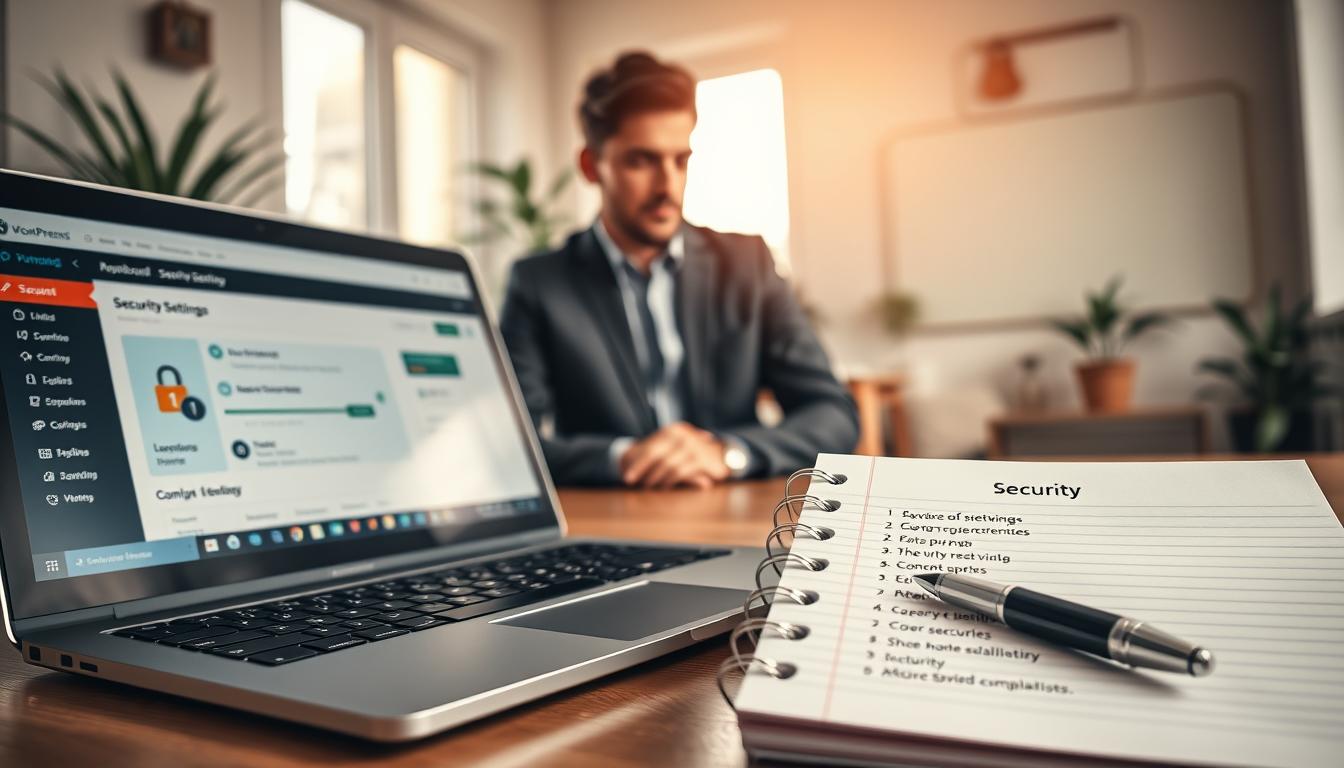
Having a secure website is key in today’s digital world. It keeps user data safe, stops hacking, and makes sure your site runs smoothly.
Weak security can cause big problems, like data breaches and financial losses. This guide will show you how to make your WordPress website secure.
By following this guide, you’ll keep your website safe. And you’ll protect your users’ sensitive information too.
Table of Contents:
Key Takeaways
- Understand the importance of WordPress security
- Learn how to protect your website from hacking
- Discover the benefits of a secure website
- Improve your website’s performance and user experience
- Stay up-to-date with the latest security measures
Understanding the Importance of WordPress Security
WordPress is the most popular content management system. It’s a big target for hackers. With over 60 million websites using WordPress, it attracts hackers from all over.
Why WordPress Is a Target for Hackers
WordPress is popular and open-source. This makes it a tempting target for hackers. The wide range of plugins and themes is great for customization but also brings risks.
Vulnerabilities in WordPress can come from many places. This includes:
- Outdated core, plugins, or themes
- Weak passwords or user accounts
- Insecure hosting environments
Consequences of Weak Security
A security breach can cause big problems. This includes data theft, website damage, and harm to your reputation. Weak security can lead to:
- Loss of sensitive data
- Malware distribution
- SEO penalties
- Financial losses due to downtime or legal liabilities
The Benefits of a Secure Website
Having a secure WordPress site brings many advantages. This includes:
- Protection of user data
- Enhanced trust and credibility
- Better search engine rankings
- Reduced risk of financial and reputational losses
By focusing on WordPress security, website owners can protect their online space. They ensure a safe experience for their users.
Common WordPress Security Vulnerabilities
Exploring WordPress security, it’s key to know the common vulnerabilities. These weaknesses can risk your site. Knowing them is the first step to protect your site.
Outdated Plugins and Themes
Outdated plugins and themes are a big risk. They can be exploited by hackers. This gives them access to your site.
Updating plugins and themes regularly is crucial. Updates fix security issues. Also, remove unused items to lower risks.
“Keeping your plugins and themes updated is one of the simplest and most effective ways to secure your WordPress site.”
Weak Passwords and User Accounts
Weak passwords and bad user management are common issues. Use strong, unique passwords for all accounts. Weak passwords can be easily guessed.
Strong passwords and two-factor authentication help a lot. Limit login attempts and watch user activity to stop unauthorized access.
Insecure Hosting Environments
Hosting security is vital. Insecure hosting can lead to data breaches and malware. Choose a secure hosting provider.
Look for hosting with automatic backups, malware scans, and firewalls. Secure hosting reduces your site’s risk.
| Vulnerability | Risk Level | Mitigation Strategy |
|---|---|---|
| Outdated Plugins/Themes | High | Regular Updates, Removal of Unused Plugins/Themes |
| Weak Passwords | High | Strong Password Policy, Two-Factor Authentication |
| Insecure Hosting | High | Choose Reputable Hosting Provider, Automatic Backups, Malware Scanning |
Understanding and fixing these common vulnerabilities improves your WordPress site’s security. Regular checks and upkeep are essential to protect your site.
Setting Up a Strong Password Strategy
To keep your WordPress site safe, a strong password strategy is key. A good password policy is your first defense against hackers and data breaches.
Creating Complex Passwords
Creating strong passwords is the first step. A good password mixes letters, numbers, and symbols. Avoid using names, birthdays, or common words. A password manager can help create and keep track of these strong passwords.
Using Password Managers
Password managers help manage many complex passwords. They create strong, unique passwords for each account and keep them safe. You only need to remember one master password. LastPass, 1Password, and Dashlane are popular choices.
Implementing Two-Factor Authentication
Two-factor authentication (2FA) adds more security to your WordPress site. Users need two things to log in: something they know (like a password) and something they have (like a phone). Two-factor authentication greatly lowers the risk of unauthorized access, even if a password is stolen.
By using complex passwords, password managers, and 2FA, you can greatly improve your WordPress site’s security. These steps together protect against many cyber threats, keeping your site safe.
Keeping WordPress Updated
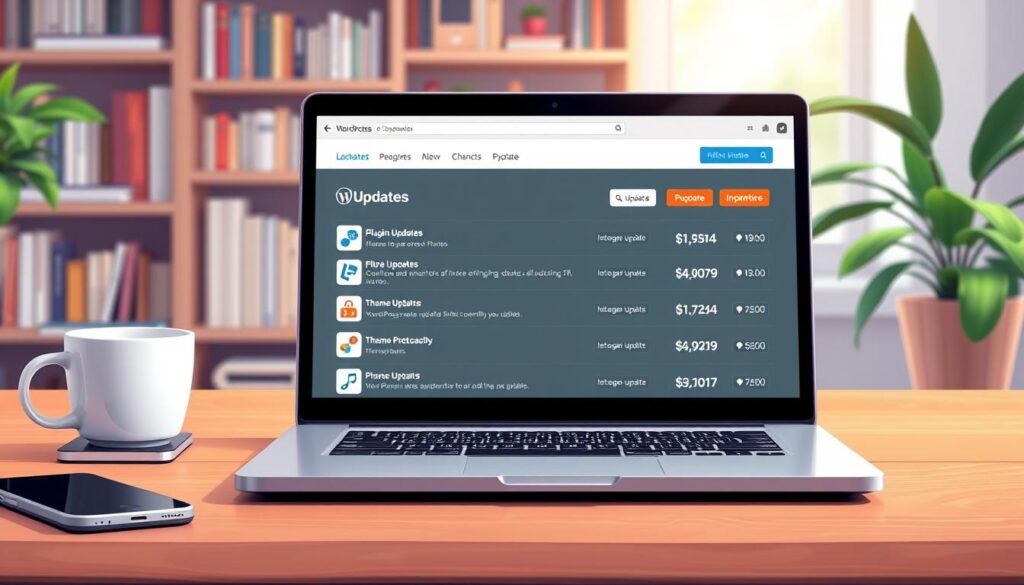
Keeping your WordPress site updated is key to protecting it. Regular updates are vital for your site’s security and integrity. This means updating the WordPress core, plugins, and themes to the latest versions.
Importance of Core Updates
Updating the WordPress core is crucial. It often fixes security issues found since the last update. These updates keep your site safe from known threats. They also improve your site’s performance and functionality.
Updating Plugins and Themes
Plugins and themes are just as important for security. Outdated ones can expose your site to hackers. It’s important to update them as soon as possible. This boosts security and ensures they work well with the latest WordPress core.
Scheduling Regular Check-Ups
Regular check-ups are essential for your site’s security and health. This includes watching for updates, checking plugin and theme issues, and making sure backups are current. Regular checks can spot problems early, before they get worse.
| Update Type | Importance | Frequency |
|---|---|---|
| WordPress Core | High | As soon as updates are available |
| Plugins | High | As soon as updates are available |
| Themes | Medium | Regularly, unless issues arise |
| Site Backups | High | Daily or weekly, depending on site activity |
By updating your WordPress site and doing regular check-ups, you lower the risk of your site being hacked. This proactive approach to security is worth it in the long run.
Choosing a Reliable Hosting Provider
Choosing a trustworthy hosting provider is key to WordPress security. A reliable host ensures your site is always up and plays a big role in keeping it safe.
Features to Look for in Hosting
A good hosting provider should offer several security-enhancing features. These include:
- Automatic Updates: Regular updates for WordPress core, plugins, and themes to prevent vulnerabilities.
- Backup Services: Regular backups to ensure your data is safe in case of an attack or technical failure.
- Scalability: The ability to scale your hosting resources according to your site’s traffic and needs.
Security Tools Offered by Hosts
Many hosting providers offer extra security tools for your WordPress site. These can include:
- Web Application Firewalls (WAF): To block malicious traffic and protect against common web exploits.
- Malware Scanning: Regular scans to detect and alert you to potential malware infections.
- DDoS Protection: To mitigate the impact of Distributed Denial of Service attacks.
| Hosting Provider | Automatic Updates | Backup Services | WAF |
|---|---|---|---|
| Provider A | Yes | Daily | Yes |
| Provider B | No | Weekly | No |
| Provider C | Yes | Monthly | Yes |
The Role of SSL Certificates
SSL Certificates are vital for encrypting data between your website and visitors’ browsers. They keep sensitive information safe. Most hosting providers offer SSL certificates, either for free or as part of their packages.
By picking a hosting provider that focuses on security, you greatly improve your WordPress site’s protection. This follows WordPress security best practices.
Installing a WordPress Security Plugin
Keeping your WordPress site safe is very important. One great way to do this is by using a strong security plugin. These plugins help protect your site from threats like malware, brute-force attacks, and unauthorized access.
Recommendations for Popular Security Plugins
There are many good WordPress security plugins out there. Some top choices include:
- Wordfence Security
- Sucuri Security
- iThemes Security
- All In One WP Security & Firewall
These plugins have features like malware scanning, firewall protection, and limits on login attempts. The best plugin for you depends on your security needs and how much protection you want.
| Plugin Name | Malware Scanning | Firewall Protection | Login Attempt Limits |
|---|---|---|---|
| Wordfence Security | Yes | Yes | Yes |
| Sucuri Security | Yes | Yes | Yes |
| iThemes Security | Yes | Yes | Yes |
Configuring Basic Security Settings
After installing a security plugin, setting up its basic settings is key. This means setting up malware scans, enabling the firewall, and setting limits on login attempts. For example, you can set your plugin to scan for malware every day and block IP addresses that try to log in too many times.
Key settings to configure include:
- Firewall rules to block malicious traffic
- Malware scanning frequency and scope
- Login security settings, such as two-factor authentication
Utilizing Firewall Features
A web application firewall (WAF) is a vital part of your site’s security. It protects your site from web exploits that could harm your security, cause data loss, or make your site slow. Most security plugins have strong firewall features that are easy to turn on and set up.
Using your security plugin’s firewall features can greatly improve your site’s security. This includes blocking bad IPs, stopping SQL injection attacks, and protecting against XSS attacks.
To secure your WordPress site well, it’s important to regularly check and update your security plugin settings. This keeps you safe from new threats and keeps your security up to date.
Regular Backups: Your Safety Net
Backing up your WordPress site regularly is key to safeguarding your WordPress site. It helps you quickly restore your site if something goes wrong. This could be a security breach, data loss, or other unexpected issues.
Choosing a Backup Solution
You have many options for backup solutions. Plugins like UpdraftPlus or VaultPress offer great features. They let you schedule automatic backups and store them safely in cloud services.
Setting Up Automatic Backups
Setting up automatic backups is easy with the right plugin. For example, UpdraftPlus lets you pick how often to back up. You can choose daily, weekly, or monthly backups. It’s important to match the backup frequency to how often your site changes.
Testing Your Backups
Just setting up backups isn’t enough. You must also test your backups to make sure they work. Test them by restoring them on a staging site. This confirms your backups are complete and ready for use when needed.
In summary, regular backups are crucial for how to protect your WordPress site. By picking the right backup solution, setting up automatic backups, and testing them often, you keep your site’s data safe. This way, you can restore your site quickly in case of an emergency.
Secure Configuration of WordPress
Setting up WordPress correctly is key to keeping your site safe. A well-secured WordPress site lowers the chance of security issues. It also keeps your data safe.
Changing the Default Admin Username
Changing the default admin username is a simple yet powerful security step. Many WordPress sites start with a default admin account. This makes it easier for hackers to get in. By changing the username, you make your site more secure.
To change the admin username, you can make a new admin and delete the old one. Or, you can change the username in the database. Pick a username that’s hard to guess and unique to your site.
Disabling Directory Listing
Disabling directory listing is also important for security. When directory listing is on, visitors can see your directory contents. This could reveal sensitive info. To turn it off, create an empty index.html file in each directory. Or, add a line to your .htaccess file.

Setting Proper File Permissions
Setting the right file permissions is crucial to stop unauthorized access. Wrong permissions can let hackers change or see your files. It’s important to set the right permissions for your WordPress files and folders.
Files should have permissions of 644, and folders should be 755. You can change permissions with an FTP client or your hosting control panel.
By following these secure setup tips, you can make your WordPress site much safer. This helps protect it from potential threats.
Monitoring User Activity
Keeping an eye on user activity is key to a secure WordPress site. It helps spot security threats early on.
Tracking Logins and Changes
Tracking logins and changes is vital. This includes watching login attempts, user role changes, and content edits. Security plugins can automate this, giving you logs and alerts for odd activity.
- Watch for brute-force login attempts.
- Keep an eye on user role and permission changes.
- Log any changes to posts, pages, and content.
Using Audit Logs
Audit logs are great for tracking user activity. They record all actions on your site, helping you find suspicious activity. By checking logs, you can spot security threats.
- Check audit logs for odd activity regularly.
- Use tools to make log analysis easier.
- Set up alerts for things like failed login attempts.
Understanding User Roles and Permissions
Knowing about user roles and permissions is essential. It helps limit what users can do, reducing security risks. Check user roles often to make sure they’re right.
- Give roles based on least privilege.
- Update user roles and permissions often.
- Use plugins for complex role setups.
By using these methods, you can make your WordPress site much safer. It becomes harder for bad actors to find and use vulnerabilities.
Implementing HTTPS on Your Website
HTTPS is key for WordPress website protection. It keeps your site and visitors safe. With online threats on the rise, HTTPS is now a must-have.
Importance of SSL Certificates
SSL certificates are the heart of HTTPS. They lock data between your site and users, keeping it safe. An SSL certificate is more than security; it’s a sign of trust.
Websites with HTTPS are seen as more reliable by users and search engines. Google has pushed for HTTPS for years, even using it to rank sites better.
How to Install HTTPS
Getting HTTPS on your WordPress site is easy:
- Buy an SSL certificate from a trusted CA.
- Put the SSL certificate on your server. This step changes based on your host.
- Change your WordPress settings to HTTPS.
- Make sure all links and resources use HTTPS.
Many hosts offer free SSL certificates through Let’s Encrypt, making it simpler.
Benefits of a Secure Connection
HTTPS brings many benefits, like:
| Benefit | Description |
|---|---|
| Data Encryption | Keeps user data safe from hackers. |
| Trust and Credibility | Builds trust with the padlock icon in browsers. |
| SEO Advantage | Boosts search engine rankings since HTTPS is a factor. |
By using HTTPS, you protect your WordPress site and help make the internet safer for all.
Educating Your Team on Security Practices
Cyber threats are getting more common. It’s key to teach your team how to keep your WordPress site safe. A team that knows security can lower the chance of a breach by following the right steps and staying alert to dangers.
Training Staff on Security Awareness
Teaching your staff about security is the first step to a safe place. They should learn to spot phishing emails, use strong passwords, and handle sensitive data carefully. Regular training keeps them up-to-date on security threats and best ways to fight them.
Encouraging Safe Online Behavior
It’s important to encourage your team to be safe online. This means using secure connections, avoiding dodgy links, and keeping software current. A security-focused culture helps avoid data breaches and other security issues.
Frequent Security Workshops
Hosting security workshops often is a great way to stress the need for security. These sessions keep your team informed about new threats and how to deal with them. They’re also a chance for your team to ask questions and clear up any security doubts.
Investing in your team’s security education boosts your WordPress site’s safety. This forward-thinking approach not only guards your site but also makes the internet safer for everyone.
Firewalls and Security Measures
Firewalls and security measures are key to protecting your WordPress site from attacks. A strong firewall blocks bad traffic, stopping unauthorized access and attacks.

Types of Firewalls for WordPress
There are many firewalls to choose from to secure your WordPress site. These include:
- Network Firewalls: These are hardware firewalls that protect your whole network.
- Server-based Firewalls: These are software firewalls on your server to watch and control traffic.
- Web Application Firewalls (WAF): WAFs are made for web apps like WordPress, filtering traffic.
- Cloud-based Firewalls: These cloud services offer flexible protection against threats.
As noted by
security experts, “A Web Application Firewall is a critical component of any WordPress security strategy.”
Setting Up a Web Application Firewall
To set up a WAF for your WordPress site, follow these steps:
- Choose a reputable WAF provider that supports WordPress.
- Configure the WAF to fit your security needs, including rules and filters.
- Test the WAF to make sure it works right and doesn’t mess with your site.
It’s important to pick a WAF that’s easy to manage and offers full protection.
Monitoring Firewall Activity
It’s vital to watch your firewall’s activity to spot threats and keep your WordPress site safe. Check logs and reports often for any odd activity.
With a solid firewall and security steps, you can greatly improve your WordPress site’s safety. Follow WordPress security best practices to secure your WordPress site well.
Protecting Against Malware
As a WordPress user, it’s key to know how to fight malware. Malware can harm your site, steal data, and hurt your reputation. So, protecting your WordPress site is very important.
Identifying Signs of Infection
First, learn to spot malware signs. Look for unusual behavior like slow loading, strange files, and unexpected changes. Watching your site closely can help you find and fix problems early.
Also, keep an eye out for unfamiliar user accounts and code changes. If you see these, it’s time to dig deeper to find the problem.
Using Malware Scanning Tools
Using malware scanning tools is a smart way to find and remove malware. Plugins like Wordfence and Sucuri can scan your site for threats. They check files, databases, and more for bad code or odd activity.
Adding these tools to your security plan can really help. Regular scans can catch threats before they do harm.
Cleaning Infected Sites
If your site gets malware, act fast to limit damage. Cleaning involves finding and removing bad code, restoring backups, and updating software and plugins.
Sometimes, you might need professional help to clean your site right. Sites like WP Hacked Help can offer expert help to get your site safe again.
Keeping your WordPress site safe from malware takes constant effort and a strong security plan. By staying alert and using the right tools, you can protect your site and keep your users’ trust.
Responding to Security Breaches
Security breaches can really hurt WordPress sites. It’s key to have a plan ready. A good plan helps reduce damage and keeps your business running.
Immediate Actions After a Breach
Act fast if you spot a security breach. First, assess the situation and see how big the breach is. Find out what data was accessed or stolen.
- Change all passwords and access keys.
- Notify your hosting provider and relevant authorities.
- Activate your site’s security plugins to prevent further intrusion.
Restoring Your Site After an Attack
To fix your site, you need to clean up infected files. Make sure the hole that let the breach in is fixed. Backups are very important here.
| Restoration Step | Description |
|---|---|
| 1. Identify the Backup | Find the most recent clean backup of your site. |
| 2. Restore Files | Replace infected files with clean versions from the backup. |
| 3. Update and Patch | Ensure WordPress, plugins, and themes are updated to the latest versions. |
Learning from Security Incidents
After a breach, do a deep dive to figure out what happened. Look at logs, understand how the attack started, and boost your security. This helps prevent future problems.
By taking these steps and keeping your security up to date, you can make your WordPress site much safer. This way, you can avoid future breaches.
Keeping Ahead of Emerging Threats
Keeping your WordPress site safe is key in today’s fast-changing world of cybersecurity. Threats are always evolving, so it’s important to stay ahead. WordPress users must be proactive in their security efforts.
Understanding New Security Trends
It’s important to know about new security trends. This means keeping up with the latest vulnerabilities and attack methods. Be aware of zero-day exploits and phishing attacks that try to get your sensitive info.
To stay in the loop, follow trusted cybersecurity blogs and join WordPress security forums. This way, you can learn about new threats and how to fight them.
Adapting Your Strategy for 2025
For 2025, updating your WordPress security plan is crucial. Start by regularly checking and updating your security plugins and settings. Make sure they work with the latest WordPress and security updates.
Also, use robust access controls like multi-factor authentication to block unauthorized access. Regular security checks and penetration tests can find and fix vulnerabilities before they’re used by hackers.
Research and Staying Informed
Staying current with security trends and threats is essential. You can do this by subscribing to cybersecurity newsletters, going to webinars, and joining online WordPress security groups.
By keeping up with the latest security info and updating your plan, you can make your WordPress site much safer. This approach follows WordPress security best practices, keeping your site safe from new threats.
Resources for Ongoing Security Education
Keeping your WordPress site safe is a continuous task. You need to know the latest security tips and threats. A good WordPress cybersecurity guide is key to protecting your site.
Staying Informed with Recommended Resources
To keep your WordPress site safe, it’s important to stay current. Check out blogs like the official WordPress.org blog and sites like Sucuri and Wordfence. They share important security updates and tips.
Engaging with WordPress Security Communities
Being part of WordPress security groups can help a lot. Join forums like the WordPress Support Forums and go to WordCamps. This way, you’ll connect with others and learn about new security steps.
Following Security Experts
Following security experts on Twitter is also helpful. They share quick updates and tips on how to keep your site safe. This way, you can stay ahead of security threats.