
WordPress powers over 40 percent of all websites on the internet. This open source content management system has transformed how people create and manage websites. Whether you run a personal blog or manage an e-commerce store, WordPress offers the flexibility you need.
This comprehensive guide walks you through everything from basic installation to advanced optimization techniques. You will learn how to choose themes, manage plugins, secure your site, and optimize performance. We also cover WooCommerce setup and common troubleshooting solutions.
Matt Mullenweg and Mike Little created WordPress in 2003. Since then, it has evolved into the most popular content management system worldwide. Millions of websites use WordPress because it combines power with simplicity.
Table of Contents:
Understanding WordPress: What Makes It the Leading Content Management System
WordPress is an open-source software platform that allows you to build and manage websites without extensive coding knowledge. The content management system provides a user-friendly interface for creating web content.
The Evolution of WordPress Software
Matt Mullenweg and Mike Little launched WordPress as a blogging platform in 2003. The software has grown far beyond its original purpose. Today, WordPress supports complex websites, online stores, portfolios, and business sites.
Each new version of WordPress brings enhanced features. The block editor, introduced in recent versions, revolutionized content creation. This visual editor makes designing pages intuitive and straightforward.
The WordPress community contributes to continuous improvement. Developers worldwide create themes, plugins, and updates. This collaborative approach keeps WordPress at the forefront of web technology.
WordPress.org vs WordPress.com: Key Differences
Many beginners confuse WordPress.org with WordPress.com. These are two distinct platforms with different features and limitations.
WordPress.org (Self-Hosted)
- Complete control over your website
- Install any theme or plugin
- Access to all WordPress features
- Requires separate web hosting
- Full monetization options
- Custom domain management
WordPress.com (Hosted)
- Limited customization on free plans
- Hosting included in service
- Restricted plugin installation
- Easier setup for beginners
- Paid plans unlock more features
- WordPress branding on free tier
Most serious website owners choose WordPress.org for maximum flexibility. The self-hosted version of WordPress lets you create exactly what you envision. You maintain full ownership and control of your content.
Why Businesses Choose WordPress for Their Websites
WordPress dominates the content management market for several compelling reasons. The platform offers unmatched versatility combined with ease of use.
- Free and open source software with no licensing fees
- Thousands of themes for any industry or purpose
- Over 60,000 plugins available in the plugin directory
- Strong SEO capabilities built into the core
- Mobile-responsive design options
- Active community support and regular updates
- Scalability from small blogs to enterprise sites
- Integration capabilities with third-party services
Many Fortune 500 companies use WordPress for their web presence. The software handles high traffic volumes while maintaining performance. Security updates arrive regularly to protect your site.

The WordPress block editor simplifies content creation. You can arrange text, images, videos, and other elements visually. No coding knowledge is required to create professional layouts.
WordPress also powers e-commerce through WooCommerce integration. This makes selling products online accessible to businesses of all sizes. The flexibility extends from simple blogs to complex online stores.
Complete WordPress Installation Guide: Step-by-Step Setup
Installing WordPress is the foundation of building your website. The process has become increasingly streamlined over the years. You can get your WordPress site running in less than 15 minutes.
Pre-Installation Requirements and Hosting Setup
Before you install WordPress, ensure your hosting environment meets specific requirements. Your web server needs PHP version 7.4 or greater. MySQL version 5.7 or MariaDB version 10.3 is also necessary.
Most modern hosting providers automatically meet these specifications. Check with your hosting company to confirm compatibility. Some hosts offer optimized WordPress hosting with pre-configured settings.
- HTTPS support for secure connections
- Adequate disk space (minimum 1GB recommended)
- Sufficient bandwidth for your expected traffic
- Access to FTP or file manager
- Email account for WordPress notifications

Choose a hosting provider that specializes in WordPress. These companies understand the platform’s specific needs. They often provide automatic updates and enhanced security features.
Manual Installation Process
Manual installation gives you complete control over the WordPress setup process. This method works well if your hosting provider doesn’t offer one-click installation.
- Download the latest version of WordPress from WordPress.org
- Extract the downloaded ZIP file to your computer
- Create a MySQL database through your hosting control panel
- Upload WordPress files to your server via FTP
- Navigate to your domain in a web browser
- Follow the installation wizard prompts
- Enter database connection details
- Set up your admin username and password
- Complete the installation process
The WordPress installation wizard guides you through configuration. You’ll need your database name, username, and password. Your hosting provider typically supplies these credentials.
Choose a strong password for your admin account. This protects your WordPress site from unauthorized access. Avoid common passwords or easily guessable combinations.
One-Click Installation Methods
Most hosting providers offer simplified WordPress installation tools. These one-click installers automate the entire setup process. Popular options include Softaculous, Fantastico, and QuickInstall.
Access your hosting control panel to find the WordPress installer. Click the WordPress icon and follow the brief setup form. The system handles database creation and file uploads automatically.
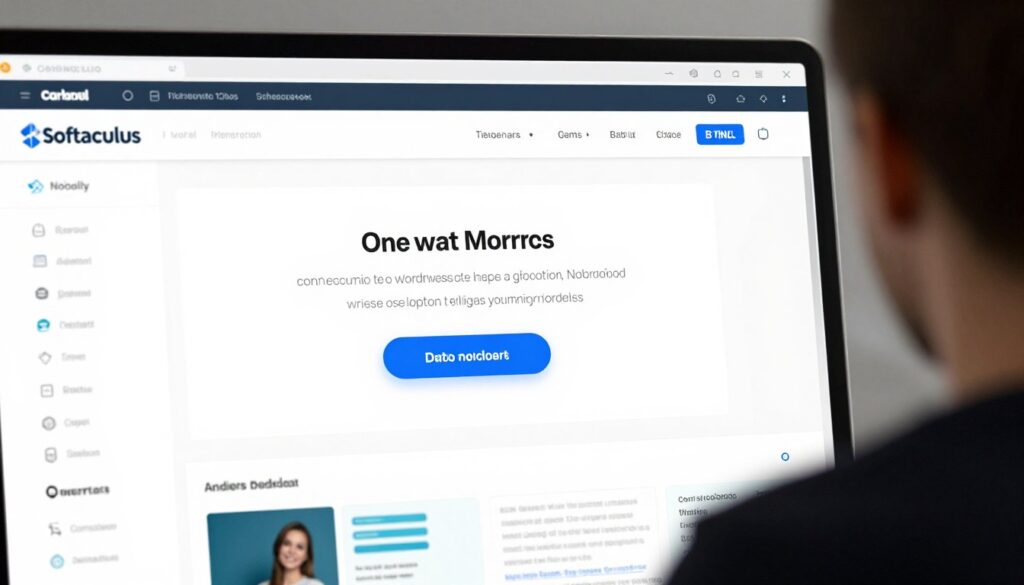
Enter your desired site title and admin credentials. Choose whether to install WordPress in your root directory or a subdirectory. The installer completes the process within minutes.
One-click installation is ideal for beginners. It eliminates technical complexity while ensuring proper configuration. Your WordPress site becomes immediately accessible after installation.
Initial Configuration and Settings
After installation, configure essential WordPress settings. These initial configurations establish your site’s foundation. Proper setup prevents issues later in development.
Navigate to Settings > General in your WordPress dashboard. Here you set your site title and tagline. These elements appear in search results and browser tabs.
General Settings
Configure site identity and basic preferences.
- Site title and tagline
- WordPress address URL
- Site address URL
- Time zone and date format
Reading Settings
Control how content displays on your site.
- Homepage display options
- Blog posts per page
- Search engine visibility
- RSS feed settings
Permalink Settings
Define URL structure for better SEO.
- Post name structure
- Custom URL patterns
- Category base configuration
- Tag base setup
Discussion Settings
Manage comments and interaction features.
- Comment moderation rules
- Avatar display options
- Notification preferences
- Comment approval settings
Set permalinks to a search-engine-friendly structure. Go to Settings > Permalinks and select “Post name” option. This creates clean URLs that improve WordPress SEO and user experience.
Configure reading settings to determine homepage display. Choose between showing recent blog posts or a static page. This decision shapes your site’s primary purpose and layout.
Get Your Free WordPress Setup Checklist
Ensure you haven’t missed any critical configuration steps. Download our comprehensive 67-point WordPress installation checklist with screenshots and detailed explanations.
Mastering WordPress Themes: Design Your Perfect Website
WordPress themes control your website’s appearance and layout. Choosing the right theme significantly impacts user experience and functionality. The WordPress theme ecosystem offers thousands of options for every purpose.
Understanding WordPress Theme Architecture
A WordPress theme consists of template files, stylesheets, and functions. These components work together to display your content. Themes separate design from content, allowing easy visual changes.

The theme’s functions.php file adds features and customizations. Template files control specific page types like posts, pages, and archives. Stylesheets define colors, fonts, and layouts.
Modern WordPress themes use the block editor system. This enables drag-and-drop page building without coding. Full Site Editing (FSE) themes offer even more design flexibility.
Free vs Premium WordPress Themes
WordPress offers both free and premium theme options. Each category has distinct advantages and limitations. Your choice depends on budget, requirements, and technical expertise.
Free WordPress Themes
- No upfront cost or licensing fees
- Available directly from WordPress.org
- Reviewed for quality and security
- Regular updates from developers
- Good for testing and learning
- Basic customization options
Limitations to Consider
- Limited support options
- Fewer customization features
- May lack advanced functionality
- Common designs across websites
- Updates depend on developer
- Basic documentation
Premium themes provide additional features and support. They often include page builders, advanced customization, and dedicated customer service. Investment in a premium theme makes sense for professional websites.
Popular premium theme providers include ThemeForest, Elegant Themes, and StudioPress. These marketplaces offer themes for specific industries and purposes. Premium themes typically cost between $30 and $200.
How to Choose the Right WordPress Theme
Selecting an appropriate theme requires careful consideration. The right WordPress theme aligns with your goals and audience expectations. Several factors influence this important decision.
- Responsive design that works on all devices
- Loading speed and performance optimization
- Compatibility with essential plugins
- Regular updates and active development
- Positive user reviews and ratings
- Clean, well-organized code structure
- Adequate customization options
- SEO-friendly markup and structure

Test themes before committing to one. Most premium theme vendors offer demos or money-back guarantees. Install the theme on a staging site to evaluate functionality.
Consider your content type when selecting a WordPress theme. Photography sites need different layouts than business blogs. E-commerce stores require product display features not necessary for portfolios.
Installing and Activating Themes
Installing a WordPress theme involves just a few simple steps. You can add themes directly from your WordPress dashboard. The process takes only minutes to complete.
- Navigate to Appearance > Themes in your dashboard
- Click the “Add New” button at the top
- Search for themes by keyword or browse featured options
- Preview themes by clicking “Preview” button
- Click “Install” on your chosen theme
- Wait for installation to complete
- Click “Activate” to apply the theme
- Visit your site to see changes
For premium themes, download the theme ZIP file first. Upload this file through Appearance > Themes > Add New > Upload Theme. The installation process remains identical after upload.
Some themes include demo content importers. These tools replicate the theme demo on your site. Importing demo content helps you understand layout possibilities.
Theme Customization Basics
The WordPress Customizer provides a user-friendly interface for theme modifications. Access it through Appearance > Customize in your dashboard. Changes preview in real-time before publishing.
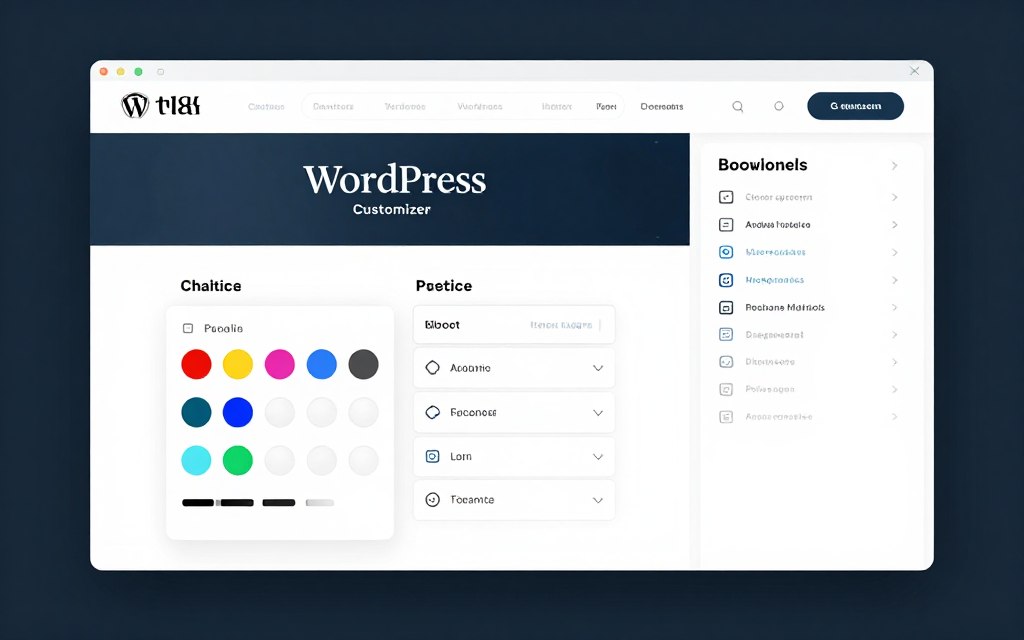
Common customization options include site identity, colors, typography, and widgets. Each WordPress theme offers unique customization panels. Explore all sections to discover available options.
Add your logo through Site Identity settings. Upload a square logo image for best results. Most themes also support favicon uploads for browser tabs.
Customize colors to match your brand identity. Change background colors, text colors, and accent colors. Some themes offer predefined color schemes for quick application.
Child Themes: Advanced Customization
Child themes allow safe customization without modifying parent theme files. Updates to the parent theme won’t overwrite your customizations. Creating child themes requires basic PHP and CSS knowledge.
A child theme consists of a style.css file and functions.php file. Place these in a new folder within your themes directory. The child theme inherits parent theme functionality.
/*
Theme Name: Your Child Theme
Template: parent-theme-folder
*/
Add custom CSS to your child theme’s stylesheet. Override parent theme functions in the child theme’s functions.php. This approach maintains customizations through parent theme updates.
Many developers offer child themes for popular WordPress themes. These pre-built child themes provide alternative designs. They save time while ensuring update compatibility.
WordPress Plugins: Extending Your Site’s Functionality
WordPress plugins add features and functionality to your website. Over 60,000 plugins are available in the official plugin directory. These tools transform WordPress from a simple blog into virtually any type of website.
Understanding the WordPress Plugin Ecosystem
Plugins are software components that extend WordPress capabilities. They integrate seamlessly with the WordPress software core. Developers worldwide contribute to the constantly growing plugin library.

The plugin directory categorizes extensions by function. Categories include SEO, security, performance, e-commerce, and social media. Each plugin listing shows ratings, download numbers, and compatibility information.
Plugins install through your WordPress dashboard. The system automatically updates compatible plugins. This keeps your site secure and functioning properly.
Essential WordPress Plugins for Every Site
Certain plugins benefit virtually every WordPress website. These essential tools address common needs and functionality gaps. Installing these plugins strengthens your site’s foundation.
SEO Optimization
A WordPress SEO plugin improves search engine visibility. These tools optimize content, generate sitemaps, and analyze on-page SEO factors.
- Yoast SEO – comprehensive SEO solution
- Rank Math – feature-rich alternative
- All in One SEO – beginner-friendly option
Security Protection
Security plugins protect against malware, hacking attempts, and vulnerabilities. They monitor activity and block suspicious traffic.
- Wordfence Security – firewall and scanning
- Sucuri Security – malware detection
- iThemes Security – hardening tools
Backup Solutions
Backup plugins create copies of your website. Regular backups protect against data loss from failures or attacks.
- UpdraftPlus – scheduled backups
- BackupBuddy – migration tools included
- Duplicator – site cloning capability
Performance Caching
Caching plugins speed up page load times. They store static versions of pages for faster delivery to visitors.
- WP Rocket – premium caching solution
- W3 Total Cache – comprehensive free option
- WP Super Cache – simple and effective
Contact Forms
Form plugins enable visitor communication. They create contact forms, surveys, and lead generation tools.
- Contact Form 7 – lightweight and flexible
- WPForms – drag-and-drop builder
- Gravity Forms – advanced features
Page Builders
Page builder plugins create custom layouts visually. They eliminate coding requirements for complex designs.
- Elementor – most popular builder
- Beaver Builder – reliable performance
- Divi Builder – all-in-one solution
Installing and Managing WordPress Plugins
Installing plugins from the WordPress dashboard is straightforward. The plugin installation process mirrors theme installation. You can also upload plugins manually.
- Go to Plugins > Add New in your dashboard
- Search for plugins by name or functionality
- Review plugin ratings and compatibility
- Click “Install Now” button
- Wait for installation to complete
- Click “Activate” to enable the plugin
- Configure plugin settings as needed
- Test plugin functionality on your site

Premium plugins require manual upload. Download the plugin ZIP file from the vendor. Upload through Plugins > Add New > Upload Plugin. Activate after installation completes.
Keep plugins updated to maintain security and compatibility. WordPress notifies you of available updates. Enable automatic updates for trusted plugins to streamline maintenance.
Plugin Selection Best Practices
Choosing quality plugins protects your site’s performance and security. Not all plugins are created equal. Following best practices ensures reliable functionality.
- Check last update date – avoid abandoned plugins
- Read user reviews and ratings carefully
- Verify compatibility with your WordPress version
- Test plugins on staging sites first
- Install only necessary plugins
- Choose plugins with active support
- Review plugin permissions and access
- Monitor plugin performance impact
Limit the total number of active plugins. Each additional plugin adds processing overhead. Ten to fifteen well-chosen plugins typically suffice for most sites.
Avoid duplicate functionality between plugins. Multiple SEO plugins or caching plugins create conflicts. Choose one comprehensive solution per function.
Troubleshooting Plugin Conflicts
Plugin conflicts occur when two plugins interfere with each other. Symptoms include white screens, broken features, or error messages. Identifying conflicting plugins requires systematic testing.
Deactivate all plugins to isolate the problem. Then reactivate plugins one by one. The site breaks when you activate the problematic plugin.
Plugin Conflict Resolution Steps
- Note when and how the problem occurs
- Deactivate all plugins temporarily
- Check if the issue persists
- Reactivate plugins individually
- Test site after each activation
- Identify the conflicting plugin
- Contact plugin developer for support
- Find alternative plugin if necessary
Some plugins require specific PHP settings or server configurations. Check plugin documentation for requirements. Your hosting provider can adjust server settings if needed.
Keep detailed records of installed plugins. Document customizations and settings. This information proves invaluable during troubleshooting.
Master WordPress Plugin Management
Get our expertly curated guide featuring 30+ essential plugins organized by category. Includes installation tutorials, configuration tips, and compatibility charts to build your perfect plugin stack.
WordPress Security: Protecting Your Website from Threats
WordPress security is critical for protecting your site and visitor data. Millions of websites face daily security threats. Implementing proper security measures prevents most attacks.
Understanding WordPress Security Threats
Common WordPress security vulnerabilities include outdated software, weak passwords, and malicious plugins. Hackers exploit these weaknesses to gain unauthorized access. Understanding threats helps you defend against them.

Brute force attacks attempt to guess login credentials. SQL injection attacks exploit database vulnerabilities. Cross-site scripting (XSS) injects malicious code into pages. These represent the most common attack vectors.
Outdated WordPress software creates security risks. Each WordPress version includes security patches. Running old versions leaves known vulnerabilities exposed.
Essential Security Best Practices
Implementing fundamental security practices significantly reduces risk. These measures form your first line of defense. Most security breaches result from neglecting basic protections.
- Update WordPress core, themes, and plugins regularly
- Use strong, unique passwords for all accounts
- Limit login attempts to prevent brute force attacks
- Enable two-factor authentication for admin accounts
- Remove unused themes and plugins completely
- Use secure hosting with SSL certificates
- Backup your website regularly
- Monitor user accounts and permissions
Change the default “admin” username to something unique. Hackers commonly target this username in attacks. Create an administrator account with an uncommon username.
Implement HTTPS across your entire site. SSL certificates encrypt data transmission. Many hosts offer free SSL certificates through Let’s Encrypt.
Securing wp-config.php File
The wp-config.php file contains critical WordPress configuration data. This includes database credentials and security keys. Protecting this file is essential for WordPress security.
Critical wp-config.php Security Measures
Move wp-config.php one directory above your WordPress installation. Add security keys from WordPress.org’s secret key generator. Set proper file permissions (440 or 400). Disable file editing through admin panel.
Add security constants to your wp-config.php file. These constants enhance protection against specific threats. Insert them before the “stop editing” comment.
define('DISALLOW_FILE_EDIT', true);
define('FORCE_SSL_ADMIN', true);
define('WP_AUTO_UPDATE_CORE', true);
The DISALLOW_FILE_EDIT constant prevents theme and plugin editing through the dashboard. This blocks attackers from injecting malicious code. You can still edit files via FTP or file manager.
Protecting Your Login Page
The WordPress login page is a primary target for attacks. Securing this entry point prevents unauthorized access. Multiple strategies strengthen login security.

Change your login URL from the default wp-admin or wp-login.php. Security plugins can customize this URL. Obscuring the login location reduces automated attack attempts.
Limit login attempts to prevent brute force attacks. After several failed attempts, temporarily block the IP address. Plugins like Limit Login Attempts Reloaded automate this process.
Enable two-factor authentication (2FA) for all administrator accounts. This adds an extra verification step beyond passwords. Even compromised passwords can’t grant access without the second factor.
WordPress Security Plugins
Security plugins provide comprehensive protection against multiple threats. They monitor activity, scan for malware, and block suspicious behavior. Choose one reputable security plugin for your site.

Wordfence Security
Comprehensive firewall and malware scanner. Real-time threat defense feed. Login security and two-factor authentication included.

Sucuri Security
Security auditing and malware scanning. File integrity monitoring. Remote malware removal available.

iThemes Security
30+ ways to secure and protect your site. Brute force protection and database backups. User action logging included.
Configure your security plugin immediately after installation. Enable firewall protection and malware scanning. Schedule regular security scans to detect threats early.
Review security logs regularly to identify suspicious activity. Look for repeated failed login attempts or unusual file changes. Early detection prevents serious breaches.
Database Security Optimization
Your WordPress database stores all site content and settings. Securing the database protects your valuable data. Several techniques enhance database security.
Change the default database table prefix from “wp_” to something unique. This makes automated SQL injection attacks more difficult. Modify this setting during WordPress installation or manually later.
Restrict database user privileges to minimum necessary permissions. Create a dedicated database user for WordPress. Grant only SELECT, INSERT, UPDATE, and DELETE privileges.
- Use strong database passwords with mixed characters
- Regularly backup your database separately
- Optimize database tables periodically
- Remove spam and trashed items permanently
- Disable database error display on live sites
- Monitor database for suspicious queries
File Permission Management
Proper file permissions prevent unauthorized file modifications. WordPress requires specific permission settings for secure operation. Incorrect permissions create security vulnerabilities.
| File/Directory | Recommended Permission | Purpose |
| WordPress Root Directory | 755 | Main WordPress folder |
| wp-config.php | 440 or 400 | Configuration file |
| .htaccess | 644 | Server configuration |
| wp-content folder | 755 | Content directory |
| wp-content/uploads | 755 | Media uploads folder |
| All PHP files | 644 | WordPress PHP scripts |
Change file permissions using FTP client or hosting file manager. Right-click files or folders to access permission settings. Never set permissions to 777 on live sites.
Secure Your WordPress Site Now
Run a comprehensive free security audit on your WordPress website. Our advanced scanner identifies vulnerabilities, checks file integrity, and provides actionable security recommendations. Get your detailed security report in 60 seconds.
WordPress Performance Tuning: Speed Optimization Techniques
Website speed directly impacts user experience and search rankings. Fast-loading WordPress sites retain visitors and convert better. Performance optimization should be ongoing, not one-time.
Why WordPress Performance Matters
Page load speed affects every aspect of your website’s success. Search engines prioritize fast-loading sites in rankings. Visitors abandon slow websites within seconds.

Studies show 40 percent of visitors leave sites that take over three seconds to load. Each additional second of load time decreases conversions. Performance optimization directly impacts revenue.
Google uses page speed as a ranking factor. Faster sites receive preferential treatment in search results. Mobile speed especially influences mobile search rankings.
Measuring WordPress Performance
Measure current performance before implementing optimizations. Establish baseline metrics to track improvement. Several tools provide detailed performance analysis.
- Google PageSpeed Insights – comprehensive analysis
- GTmetrix – detailed performance reports
- Pingdom Website Speed Test – global testing locations
- WebPageTest – advanced testing options
- Chrome DevTools – built-in browser testing
Test from multiple geographic locations. Performance varies by visitor location. Choose testing locations matching your target audience.
Focus on First Contentful Paint (FCP) and Largest Contentful Paint (LCP) metrics. These Core Web Vitals measure user-perceived speed. Google prioritizes these metrics for rankings.
Implementing WordPress Caching
Caching stores static versions of your pages for faster delivery. This eliminates repetitive processing for each visitor. Caching provides the single biggest performance improvement.

Browser caching stores files locally on visitor devices. Page caching generates static HTML versions of pages. Object caching stores database query results. Implement all three caching types.
Install a caching plugin to automate the process. WP Rocket offers the easiest setup with comprehensive features. Free alternatives include W3 Total Cache and WP Super Cache.
Configure caching settings appropriately for your site. Enable page caching, browser caching, and GZIP compression. Set appropriate cache expiration times based on content update frequency.
Image Optimization Strategies
Images typically account for most page weight. Optimizing images dramatically reduces load times. Multiple techniques compress images without visible quality loss.
Compression Techniques
- Use WebP format for modern browsers
- Compress JPEG images to 60-80% quality
- Optimize PNG files with lossless compression
- Remove EXIF metadata from photos
- Scale images to display dimensions
Delivery Optimization
- Implement lazy loading for off-screen images
- Serve responsive images with srcset
- Use CDN for image delivery
- Enable browser caching for images
- Defer offscreen image loading
Image optimization plugins automate compression. Smush and ShortPixel process images during upload. They also optimize existing media library images.
Lazy loading defers loading images until visitors scroll near them. This reduces initial page load time significantly. Most modern WordPress themes include built-in lazy loading.
Database Optimization Techniques
WordPress databases accumulate unnecessary data over time. Regular database maintenance improves query performance. Clean databases load pages faster.
- Delete post revisions and auto-drafts
- Remove spam and trashed comments
- Clean up transient options
- Optimize database tables regularly
- Remove unused plugins and themes data
- Limit post revisions in wp-config.php
Use database optimization plugins for automated maintenance. WP-Optimize cleans and optimizes your database. Schedule weekly optimization for best results.
Limit the number of post revisions WordPress stores. Add this line to wp-config.php to limit revisions:
define('WP_POST_REVISIONS', 5);
Content Delivery Network (CDN) Implementation
CDNs distribute your content across global servers. Visitors receive files from geographically nearby locations. This reduces latency and improves load times worldwide.

Popular CDN services include Cloudflare, StackPath, and KeyCDN. Cloudflare offers a free tier suitable for most WordPress sites. Premium CDNs provide additional features and performance.
Configure your CDN to cache static assets like images, CSS, and JavaScript. Set appropriate cache expiration times. Most caching plugins integrate directly with popular CDNs.
Code and Script Optimization
Unnecessary code and scripts slow page rendering. Optimizing and minimizing code improves performance. Several techniques reduce code overhead.
- Minify CSS, JavaScript, and HTML files
- Combine multiple CSS files into one
- Combine JavaScript files where possible
- Defer non-critical JavaScript loading
- Remove unused CSS and JavaScript
- Inline critical CSS for above-fold content
- Reduce external script requests
- Use async or defer attributes for scripts
Minification removes unnecessary characters from code. This includes whitespace, comments, and formatting. Minified files are smaller and load faster.
Defer JavaScript loading to prioritize content display. Scripts load after page content renders. This improves perceived load speed significantly.
Boost Your WordPress Speed by 70%
Download our proven WordPress Speed Optimization Toolkit. Includes step-by-step video tutorials, performance testing checklist, recommended plugin configurations, and CDN setup guides. Implement professional-grade optimizations in under 2 hours.
WooCommerce: Building Your WordPress E-Commerce Store
WooCommerce transforms WordPress into a powerful e-commerce platform. This free plugin powers over 30 percent of all online stores. WordPress e-commerce capabilities match specialized platforms.
Introduction to WooCommerce
WooCommerce is an open-source e-commerce plugin for WordPress. It integrates seamlessly with WordPress functionality. The plugin provides complete store management capabilities.
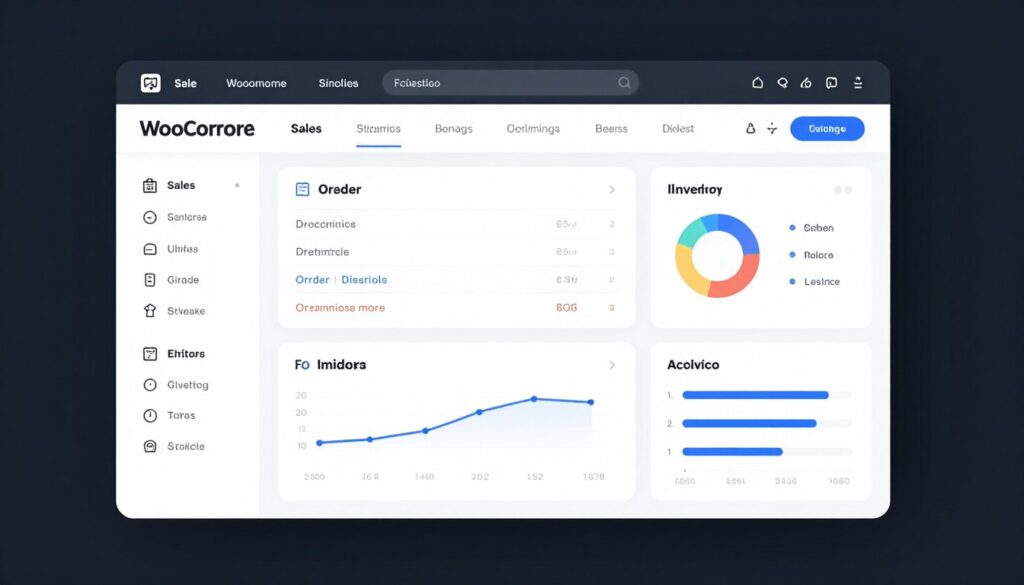
Matt Mullenweg’s company Automattic acquired WooCommerce in 2015. The plugin receives regular updates and improvements. Millions of websites use WordPress for their online stores.
WooCommerce handles physical products, digital downloads, subscriptions, and appointments. The flexibility accommodates virtually any business model. Extensions expand functionality for specific needs.
Installing and Setting Up WooCommerce
WooCommerce installation follows standard WordPress plugin procedures. The setup wizard guides initial configuration. Complete setup takes approximately 15 minutes.
- Install WooCommerce from the plugin directory
- Activate the plugin in your dashboard
- Launch the setup wizard automatically
- Configure store location and currency
- Set up shipping options and rates
- Configure tax settings if applicable
- Connect payment gateways
- Complete theme and page setup
The wizard creates essential WooCommerce pages automatically. These include shop, cart, checkout, and account pages. You can customize these pages later as needed.
Choose your payment gateway during setup. WooCommerce supports PayPal, Stripe, and other processors. Additional gateways install as separate plugins.
Managing Products in WooCommerce
WooCommerce products function similarly to WordPress posts. The product management interface provides extensive options. Each product type offers different configuration settings.
Simple Products
Basic physical or digital items with straightforward pricing. No variations or complex options.
- Single SKU
- Fixed price
- Inventory tracking
- Shipping settings
Variable Products
Products with multiple options like size, color, or material. Each variation has unique pricing and inventory.
- Multiple SKUs
- Variation pricing
- Separate inventory
- Attribute management
Grouped Products
Collections of related products sold together. Customers select quantities for each item.
- Product bundles
- Individual pricing
- Flexible quantities
- Combined display
Add product descriptions, images, and categories. Write compelling product descriptions that highlight benefits. Use high-quality images showing multiple angles.
Configure inventory management for each product. Set stock quantities and enable low stock notifications. WooCommerce automatically tracks inventory as orders process.
Configuring Payment Gateways
Payment gateway configuration enables transaction processing. WooCommerce supports numerous payment methods. Choose gateways popular with your target customers.

Stripe and PayPal offer comprehensive solutions for most businesses. Both process credit cards and digital payments. Setup requires merchant accounts with respective services.
Navigate to WooCommerce > Settings > Payments to configure gateways. Enable your chosen payment method and enter API credentials. Test payment processing before launching your store.
Shipping Configuration
Shipping settings determine delivery options and costs. WooCommerce offers flexible shipping configurations. Multiple shipping methods can operate simultaneously.
- Flat rate shipping – fixed cost per order
- Free shipping – promotional shipping option
- Local pickup – customer collects orders
- Table rate shipping – complex rate calculations
- Real-time carrier rates – integrated carrier pricing
Create shipping zones for different geographic areas. Assign shipping methods to each zone. Configure rates based on weight, price, or item count.
Extensions add carrier-specific shipping calculations. Install plugins for UPS, FedEx, or USPS rate integration. These display real-time shipping costs at checkout.
WooCommerce Store Optimization
Optimizing your WooCommerce store improves conversions and sales. Several strategies enhance the shopping experience. Small improvements compound into significant revenue increases.
Conversion Optimization
- Simplify checkout process
- Enable guest checkout option
- Display trust badges prominently
- Show customer reviews
- Optimize product images
- Add clear call-to-action buttons
Performance Optimization
- Use WooCommerce-specific caching
- Optimize product image sizes
- Limit products per page
- Enable lazy loading
- Use CDN for product images
- Minimize installed extensions
Enable product reviews to build social proof. Customer testimonials increase trust and conversions. Respond to reviews to demonstrate customer service commitment.
Implement abandoned cart recovery emails. Many shoppers leave without completing purchases. Reminder emails recover significant lost revenue.
Essential WooCommerce Extensions
Extensions add specialized functionality to your WooCommerce store. The official marketplace offers hundreds of options. Choose extensions based on specific business needs.
| Extension | Purpose | Price Range |
| WooCommerce Subscriptions | Recurring payment management | $199/year |
| WooCommerce Bookings | Appointment scheduling system | $249/year |
| WooCommerce Memberships | Member-only content access | $199/year |
| Product Add-ons | Custom product options | $49/year |
| Advanced Notifications | Custom order notifications | $49/year |
Launch Your WooCommerce Store Successfully
Schedule a free 30-minute consultation with our WooCommerce experts. Get personalized recommendations for your store setup, product configuration, payment gateways, and conversion optimization. Limited consultation spots available each month.
WordPress Troubleshooting: Solving Common Problems
Even well-maintained WordPress sites occasionally encounter issues. Understanding common problems helps you resolve them quickly. Most WordPress errors have straightforward solutions.
The WordPress White Screen of Death
The white screen of death (WSOD) displays a blank page instead of your site. This frustrating error provides no error message. Several causes produce this symptom.

Memory exhaustion causes most white screen errors. Themes or plugins consuming excessive resources trigger this issue. PHP errors from incompatible code also produce blank pages.
Resolving White Screen Errors
- Increase PHP memory limit in wp-config.php
- Deactivate all plugins via FTP
- Switch to default WordPress theme
- Enable WordPress debug mode
- Check server error logs
- Restore from recent backup if necessary
Add this code to wp-config.php to increase memory:
define('WP_MEMORY_LIMIT', '256M');
Access your site via FTP if the admin panel is unavailable. Rename the plugins folder to deactivate all plugins. Then rename it back and reactivate plugins individually.
Internal Server Error (500)
Internal server errors indicate server configuration problems. The generic error message provides limited troubleshooting information. Multiple issues can trigger error 500.
Corrupted .htaccess files commonly cause internal server errors. This file controls server behavior and URL rewriting. Incorrect rules or syntax errors break site functionality.
Fixing Internal Server Errors
- Rename .htaccess file via FTP
- Create fresh permalinks in WordPress settings
- Check PHP error logs for specifics
- Increase PHP memory and execution limits
- Deactivate plugins one by one
- Contact hosting provider for server issues
Navigate to Settings > Permalinks and click Save without changing settings. This regenerates the .htaccess file with correct rules. Test if the error resolves.
Connection Timed Out Errors
Timeout errors occur when operations exceed maximum execution time. Large imports, updates, or backups commonly trigger timeouts. Server resource limitations cause these errors.
Preventing Timeout Errors
Contact your hosting provider to increase PHP max execution time. Default settings of 30 seconds may be insufficient. Request increase to 300 seconds for resource-intensive operations.
Break large operations into smaller chunks. Import content in batches rather than all at once. This prevents timeouts while processing large amounts of data.
Database Connection Errors
The “Error establishing database connection” message indicates WordPress cannot access your database. This critical error prevents site loading. Several factors cause database connection failures.
- Incorrect database credentials in wp-config.php
- Database server downtime or crashes
- Corrupted WordPress database
- Too many simultaneous connections
- Database server moved to new host
Verify database credentials match your hosting information. Check database name, username, password, and host in wp-config.php. Contact hosting support if credentials are correct.

Use phpMyAdmin to verify database accessibility. If you can access the database directly, the issue lies with WordPress configuration. If phpMyAdmin fails, contact your hosting provider.
Mixed Content Warnings
Mixed content warnings occur when HTTPS pages load HTTP resources. Browsers block insecure content on secure pages. This breaks images, scripts, and stylesheets.
Update your site URL to HTTPS in WordPress settings. Navigate to Settings > General and change both URL fields. Save changes to update internal links.
Install Really Simple SSL plugin to automate mixed content fixes. The plugin redirects all traffic to HTTPS and rewrites resource URLs. This resolves most mixed content issues automatically.
Plugin and Theme Conflicts
Conflicts between plugins or themes cause various WordPress problems. Symptoms include broken features, error messages, or visual glitches. Systematic testing identifies conflicting components.
Conflict Resolution Process
- Deactivate all plugins except the one being tested
- Test if the problem persists
- Reactivate plugins one at a time
- Test after each activation
- Identify which plugin triggers the conflict
- Contact plugin developers for resolution
- Find alternative plugins if necessary
Switch to a default WordPress theme to test for theme conflicts. Use Twenty Twenty-Three or another default theme. If problems disappear, your theme causes the issue.
WordPress Update Failures
WordPress updates sometimes fail or freeze partway through. Incomplete updates leave your site in maintenance mode. This displays a “briefly unavailable for scheduled maintenance” message.
Delete the .maintenance file from your WordPress root directory. Access your site via FTP and remove this file. Your site becomes immediately accessible again.
Manually update WordPress if automatic updates fail. Download the latest version from WordPress.org. Upload files via FTP, overwriting existing files except wp-content and wp-config.php.
Debugging WordPress Errors
WordPress debug mode reveals specific error messages. These details help diagnose problems accurately. Enable debugging on staging sites only, never on live sites.
Add these lines to wp-config.php to enable debug mode:
define('WP_DEBUG', true);
define('WP_DEBUG_LOG', true);
define('WP_DEBUG_DISPLAY', false);
Debug messages save to wp-content/debug.log file. Review this log for error details. Share log contents with developers for assistance.
How do I fix the “Are you sure you want to do this?” error?
This error typically occurs during plugin or theme installation. Clear your browser cache and cookies. Increase PHP max upload size in php.ini or contact your hosting provider. Try uploading via FTP instead of the WordPress admin panel.
Why can’t I upload images to my media library?
Check file permissions on the wp-content/uploads directory. Set permissions to 755 or 775. Verify your hosting account has sufficient disk space. Ensure uploaded images don’t exceed PHP upload_max_filesize limit. Contact hosting support if issues persist.
How do I recover a hacked WordPress site?
Immediately change all passwords including hosting, database, and WordPress accounts. Scan for malware using security plugins. Restore from a clean backup if available. Reinstall WordPress core files. Review and remove unauthorized user accounts. Update all themes and plugins to latest versions.
What causes “Failed to write file to disk” errors?
This error indicates incorrect folder permissions or insufficient disk space. Check available hosting disk space. Verify wp-content/uploads folder permissions are set to 755. Contact your hosting provider to adjust permissions if FTP access fails to resolve the issue.
Advanced WordPress Techniques for Power Users
Advanced WordPress techniques unlock additional capabilities. These methods require moderate technical knowledge. Power users benefit from deeper WordPress customization.
Custom Post Types and Taxonomies
Custom post types extend WordPress beyond standard posts and pages. They organize specialized content like portfolios, testimonials, or products. Taxonomies create custom classification systems.

Register custom post types in your theme’s functions.php file. Use the register_post_type() function with appropriate parameters. Define post type labels, features, and capabilities.
Custom taxonomies create unique categorization systems. Register them using register_taxonomy() function. Associate taxonomies with specific post types for organized content.
WordPress Multisite Networks
WordPress Multisite creates networks of sites sharing one WordPress installation. This powerful feature suits organizations managing multiple related sites. Universities, franchises, and media companies commonly use Multisite.
Enable Multisite by adding constants to wp-config.php. Run the network setup wizard from the admin panel. Configure domain mapping and user permissions across sites.
- Share themes and plugins across all sites
- Manage multiple sites from single dashboard
- Control user access at network level
- Reduce hosting costs with shared resources
- Maintain consistent branding across properties
REST API Integration
The WordPress REST API enables external applications to interact with your site. It provides JSON endpoints for content, users, and metadata. Developers build headless WordPress applications using the REST API.
Access default endpoints at yoursite.com/wp-json/. Retrieve posts, pages, and media programmatically. Create custom endpoints for specialized functionality.
Headless WordPress separates content management from presentation. Use WordPress as a backend content repository. Build frontend interfaces with React, Vue, or other frameworks.
WordPress CLI (WP-CLI)
WP-CLI is a command-line interface for WordPress. It enables rapid site management without using the admin panel. Developers and system administrators favor WP-CLI for efficiency.

Install WP-CLI on your server following official documentation. Run commands via SSH connection to your hosting account. WP-CLI handles updates, backups, and configuration changes.
Common WP-CLI commands include:
wp plugin update --all
wp core update
wp db optimize
wp cache flush
wp user create username email@example.com --role=author
Custom WordPress Development
Custom development creates unique WordPress solutions. Build custom plugins for specialized functionality. Develop bespoke themes matching exact design requirements.
Follow WordPress coding standards for maintainable code. Use proper security practices including data validation and sanitization. Hook into WordPress actions and filters appropriately.
Create child themes for custom development work. This protects customizations during parent theme updates. Override only necessary template files in child themes.
WordPress SEO: Optimizing for Search Engines
WordPress provides solid SEO foundations out of the box. Additional optimization improves search visibility significantly. A comprehensive WordPress SEO strategy encompasses multiple elements.
Essential On-Page SEO Factors
On-page SEO optimizes individual pages for target keywords. WordPress makes implementing on-page SEO straightforward. Focus on key elements that search engines evaluate.
- Optimize title tags with target keywords
- Write compelling meta descriptions
- Use header tags hierarchically (H1, H2, H3)
- Include keywords naturally in content
- Add descriptive alt text to images
- Create SEO-friendly permalink structures
- Internal link to related content
- Optimize page load speed
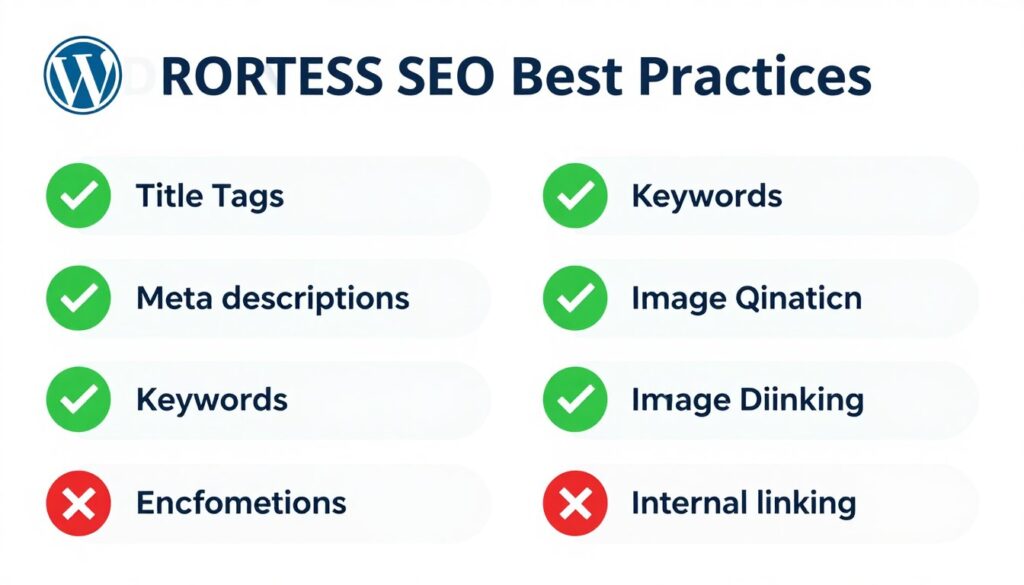
Install a WordPress SEO plugin for advanced optimization. Yoast SEO and Rank Math provide comprehensive tools. These plugins analyze content and suggest improvements.
Technical SEO Implementation
Technical SEO ensures search engines can crawl and index your content. WordPress handles many technical aspects automatically. Additional configuration improves technical foundations.
Submit XML sitemaps to Google Search Console and Bing Webmaster Tools. Most SEO plugins generate sitemaps automatically. Update sitemaps when adding significant new content.
Implement schema markup to enhance search result displays. Schema provides structured data about your content. Rich snippets improve click-through rates from search results.
Indexing Optimization
- Submit XML sitemap to search engines
- Configure robots.txt file
- Fix crawl errors in Search Console
- Implement canonical URLs
- Prevent duplicate content issues
Mobile SEO
- Use responsive WordPress themes
- Optimize for Core Web Vitals
- Test mobile usability regularly
- Implement AMP if appropriate
- Optimize touch targets for mobile
Content SEO Strategies
Quality content attracts both visitors and search engines. WordPress content management facilitates SEO-friendly publishing. Follow content best practices consistently.
Research keywords before creating content. Use tools like Google Keyword Planner or SEMrush. Target keywords with reasonable search volume and competition.
Write comprehensive content that thoroughly covers topics. Search engines favor detailed, authoritative content. Aim for 1,500+ words for competitive keywords.
Update existing content regularly to maintain relevance. Fresh content signals activity to search engines. Refresh outdated information and expand popular posts.
WordPress Maintenance: Keeping Your Site Healthy
Regular WordPress maintenance prevents problems before they occur. Proactive care keeps sites secure, fast, and functional. Establish a consistent maintenance schedule.
Weekly Maintenance Tasks
Perform these tasks weekly to maintain site health. Quick checks catch issues early. Weekly maintenance requires 15-30 minutes.
- Check for WordPress, theme, and plugin updates
- Review recent comments for spam
- Test critical functionality and forms
- Check site speed with testing tools
- Review security logs for suspicious activity
- Verify backup completion successfully
Monthly Maintenance Checklist
Monthly maintenance addresses less frequent needs. These tasks maintain long-term site health. Schedule monthly maintenance on a consistent date.

- Perform complete site backup
- Test backup restoration on staging site
- Optimize database tables
- Remove unused plugins and themes
- Review and update SEO optimization
- Analyze site traffic and performance
- Check for broken links
- Update user roles and permissions
- Review site security measures
- Clean up media library
Quarterly Security Audits
Comprehensive security audits identify vulnerabilities. Quarterly reviews ensure continued protection. Schedule audits at the beginning of each quarter.
Run full malware scans using security plugins. Review file integrity reports for unauthorized changes. Audit user accounts and remove inactive users.
Update all passwords including hosting, database, and admin accounts. Use strong, unique passwords for each service. Enable two-factor authentication where available.
Backup Strategy
Reliable backups protect against data loss. Multiple backup copies provide redundancy. Store backups in different locations for maximum safety.
3-2-1 Backup Rule
Maintain three copies of your data. Store backups on two different media types. Keep one backup copy offsite. This strategy protects against multiple failure scenarios.
Automate backups using WordPress plugins or hosting tools. Schedule daily backups for active sites. Weekly backups suffice for static or infrequently updated sites.
Test backup restoration regularly. Verify backups actually work when needed. Restoration testing identifies corrupt or incomplete backups.
Taking Your WordPress Journey Forward
WordPress empowers anyone to create professional websites. This comprehensive guide covered essential WordPress concepts and techniques. You now possess knowledge spanning installation through advanced optimization.

WordPress continues evolving with new features and capabilities. The block editor transforms content creation. Full Site Editing brings unprecedented design flexibility. Staying current with WordPress developments enhances your skills.
The WordPress community offers extensive support resources. Forums, documentation, and tutorials provide ongoing education. Connect with other WordPress users through local meetups and WordCamps.
Start implementing the techniques covered in this guide. Begin with fundamental security and performance optimizations. Gradually incorporate advanced features as your confidence grows.
WordPress success requires ongoing learning and maintenance. Dedicate time to regular site care. Your investment in WordPress knowledge pays dividends through improved site performance.
Remember that WordPress flexibility accommodates countless use cases. Experiment with different themes, plugins, and configurations. Discover what works best for your specific needs and goals.
Continue Your WordPress Mastery
Join our WordPress Mastery Resource Hub for ongoing education and support. Get access to video tutorials, downloadable templates, expert Q&A sessions, and a community of 50,000+ WordPress users. Start your 14-day free trial today.
Your WordPress website represents your online presence. Invest time in building and maintaining it properly. Follow the guidance in this comprehensive master guide. Your efforts create a secure, fast, and effective WordPress site that achieves your objectives.